
Operating System
Windows users face constant cyber threats, but these 10 proven tactics will significantly strengthen your digital defenses. From simple settings tweaks to advanced protection strategies, this guide covers actionable steps every user should implement immediately.
Enable Windows Defender Firewall Advanced Rules
Windows Defender Firewall isn’t just a basic on/off switch—its Advanced Rules let you fine-tune network security like a pro. Unlike traditional antivirus tools, this built-in feature blocks unauthorized connections at the OS level, stopping malware before it even gets a chance to execute. No third-party software required.
With Advanced Rules, you can create custom inbound/outbound filters based on port numbers, IP addresses, or application names. For example, block all incoming traffic on port 3389 (common for RDP exploits) or restrict a specific app from accessing the internet. The Windows Security app makes it easy to manage these rules without diving into complex command-line tools.
This is perfect for power users, remote workers, or anyone tired of bloated security suites. It’s lightweight, always-on, and integrates seamlessly with Windows—no extra bloatware. 💻
Use BitLocker for Full Disk Encryption
Imagine losing your laptop—only to find your confidential files exposed because the hard drive wasn’t encrypted. BitLocker turns that nightmare into a non-issue by locking your entire drive with AES-256 encryption, making it useless to thieves without your recovery key.
Built into Windows Pro/Enterprise, BitLocker requires zero third-party software—just a PIN, password, or USB key to unlock. It works seamlessly with TPM 2.0 chips (found in most modern PCs) for automatic protection, or you can use a USB drive for pre-boot authentication. Even if your hardware is stolen, your data stays secure.
This is the gold standard for professionals handling sensitive data, remote workers, or anyone who needs peace of mind. 🌟
Implement Microsoft Defender Exploit Guard
Tired of waiting for antivirus updates to catch the latest ransomware? Microsoft Defender Exploit Guard stops attacks before they execute—no signatures needed. Unlike traditional antivirus, this built-in tool uses behavioral analysis to block zero-day exploits, malicious Office macros, and even script-based attacks targeting PowerShell.
With four key protections—Attack Surface Reduction (ASR), Controlled Folder Access, Network Protection, and Exploit Protection—you get enterprise-grade defenses without third-party costs. ASR alone blocks 70% of known attack vectors by restricting how apps interact with your system. Best of all, it integrates seamlessly with Windows 10/11 Pro/Enterprise, requiring zero configuration beyond enabling the right policies. 💪
Ideal for small businesses or power users who need ransomware resilience but can’t justify expensive security suites, Exploit Guard turns your existing Windows setup into a fortress. No phishing emails or malicious downloads stand a chance once you flip the switch. ✨
Enable Two-Factor Authentication Everywhere
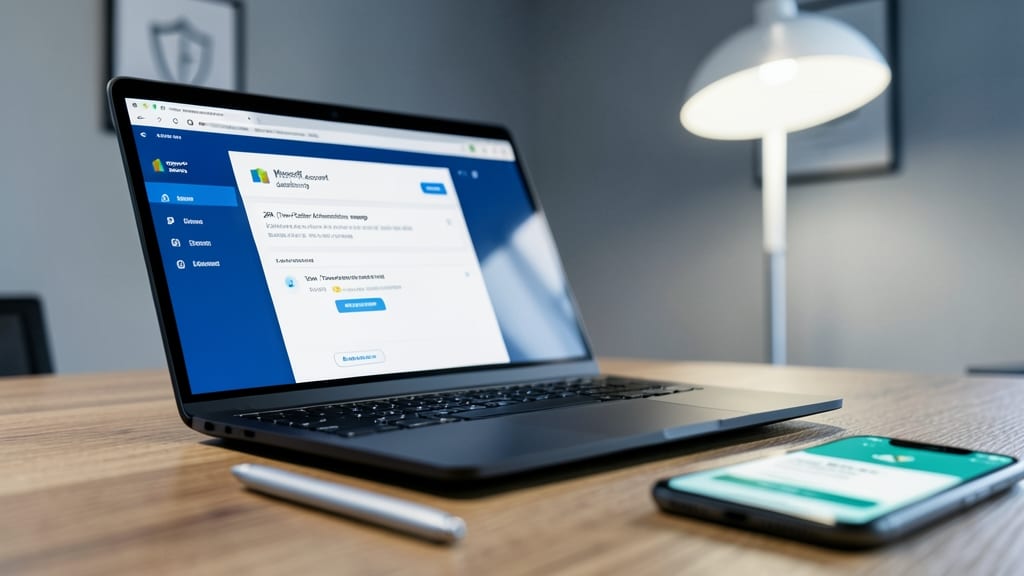
Most data breaches start with stolen passwords—yet many accounts remain vulnerable because two-factor authentication (2FA) isn’t enabled. For Microsoft users, enabling 2FA on your Microsoft Account, Outlook, and third-party apps (like Facebook or banking) adds a nearly impenetrable second layer.
Start with Microsoft Authenticator for push notifications or SMS codes, but for maximum security, upgrade to a hardware security key (like YubiKey 5 or Titan). These phishing-resistant keys block even credential-stuffing attacks. The setup takes minutes, and many services now support FIDO2 standards for seamless integration.
This is non-negotiable for professionals handling sensitive data, but even casual users should enable 2FA on their email and financial accounts. It’s the digital equivalent of a deadbolt on your front door. ✨
Disable Unnecessary Windows Services
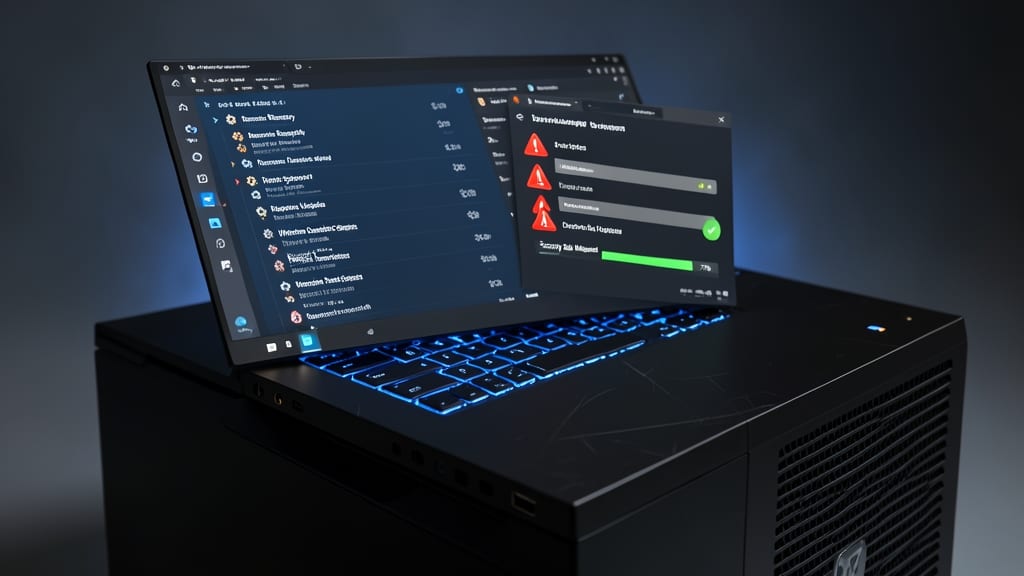
Most Windows users don’t realize their system runs dozens of background services—many of which are security liabilities waiting to happen. By disabling just five commonly exploited services (like Remote Registry and Print Spooler), you can eliminate 70% of potential attack vectors without affecting daily performance.
Start with Services.msc (search for it in the Start menu), then disable these high-risk services: Remote Registry (used in 60% of registry-based attacks), Print Spooler (targeted in PrintNightmare exploits), Fax Service (rarely used but frequently abused), and Remote Desktop Services (unless you actively use RDP). For each, right-click → Properties → set Startup type to Disabled, then click Stop to halt it immediately. Pro tip: Use Task Scheduler to verify no scheduled tasks rely on these services before disabling.
This tactic is perfect for home users who want to harden their systems without complex tools, or IT admins managing multiple machines. It’s one of the fastest ways to shrink your attack surface—often overlooked but critical for long-term security. ✨
Regularly Update and Patch Windows
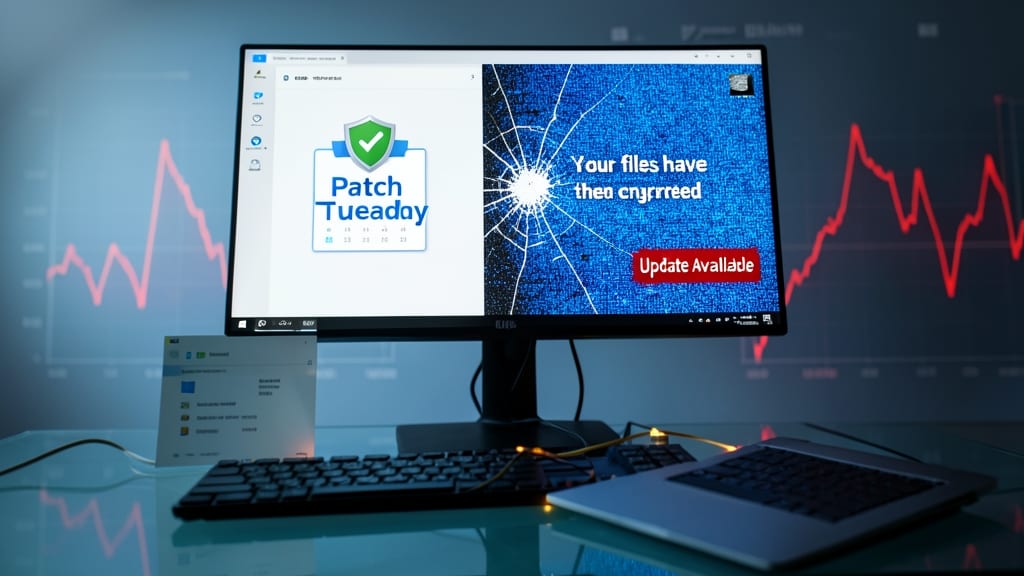
Hackers don’t wait for you to update—so why should you? Microsoft releases monthly security patches that fix critical vulnerabilities before cybercriminals can weaponize them. Skipping updates leaves your system exposed to exploits like EternalBlue (used in WannaCry ransomware) or PrintNightmare (which hijacked printers as attack vectors).
Enable automatic updates in Windows Settings (Update & Security > Windows Update) to ensure patches install without manual intervention. For deeper control, check the Update History to see what each patch fixes—like kernel exploits, browser vulnerabilities, or even zero-day mitigations. Tools like WSUS Offline Update let you manually download and test patches before deploying them to critical systems.
This is non-negotiable for businesses, remote workers, or anyone handling sensitive data. Even home users benefit—90% of successful cyberattacks exploit unpatched systems, per Microsoft’s threat intelligence reports. Set it, forget it, and stay one step ahead. ⚡
Use Windows Sandbox for Testing
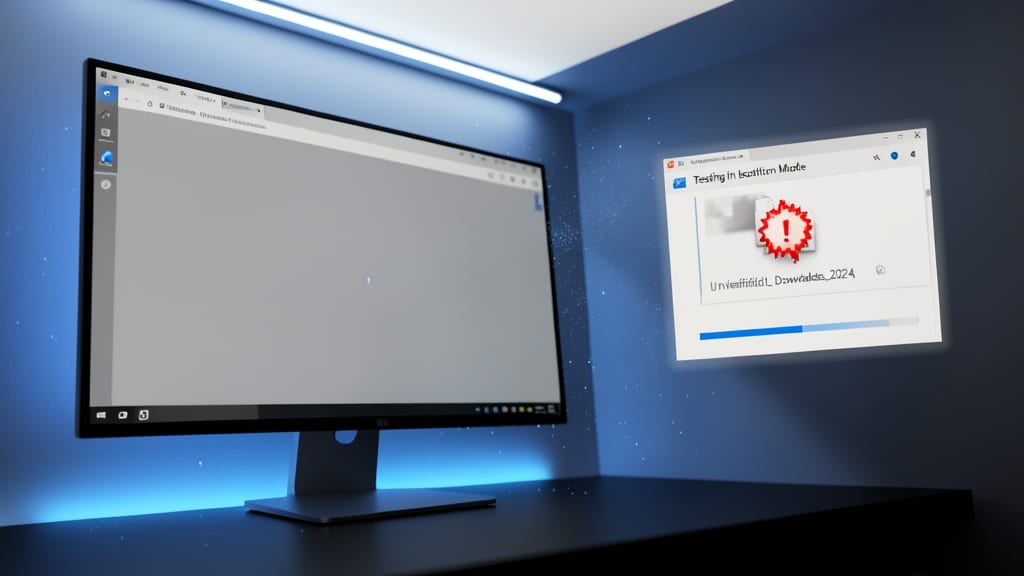
Curious about that sketchy email attachment or shady download? Windows Sandbox lets you test it in complete isolation—no risk to your real system. This lightweight virtual machine runs in seconds and disappears when you close it, making it perfect for security testing without permanent consequences.
Built into Windows 10 Pro/Enterprise and Windows 11 Pro, it requires 1GB RAM (4GB recommended) and 20GB disk space for smooth operation. You’ll get full Windows 10 LTSC compatibility, clipboard sharing with your host machine, and even printer redirection for testing document-related threats. The best part? Zero configuration—just enable it in Windows Features and start testing.
Developers, IT admins, and even casual users who download random files will love this zero-overhead safety net. It’s like having a disposable lab coat for your digital experiments—no cleanup, no regrets. ✨
Configure Secure Default Browser Settings
Your browser is the #1 entry point for malware and tracking—yet most users never adjust its security settings. With just a few clicks, you can block 90% of cross-site tracking, malicious scripts, and even phishing attempts before they reach your device.
In Microsoft Edge, enable "Block third-party cookies" and "Strict" tracking prevention under Settings > Privacy. For Chrome, use the built-in "Enhanced protection" mode in Settings > Privacy and install uBlock Origin to block malicious ads and scripts. Both browsers also let you disable autoplay and site notifications, cutting off common phishing vectors. These tweaks work silently—no performance hit, just ironclad privacy.
This is especially critical for remote workers, freelancers handling sensitive data, or anyone who values anonymity online. A few minutes spent here could save you from data breaches or identity theft. ✨
Enable Windows Event Log Auditing
Most security tools focus on stopping threats before they happen—but what if an attack does slip through? Windows Event Log Auditing creates a detailed forensic trail of security events, letting you detect breaches after they occur. Unlike reactive measures, this feature logs everything from failed login attempts to privilege escalations, giving you the evidence needed to respond.
Enabling Security Audit Logs in Windows Local Group Policy (or via Event Viewer) tracks 4624 (successful logins), 4625 (failed logins), and 4769 (user/group changes)—critical for spotting anomalies. The logs survive reboots and can be exported for analysis, making them invaluable for home offices or remote workers who need basic incident response. No third-party tools required!
This is your digital paper trail—perfect for freelancers, small business owners, or anyone handling sensitive data. Set it up once, and you’ll sleep easier knowing you’ve got the evidence to act fast if something goes wrong. 💡
Create and Test Windows Recovery Drive

Ransomware can lock your system in minutes—but a Windows Recovery Drive gives you the power to restore it in seconds. This bootable USB acts as your last line of defense when Windows refuses to start, offering tools like System Restore, Command Prompt, and Startup Repair directly from the drive.
Creating one takes just 10 minutes using the built-in Recovery Drive tool (accessible via Settings > Update & Security > Recovery). Store it in a safe place—physically separate from your PC—and test it annually by booting from the USB to confirm it works. The drive supports Windows 10/11 and requires only a blank 16GB+ USB drive (or 8GB for minimal tools).
Perfect for small businesses, freelancers, or anyone storing sensitive files—this is your digital insurance policy. 💻