
Tip & Trick
Microsoft SharePoint can feel overwhelming for beginners, but these eight essential tips will help you navigate its powerful features like a pro—boosting productivity without the steep learning curve.
Master SharePoint Homepage Customization
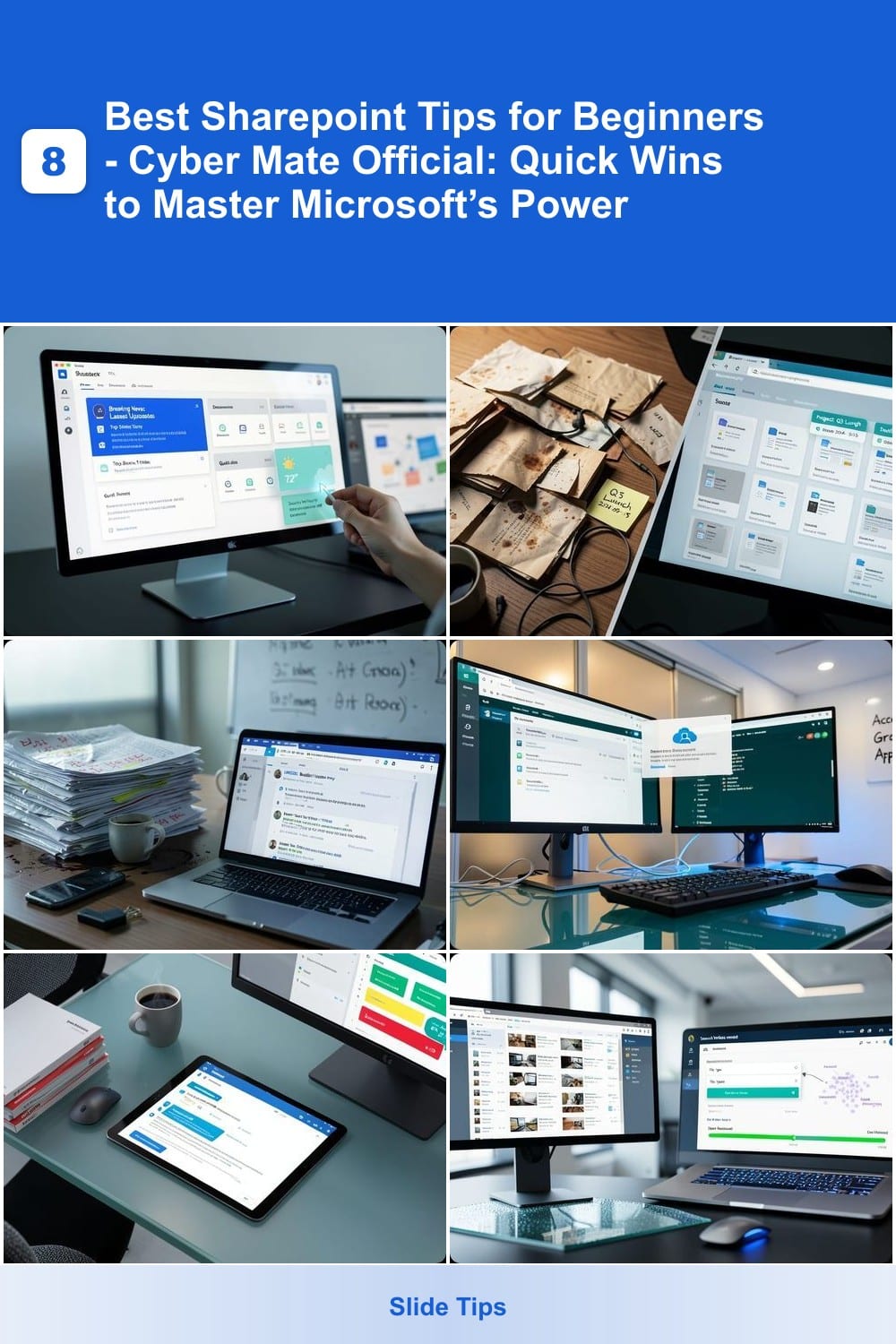
Frustrated with SharePoint’s default homepage cluttering your workflow? A customized dashboard can turn chaos into a one-click command center—no IT skills required. The key lies in web parts, modular blocks that let you drag and drop elements like news feeds, quick links, or even weather updates (yes, really) onto your homepage.
Start by editing your homepage in SharePoint Online—click the gear icon, then "Edit Page." Add the News web part to highlight recent updates, the Quick Launch for direct links to your most-used sites, and the Document Library preview to access files instantly. Pro tip: Use the Search Box web part to embed a site-specific search, cutting navigation time by 50%. For teams, the People web part keeps contact info visible without switching tabs.
This is your personal productivity hack for managers, freelancers, or anyone tired of digging through menus. Spend less time searching and more time working—your future self will thank you. ⚡
Use Document Libraries Efficiently

Struggling to find files buried in a chaotic mess of folders? SharePoint’s Document Libraries transform disorganized chaos into a structured, searchable hub—if you use the right tools. Unlike generic file storage, SharePoint lets you tag documents with custom metadata (like project names, deadlines, or departments) so you can filter results instantly.
Enable versioning to track changes without losing previous drafts, and use folder hierarchies to mirror your team’s workflow (e.g., divide by client, department, or project phase). For teams, co-authoring lets multiple users edit the same document simultaneously—no more emailing revised versions back and forth. The best part? These features require zero third-party tools—just built-in SharePoint settings.
This is your secret weapon for marketing teams, legal departments, or any group drowning in unstructured files. Spend less time searching and more time collaborating—your future self will thank you. 💻
Leverage SharePoint Lists for Task Management

Tired of juggling Excel spreadsheets that get lost in email chains or overwhelm your inbox? SharePoint Lists offer a real-time, collaborative alternative that syncs across devices and updates instantly for your entire team.
With zero coding required, you can create customizable lists for tasks, deadlines, or inventory—complete with Kanban views, calendar integration, and automated reminders. Need to track project milestones? Add a status column with color-coded labels (e.g., "Not Started," "In Progress," "Completed"). Want to avoid version chaos? Enable versioning to roll back to previous entries effortlessly.
This is your go-to solution for small teams, freelancers, or solo users managing multiple projects. Ditch the spreadsheet chaos and embrace dynamic, shareable lists that grow with your needs. ✨
Simplify File Sharing with External Users
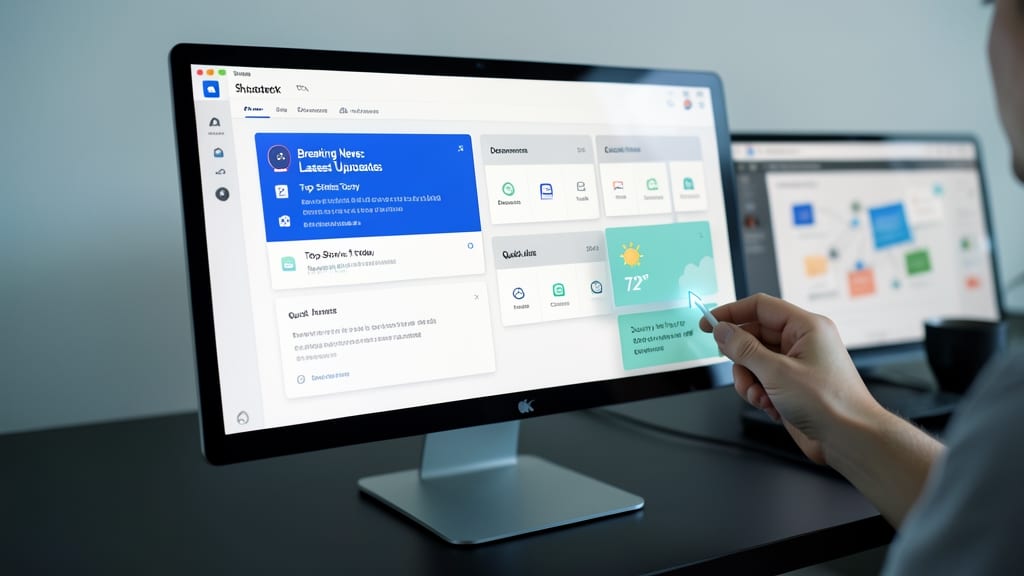
Sharing files with clients or collaborators outside your organization doesn’t have to mean compromising security. SharePoint’s external sharing feature lets you grant access with granular permissions, ensuring only approved users can view or edit files—without exposing your entire site structure.
You can send time-limited links (expire after 7, 30, or 90 days) or set view-only access to protect sensitive data. For teams, shared folders let external users browse and download files while keeping them isolated from internal content. The best part? No complex IT setup—just a few clicks in the Share button menu. ⚡
Freelancers, remote teams, and agencies will love this for client projects, while compliance-focused businesses can rest easy knowing data stays protected. Perfect for anyone who’s tired of emailing files or using less secure third-party tools. 💻
Automate Workflows with Power Automate
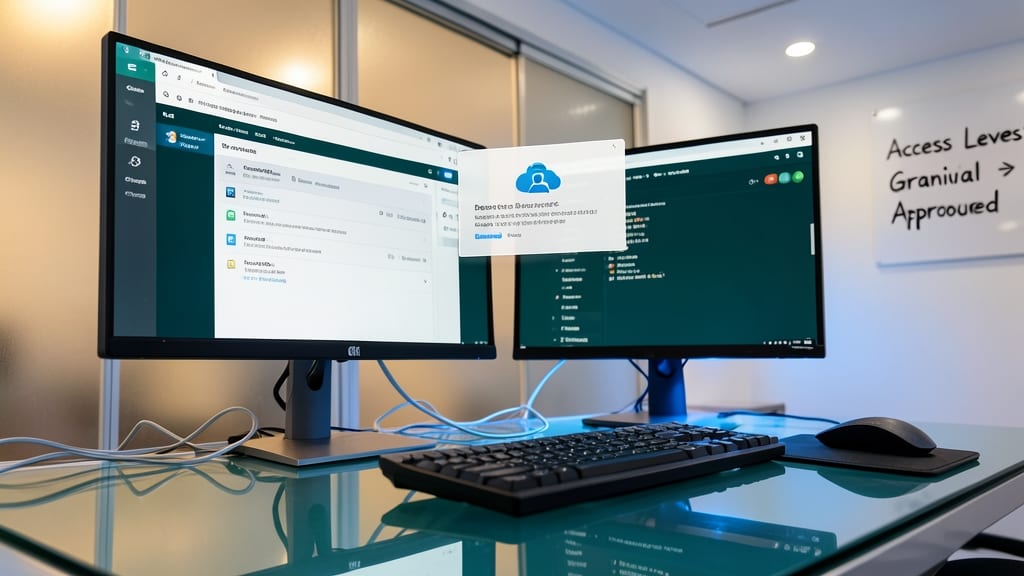
Tired of manually chasing down approvals or routing files between teams? Power Automate lets you automate repetitive tasks in SharePoint with simple drag-and-drop workflows—no coding required.
Start with pre-built templates like "Get file approval" or "Send email notifications," then customize triggers (e.g., when a file is uploaded) and actions (e.g., move to a folder or notify a manager). The integration with SharePoint lists and libraries ensures your automations stay synced with your existing workflows, while the visual flow designer makes it easy to tweak logic on the fly.
Perfect for admins managing approvals, project managers tracking deadlines, or teams drowning in manual email chains. Try automating one task this week—your future self will thank you. ⚡
Optimize Search Functionality for Faster Access

Tired of wasting minutes scrolling through irrelevant search results in SharePoint? The Search Experience feature lets you refine queries with filters like file type, date modified, or metadata tags—cutting search time by up to 70% for large repositories.
Start by enabling Search Verticals in SharePoint Admin to prioritize specific content types (e.g., contracts or project plans). Use synonyms in the Search Schema to ensure terms like "meeting notes" and "minutes" pull the same results. For advanced users, KQL (Keyword Query Language) unlocks precise queries like contentclass:STS_ListItem AND status:Approved.
This tip is a game-changer for legal teams, project managers, or HR departments drowning in unstructured data. With a few clicks, you’ll turn SharePoint’s search from a frustration into a productivity powerhouse. ✨
Enable Mobile Access for On-the-Go Productivity

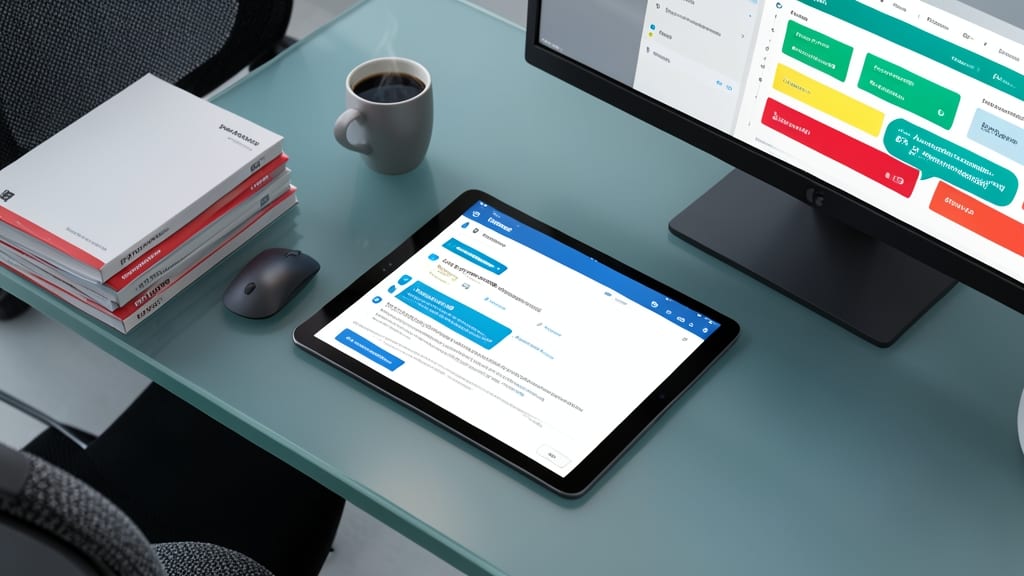
Field workers and remote employees no longer need to be chained to their desks—SharePoint’s mobile app brings your files, tasks, and updates straight to your phone. Whether you’re in the field, on a train, or working from a café, real-time access ensures you’re never out of sync.
The app syncs seamlessly with SharePoint Online, letting you view, edit, and upload documents directly from your device. Offline mode lets you work without internet, with changes syncing automatically when you reconnect. Plus, the task list integration keeps deadlines visible at a glance, so nothing slips through the cracks.
Perfect for sales teams, contractors, or anyone who needs to stay productive while on the move. With zero setup required beyond the app download, it’s one of the easiest ways to supercharge your workflow. 💻
Secure Your Data with Permissions Best Practices

One misclick could expose sensitive company data—SharePoint’s permission settings are your first line of defense. Unlike simple file-sharing tools, SharePoint lets you control access down to the individual file or folder level, ensuring only authorized users can view or edit critical documents.
Start by breaking inheritance on sensitive libraries to customize permissions. Use SharePoint groups (like "Finance Team" or "HR Only") instead of individual accounts for easier management. Enable audit logs to track who accessed what and when, and set expiration dates for external user access to limit exposure. For compliance-heavy industries, combine these with Microsoft Purview for advanced data loss prevention.
This is non-negotiable for HR, legal, or finance teams handling confidential data. Even casual users should adopt these habits to avoid accidental leaks—because a single over-permissive folder could compromise years of work. 💪