
Software
Microsoft Teams isn’t just for professionals—students can leverage its powerful features to streamline group projects, improve communication, and enhance productivity. These 10 benefits show how Teams transforms collaboration and learning efficiency for academic success.
Seamless Group Project Collaboration Tools
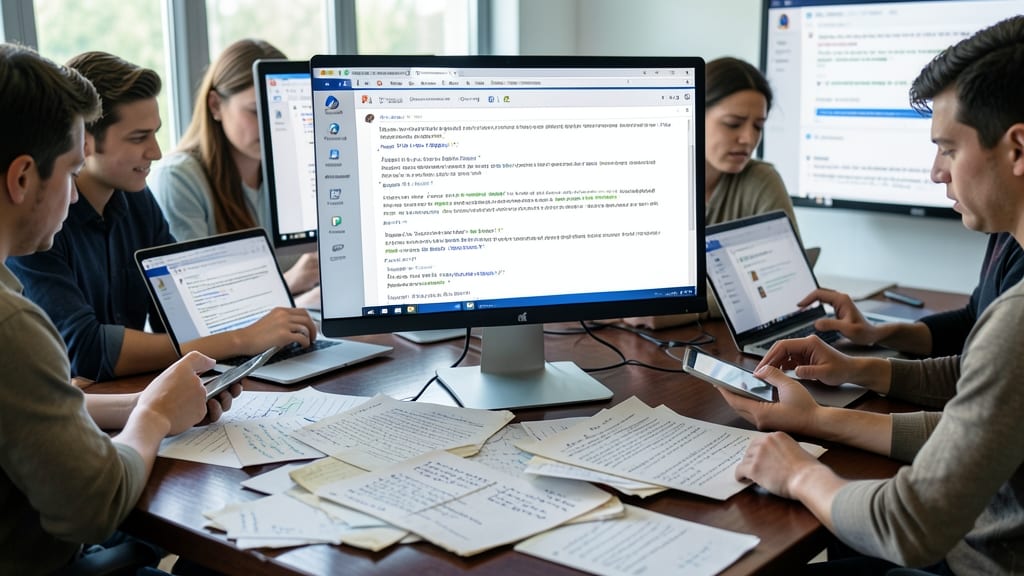
Tired of the "final draft" email chaos where everyone’s version of the group project differs? Microsoft Teams’ real-time co-authoring feature lets you and your teammates edit Word documents, Excel spreadsheets, and PowerPoint presentations simultaneously—no more "I saved over yours by accident" disasters.
The magic happens with live cursors showing who’s editing what, comment threads for feedback, and version history to revert to earlier saves if needed. Need to brainstorm a thesis outline? Type in real time while your team adds ideas—no more back-and-forth emails. It works seamlessly with Microsoft 365 apps, so your work stays synced across devices and platforms.
Perfect for remote study groups, thesis committees, or lab teams—this feature turns chaotic group work into a smooth, version-controlled workflow that actually feels collaborative. 💡
Integrated Classroom Discussion Channels

Tired of digging through endless group chats to find that one important discussion about your history paper deadline? Microsoft Teams’ dedicated classroom channels solve that problem by organizing conversations by topic—no more lost threads or missed updates.
Each channel acts like a digital bulletin board for your course, where you can pin announcements, tag team members, and attach relevant files—all in one searchable space. The threaded replies keep discussions tidy, while the search function lets you revisit past conversations in seconds. Need to reference last week’s debate on climate change policies? Just type a keyword and find it instantly.
Perfect for online courses, research groups, or study clubs, this feature turns chaotic group chats into a structured learning hub where every discussion stays useful long after the conversation ends. 💡
Virtual Study Group Meetings

Forget cramming alone in the library—Microsoft Teams turns study sessions into interactive group marathons. The breakout rooms feature lets you split into smaller groups for focused discussions, while screen sharing lets tutors walk through problems in real time, just like in-person tutoring.
Need to practice a language? Use the shared whiteboard to write phrases together or quiz each other with live polls. The 4K video support ensures clear visuals, and background blur keeps distractions minimal. Plus, recording sessions means you can replay key moments later.
Perfect for language exchange groups, exam prep squads, or research teams, this tool makes virtual study sessions feel almost as good as meeting in person. 💻
Assignment Tracking with Planner Integration

Ever stared at a looming project deadline with your to-do list feeling like a tangled mess? Microsoft Teams’ Planner integration turns chaos into clarity by letting you visualize assignments as interactive boards—no more guessing if you’re on track.
With drag-and-drop task boards, you can break projects into milestones, assign team members, and set deadlines that sync with your calendar. The color-coded progress bars show completion status at a glance, while recurring tasks handle weekly assignments like lab reports or discussion posts automatically. Best of all, it’s built right into Teams—no extra apps to juggle.
Perfect for group projects or solo research papers, this feature is a lifesaver for students juggling multiple deadlines. Say goodbye to last-minute panic! ✨
Secure File Sharing for Research Papers
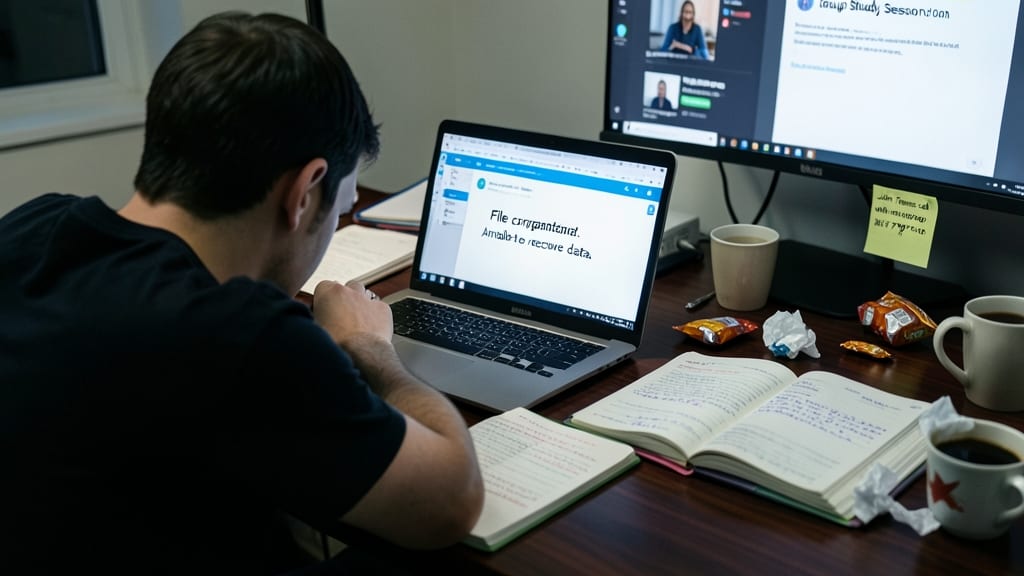
Losing months of research progress to a corrupted file or accidental deletion is every student’s nightmare. Microsoft Teams’ cloud-based file storage with version history acts as an academic safety net, automatically saving drafts and restoring lost work in seconds.
With OneDrive integration, your research papers sync across devices while maintaining a full history of edits—no more frantic "Save As" chains. Set granular permissions to restrict access to advisors or collaborators, ensuring sensitive data stays secure. The 2GB file upload limit (expandable with SharePoint) handles even large datasets or multimedia projects.
Graduate students and lab groups benefit most from this feature, but undergrads working on theses or group projects will appreciate the peace of mind. 💻
Live Polls and Quizzes for Study Groups
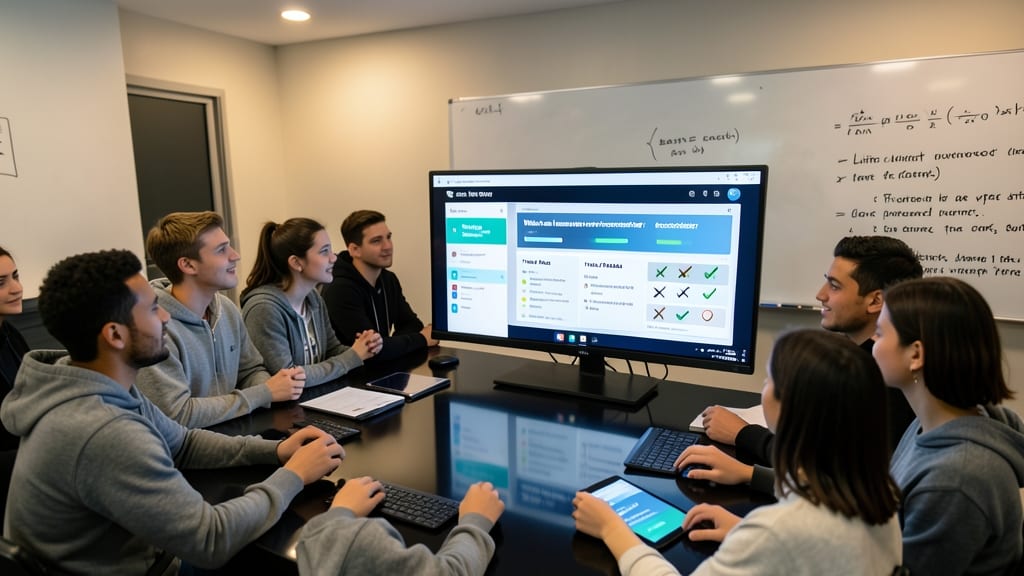
Turn passive study sessions into dynamic learning experiences with Teams' built-in live polls and quizzes. These tools let you test group comprehension in real-time, whether reviewing calculus formulas or debating literature themes, without leaving the app.
Create multiple-choice, true/false, or ranking questions that appear instantly to all participants. Results display as live graphs, revealing class-wide understanding (or gaps) in seconds. The anonymous response option encourages shy students to contribute, while follow-up discussions can dive deeper into tricky concepts.
Perfect for exam prep groups, language practice circles, or STEM teams—this feature transforms passive note-taking into an interactive challenge. 💡
Accessibility Features for All Learners
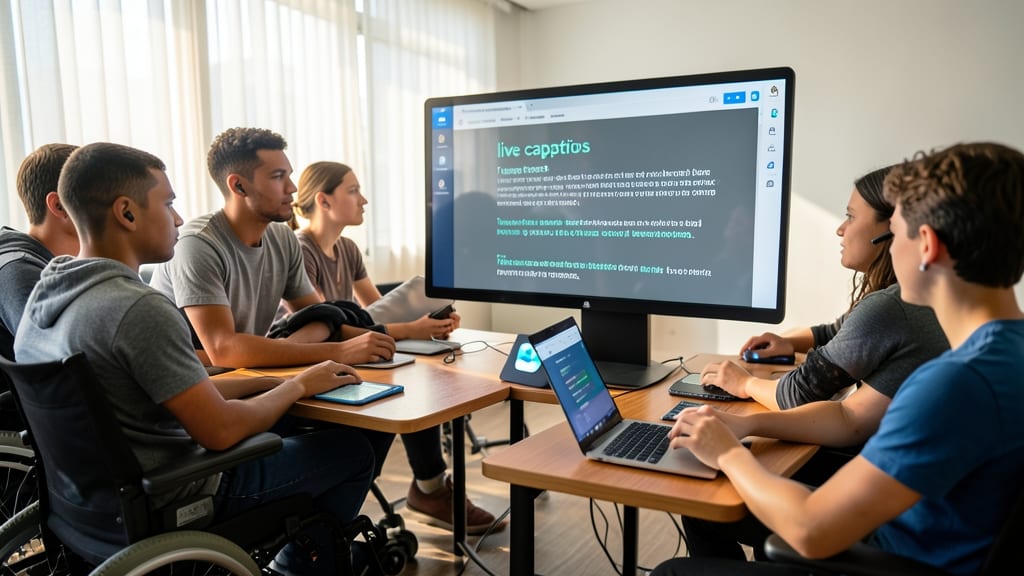
Every student deserves equal access to learning—but not all classrooms accommodate different needs. Microsoft Teams bridges that gap with built-in accessibility tools that adapt to your learning style, ensuring no one gets left behind during discussions or group work.
Turn on live captions for real-time subtitles during lectures or meetings, perfect for students who are deaf or hard of hearing. The screen reader support (compatible with JAWS and NVDA) lets visually impaired users navigate chats, files, and meetings with keyboard shortcuts. Adjust text sizes up to 200% or enable high contrast mode for better readability, while customizable themes reduce eye strain during long study sessions.
This isn’t just about compliance—it’s about creating an inclusive environment where every voice is heard. Whether you’re reviewing notes with a screen reader or following along with live captions, Teams removes barriers so you can focus on what matters most: learning. ✨
Automated Meeting Notes with AI
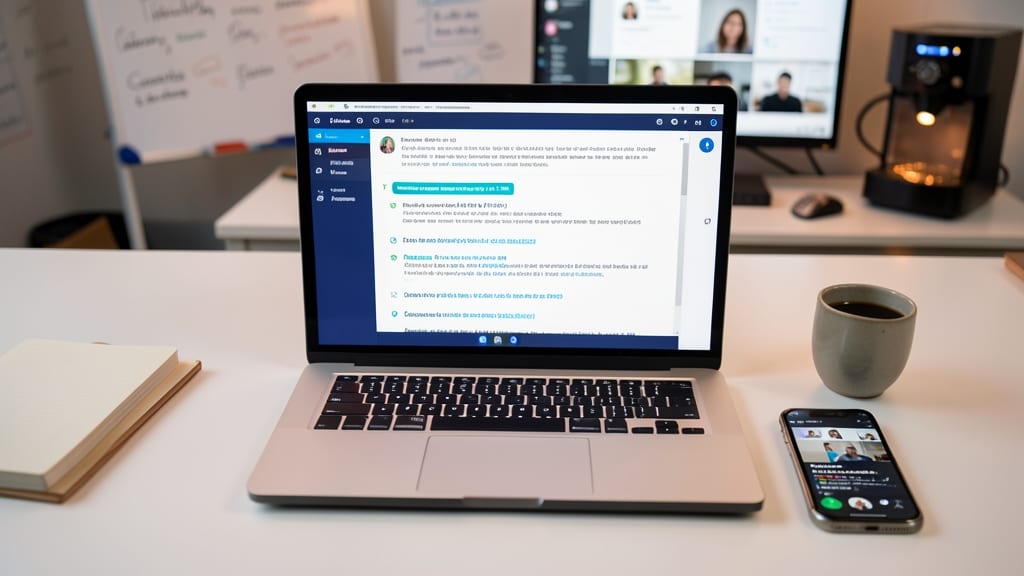
Ever spent hours reviewing meeting recordings just to find the key takeaways? Microsoft Teams’ AI-powered meeting notes eliminate that frustration by automatically transcribing discussions and highlighting action items, deadlines, and discussion topics in real time.
The feature uses Microsoft’s built-in AI to generate searchable notes with timestamps, speaker labels, and even bullet-point summaries of decisions made. No manual note-taking means you can focus on the conversation instead of scribbling frantically. For students, this is a game-changer—whether reviewing group project meetings or lecture recaps, the notes sync to your Teams chat for easy reference later.
Perfect for busy students juggling multiple classes and projects, this tool cuts review time by up to 60% while ensuring you never miss critical details. ⚡
Mobile App for On-the-Go Learning
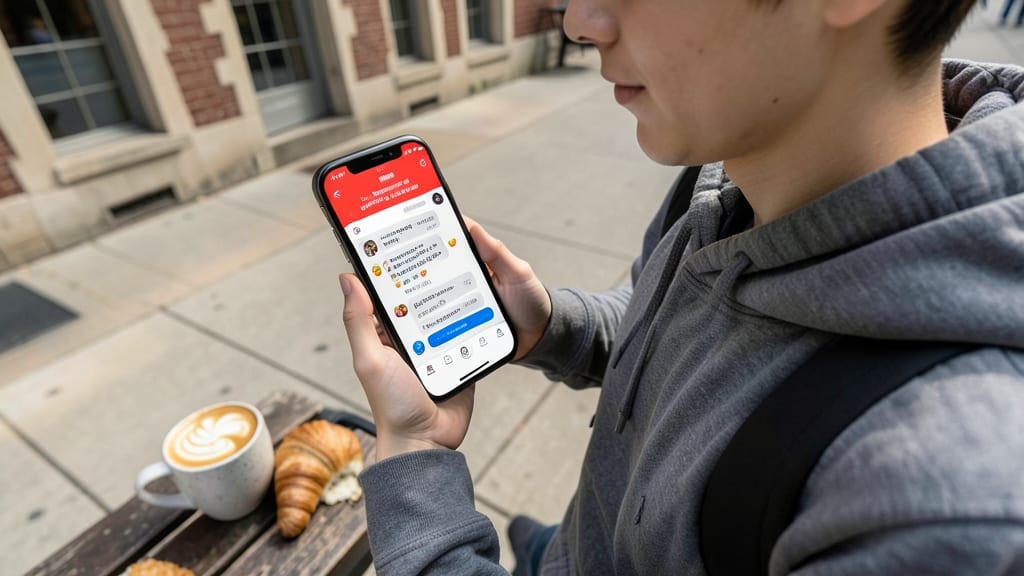
Forget being glued to your desk—Microsoft Teams’ mobile app turns your smartphone into a full-featured learning hub. Whether you’re waiting for your bus, grabbing coffee, or between classes, you can join live discussions, submit assignments, or check deadlines without missing a beat.
The app mirrors the desktop experience with real-time notifications, push-to-talk voice messages, and offline access to recent files. Push notifications ensure you never miss a reply, while the intuitive interface lets you switch between chats, assignments, and calendar events in seconds. Even file previews work on mobile, so you can review documents or spreadsheets without opening separate apps.
Best for commuter students, part-time workers, or anyone juggling multiple classes—this feature keeps you connected anywhere with Wi-Fi or mobile data. No more rushing back to your laptop! ⚡
Free Education License for Students
Why pay for productivity tools when Microsoft offers free Teams licenses to students through their school? This zero-cost access removes financial barriers, letting you focus on academics—not software subscriptions.
Through your institution’s Microsoft Education Program, you get full access to Teams’ collaboration features, including unlimited cloud storage and 24/7 technical support. No credit card required—just log in with your school email. It’s the perfect way to use Teams without worrying about hidden fees.
Perfect for undergrads, grad students, and even online learners, this benefit ensures everyone—regardless of budget—can leverage Teams’ full potential for group projects and study sessions. ✨