
Software
Excel 2013 remains a powerhouse for data analysis, and mastering its advanced formulas unlocks efficiency for professionals. These seven must-know functions will transform raw data into actionable insights with precision and speed.
Array Formulas for Complex Calculations Without Helper Columns
Struggling with multi-step calculations that require helper columns? Array formulas in Excel 2013 let you perform complex operations—like summing values that meet multiple conditions—directly in a single cell, eliminating the need for extra columns and saving hours of manual work.
Use Ctrl+Shift+Enter to enter an array formula (e.g., {=SUM(IF((A2:A100>50)*(B2:B100="Yes"),C2:C100,0))}), which multiplies conditions and sums matching rows. These formulas handle up to 65,536 rows in one go, making them ideal for financial modeling, inventory analysis, or dynamic reporting. No more copying formulas or maintaining separate columns—just enter your logic once and let Excel handle the rest.
Perfect for financial analysts, data scientists, or anyone crunching large datasets where precision and efficiency matter most. ⚡
VLOOKUP with Exact and Approximate Match Techniques
Need to pull data from messy datasets where exact matches are rare? VLOOKUP in Excel 2013 isn’t just for simple lookups—it handles partial matches and approximate searches with its flexible matching options, making it ideal for real-world database tasks.
Use exact match (FALSE) to find precise records (e.g., customer IDs) or approximate match (TRUE) for ranges (like sales tiers or grade curves). The columnindexnum parameter lets you pull specific fields without restructuring tables, while range_lookup controls whether to search sorted or unsorted data. For dynamic sources, combine VLOOKUP with INDEX-MATCH for even more flexibility.
Perfect for database integrators, analysts merging disparate datasets, or anyone working with unstructured data—where traditional lookups fall short. ⚡
Advanced Conditional Logic Using IFS and Nested IFs
Tired of juggling multiple IF statements that look like a tangled mess? Excel 2013’s IFS function lets you replace nested IF statements with a single, clean formula—no more squinting at parentheses or worrying about logical errors.
The IFS function evaluates multiple conditions in sequence and returns the first true result, saving space and improving readability. For example, instead of writing =IF(A1>90, "A", IF(A1>80, "B", IF(A1>70, "C", "F"))), you simply use =IFS(A1>90, "A", A1>80, "B", A1>70, "C", TRUE, "F"). It’s faster to write, easier to debug, and works seamlessly with Excel 2013’s logical functions.
Perfect for HR departments grading performance reviews, finance teams classifying transactions, or anyone managing multi-tiered decision workflows. ⚡
Dynamic Array Functions for Automated Data Summaries
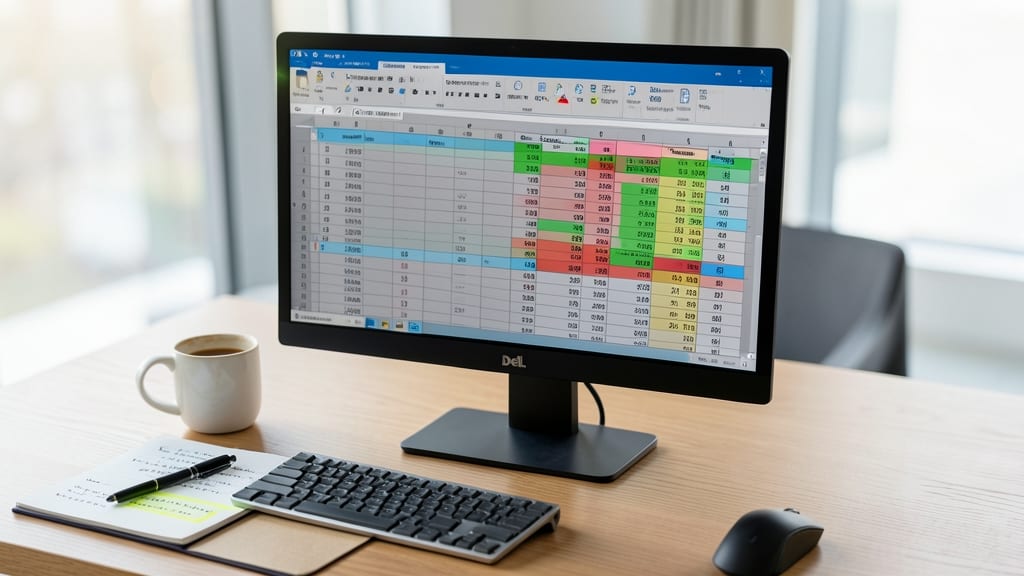
Tired of manually updating reports every time your source data changes? SUMIFS and COUNTIFS in Excel 2013 automate summaries with zero extra effort—just adjust your criteria, and the results update instantly. These functions let you filter data across multiple conditions simultaneously, making them ideal for sales dashboards, inventory tracking, or financial summaries.
With SUMIFS, you can add values based on up to 127 conditions (e.g., sum sales where region is "West" and product is "Premium" and quarter is "Q3"). COUNTIFS works the same way but counts rows instead. Both support wildcards for partial matches, so you can even summarize data like "Sales starting with 'N' in New York." The best part? No helper columns or macros—just pure, dynamic calculations.
Perfect for analysts, managers, or anyone who needs real-time reporting without the hassle of manual recalculations. Say goodbye to stale data! ⚡
Text Manipulation with LEFT, RIGHT, MID, and TRIM

Messy text data—like extra spaces, inconsistent formatting, or misaligned entries—can derail even the most polished analysis. Excel 2013’s LEFT, RIGHT, MID, and TRIM functions act as your data-cleaning Swiss Army knife, standardizing text effortlessly for reports, exports, or further processing.
Use TRIM to instantly remove leading/trailing spaces from entire columns, LEFT to extract fixed characters (e.g., ZIP codes), or MID to pull dynamic substrings (like product codes). For granular control, combine them: =LEFT(TRIM(A2),5) extracts the first 5 characters after trimming spaces. These functions work silently in the background, ensuring your data stays pristine without manual edits.
Perfect for analysts, marketers, or anyone exporting data to CRM systems—where clean text prevents errors in downstream workflows. ⚡
Error Handling with IFERROR and ISERROR Functions

Tired of spreadsheets crashing when a single cell throws an error? The IFERROR and ISERROR functions act as a safety net, letting you define fallback values or custom messages instead of letting errors derail your entire report.
Use IFERROR to replace error results (like #DIV/0! or #N/A) with a value of your choice—say, "N/A" or "Check Data." Meanwhile, ISERROR lets you test if a formula might produce an error before running it, enabling proactive error handling. Together, they’re perfect for volatile datasets or user-generated inputs where errors are inevitable.
Accountants, analysts, and anyone working with unpredictable data will appreciate how these functions keep reports clean and professional. No more hidden errors lurking in the background! ✨
Date and Time Calculations for Project Management
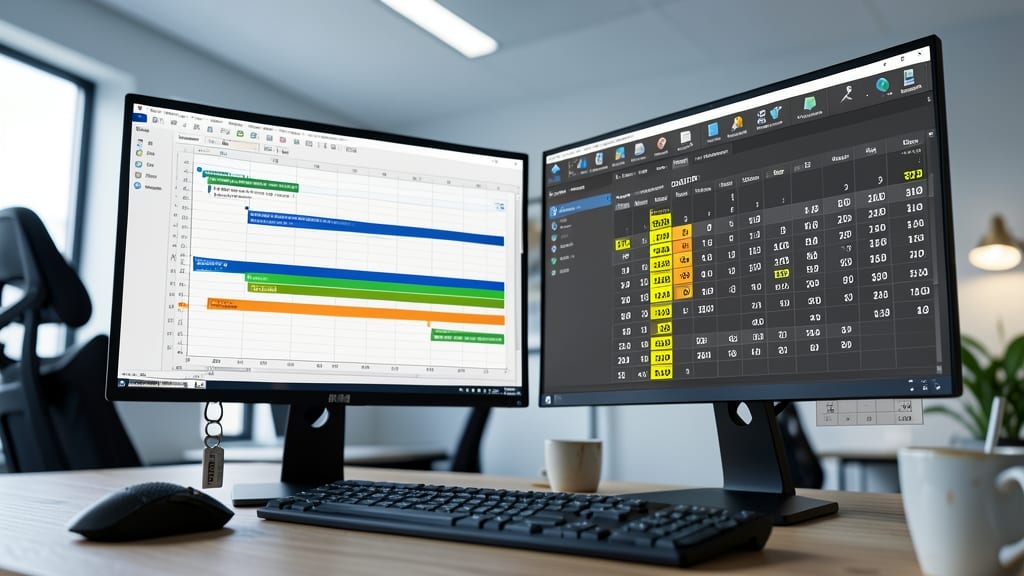
Project timelines don’t have to be a guessing game—Excel 2013’s date and time functions turn chaos into clarity. Whether you’re tracking sprints, milestones, or resource availability, these tools let you calculate durations, exclude weekends, and align deadlines with precision.
Use DATEDIF to measure project durations (e.g., =DATEDIF(startdate, enddate, "d") for days), NETWORKDAYS to account for holidays (=NETWORKDAYS(startdate, enddate, holidaysrange)), and EOMONTH to find the last day of a month (=EOMONTH(startdate, +1)). Combine them to create dynamic Gantt charts or resource allocation schedules that update automatically.
Perfect for project managers, operations teams, or freelancers juggling multiple deadlines, these functions eliminate manual counting and reduce scheduling errors. ⚡