
Tip & Trick
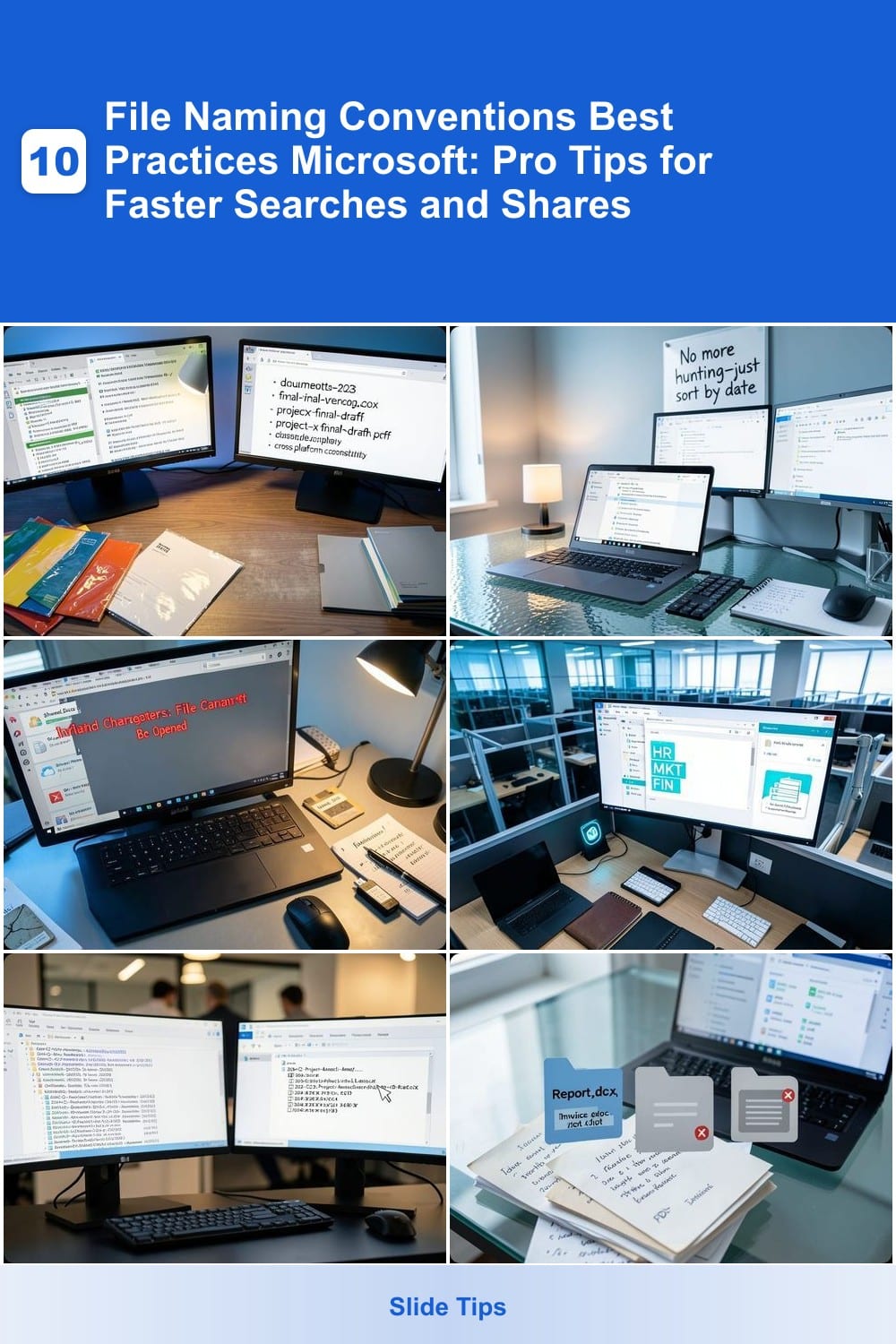
Struggling to find files in Windows Explorer or SharePoint? Microsoft’s file naming conventions can save you hours. These best practices ensure faster searches, seamless sharing, and organized chaos-free workflows—whether you're working solo or collaborating with a team.
Use Lowercase Letters and Hyphens Only
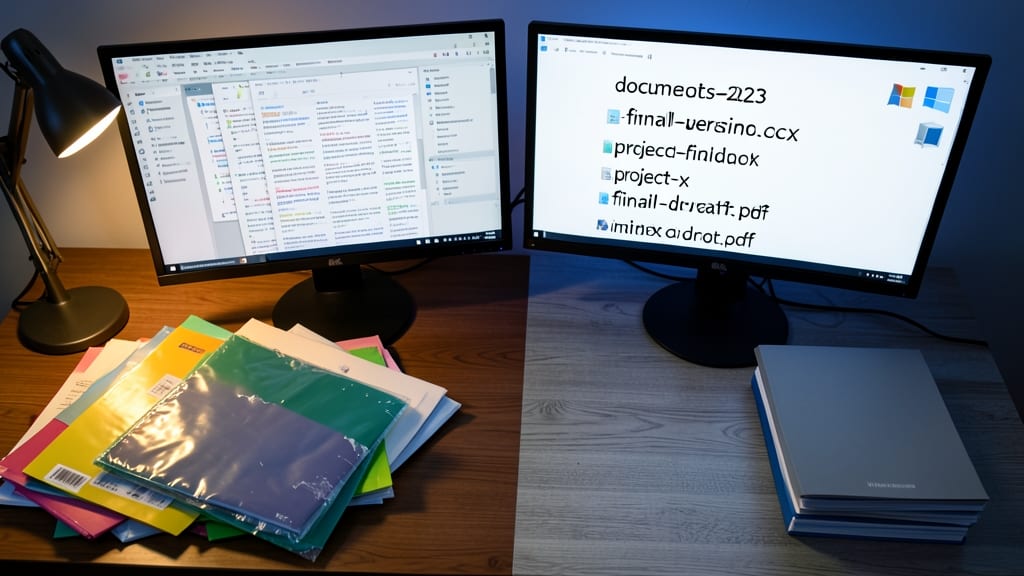
Ever wasted time hunting for files because of inconsistent naming? A simple switch to lowercase letters and hyphens solves cross-platform headaches instantly—especially when sharing with Mac users or cloud services like OneDrive or SharePoint.
Microsoft’s Windows File Explorer and macOS Finder handle hyphens seamlessly, while underscores () or spaces can cause sorting glitches. For example, "Q2-Revenue-Report-2024.xlsx" sorts correctly everywhere, unlike "Q2RevenueReport2024.xlsx", which may appear as a single word. This method also avoids special character conflicts in email attachments or legacy systems.
Teams collaborating across devices (Windows, Mac, Linux) or using Microsoft 365 will appreciate this universal fix. It’s the easiest way to future-proof your files. ✨
Include Dates in YYYY-MM-DD Format

Tired of manually sorting files or hunting through SharePoint libraries for the latest version? The YYYY-MM-DD format solves this instantly by enabling automatic chronological sorting in both Windows File Explorer and SharePoint.
Files like 2024-05-15_Project-Brief.docx will always appear in order, making version control effortless. This format also aligns with ISO 8601 standards**, ensuring compatibility across systems. No more guessing which file is newest—just sort by name and let the dates do the work.
Perfect for legal teams, compliance-heavy industries, or anyone managing project revisions. 💻
Avoid Special Characters and Spaces

Ever hit "Open" on an email attachment, only to see a cryptic error about "invalid characters"? That’s your system rejecting special characters like #, !, or /, which can corrupt files when shared via email, cloud storage, or legacy systems.
Stick to alphanumeric characters (A-Z, 0-9) and hyphens (-) for maximum compatibility. This avoids issues with Windows File Explorer, SharePoint, or even older systems that struggle with symbols. For example, use Q2-2024-Report.pdf instead of Q2!2024#Report.pdf.
This rule is a lifesaver for IT teams, remote workers, and anyone sharing files across platforms. A little prevention now saves hours of frustration later. ✨
Prefix Files with Department or Project Codes

Tired of digging through shared drives to find the right file? Adding a department or project code prefix like MKT- or FIN- instantly groups related files, making them searchable and filterable in Windows Explorer, SharePoint, or Teams.
Use a 3-letter department code (e.g., HR, MKT, FIN) followed by a hyphen, then dates or project names. This works seamlessly with Microsoft’s built-in search—just type "MKT" to pull up all marketing files. Teams with cross-department projects will love how this cuts down on misplaced files.
Perfect for companies with multiple teams or ongoing projects where files get buried in shared folders. 💻
Limit File Names to 128 Characters
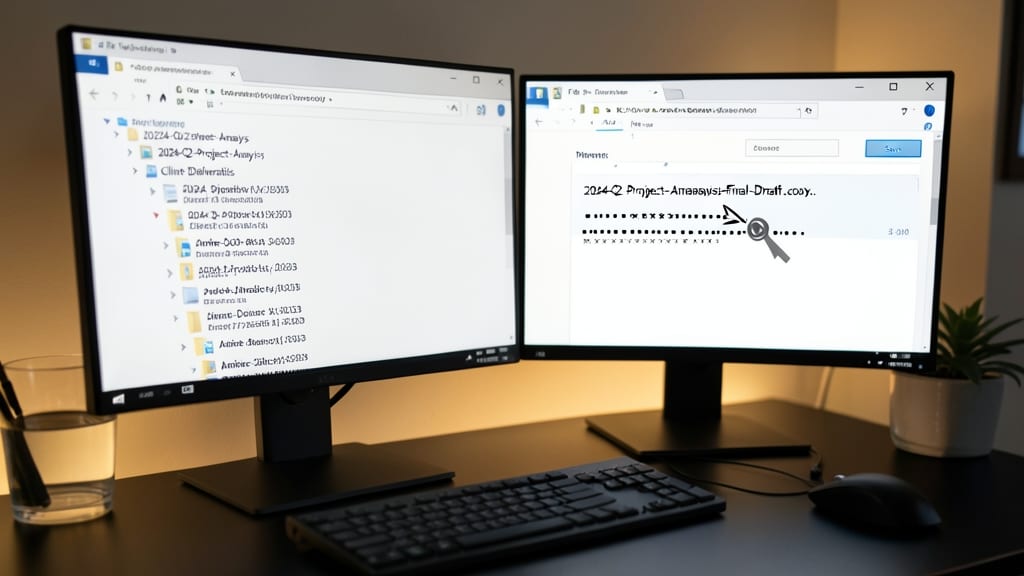
Ever hit "Save" only to see Windows silently truncate your file name, turning "2024-Q2-Project-Analysis-Final-Draft.docx" into gibberish? Microsoft’s 260-character path limit (including folders) is easy to hit—especially with deep folder structures.
Sticking to 128-character names gives you a safety buffer while leaving room for nested folders (e.g., "C:\Projects\2024-Q2\Marketing\Q2-Campaign-Analysis_v3.docx"). This avoids hidden truncation errors that corrupt file paths or break scripts. Tools like PowerShell or Bulk Rename Utility can audit existing files for violations.
Teams managing large repositories—think enterprise IT or creative agencies—benefit most from this rule. It’s the difference between a stable, shareable file structure and a frustrating mess. ✨
Use Consistent File Extensions (.docx, .xlsx, .pdf)

Ever double-clicked a file only to realize it’s the wrong type because the extension was missing? That’s a productivity killer—and it’s completely avoidable with a simple rule: always include file extensions like .docx, .xlsx, or .pdf.
Windows hides extensions by default, but keeping them visible (via Folder Options > View > "Hide extensions for known file types") ensures clarity. This prevents accidental overwrites when saving files—like saving a .pdf as a .docx—and helps teams instantly identify file types in shared drives or cloud storage.
This rule is a game-changer for collaborative teams and remote workers who rely on file sharing. No more guessing—just instant recognition. ✨
Leverage Metadata and Properties for Descriptions
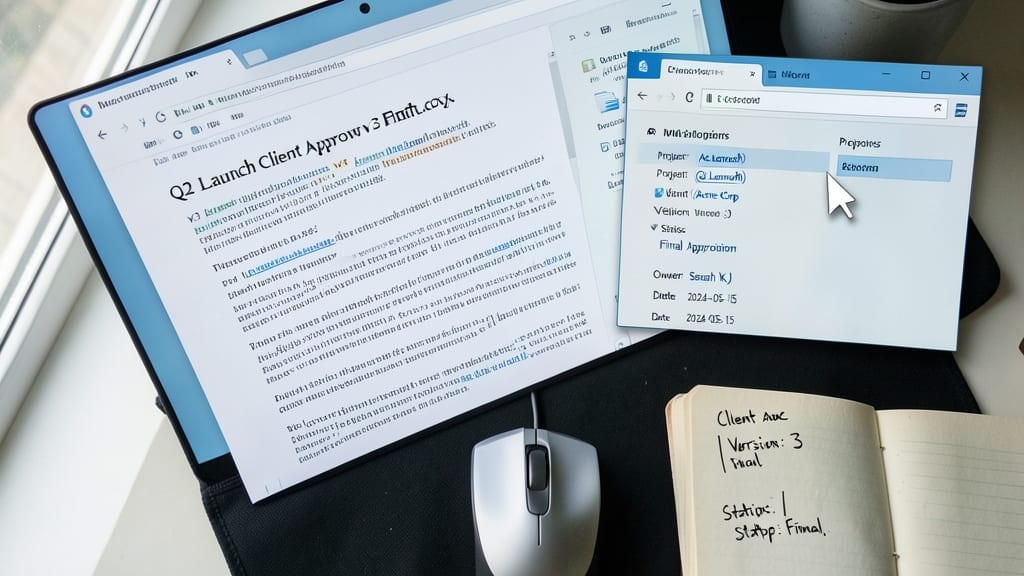
Tired of file names turning into unreadable jumbles like "Q2LaunchClientApprovalsv3FinalDraft.docx"? Microsoft’s file properties (metadata) let you store all those details without cluttering the name itself.
Right-click any file in Windows Explorer, select Properties, and fill out fields like Author, Tags, Subject, or Project. This keeps your file names clean (e.g., "Q2-Launch-Approvals.docx") while storing extra context—like "Author: Sarah K", "Tags: Marketing, Client Approval", or "Project: 2024-Q2 Campaign"—directly in the file. SharePoint and OneDrive sync this metadata automatically, so collaborators see the same details without file renaming headaches.
This is a game-changer for legal teams, marketing projects, or any workflow where files accumulate layers of context. No more guessing who created what—just hover over the file for instant clarity. ✨