
Troubleshooting

IT support teams spend countless hours resolving the same recurring issues. These 10 knowledge base articles cover the most common tech problems—from login failures to printer errors—with step-by-step solutions that save time and reduce frustration for both agents and end-users.
Windows Login Screen Freezing Solutions
Stuck staring at a frozen Windows login screen? This isn’t just an annoyance—it’s often a sign of corrupted user profiles, outdated GPU drivers, or even a failing hard drive. The good news? Most fixes don’t require rebooting into Safe Mode or advanced command-line tricks.
Start with the quick wins: Press Ctrl+Alt+Del, then Task Manager to end the Windows Logon Process (if it’s stuck). If that fails, create a new local admin account (via Command Prompt in recovery mode) to bypass the corrupted profile. For driver issues, use Windows Update to force a refresh or roll back the latest GPU driver—common culprits include NVIDIA and AMD updates breaking login sequences.
This guide is perfect for non-technical users and IT support teams who need to resolve login freezes without diving into complex diagnostics. A little prevention—like regular Windows updates and profile backups—can save hours of headaches down the road. 💻
Office 365 Email Not Sending Troubleshooting Guide
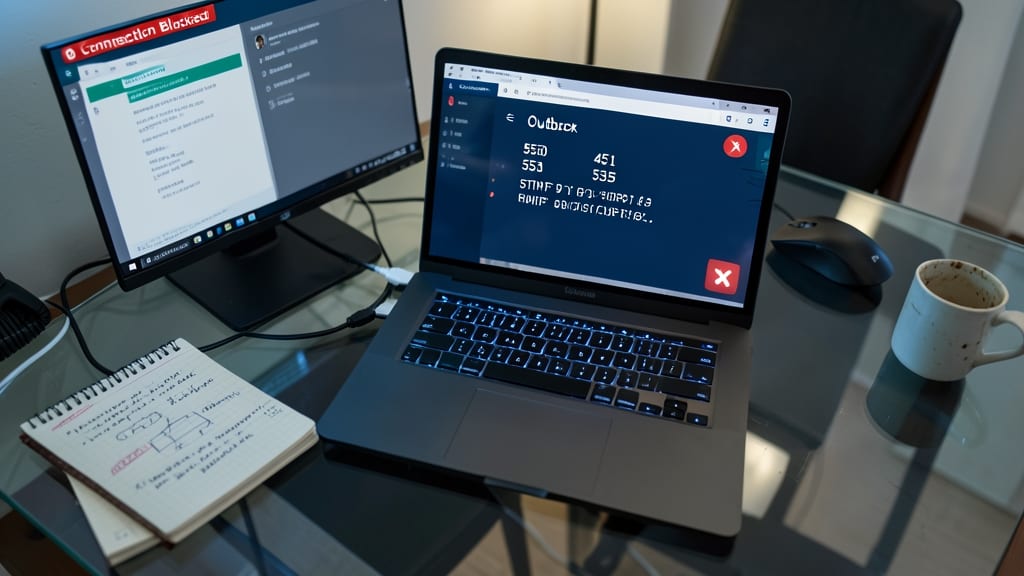
Frustrated when your Outlook emails get stuck in the "Outbox" or bounce back with errors? Remote workers know how critical smooth email communication is—especially when deadlines are tight. This tiered troubleshooting guide cuts through the noise by addressing SMTP errors (550, 451, 535), firewall blocks, and corrupted cache files with clear, actionable steps.
Start with quick fixes like clearing Outlook’s send/receive cache or checking firewall/antivirus settings—common culprits that often resolve 80% of issues. For deeper problems, dive into SMTP server configurations or reinstalling Outlook’s profile without losing emails. Advanced users can use PowerShell scripts to reset Outlook’s synchronization settings. Each solution is labeled by difficulty, so you can skip straight to the fix that matches your technical comfort level.
Perfect for remote teams relying on Outlook, this guide ensures minimal downtime. Whether you're a support agent or a self-reliant user, the structured approach means you’ll diagnose and fix email blocks faster than ever. 💻
MacBook Overheating Prevention and Fixes
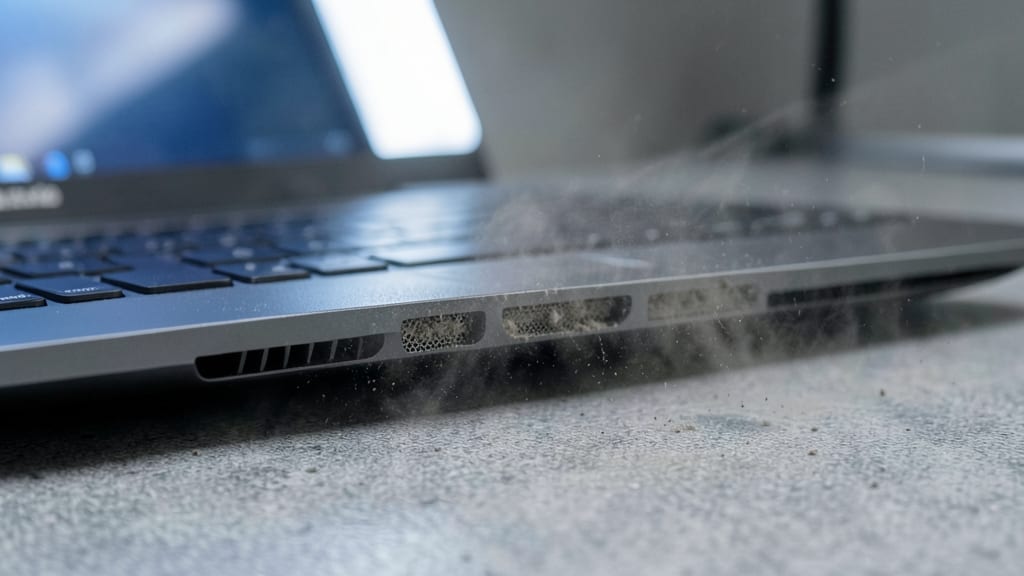
When your MacBook fans roar to life unexpectedly, it’s often a sign of thermal throttling—where Apple intentionally slows performance to prevent overheating. For Apple support teams, diagnosing the root cause (dust-clogged vents, rogue background apps, or even software conflicts) is critical to avoiding repeated service calls.
This guide breaks down immediate fixes like resetting the System Management Controller (SMC), cleaning vents with compressed air, and identifying power-hungry apps via Activity Monitor. Long-term solutions include optimizing fan control settings and ensuring macOS updates are current. A dedicated section covers enterprise-level maintenance for IT teams managing fleets of MacBooks.
Perfect for Apple support specialists and IT admins, this article ensures your team can quickly resolve overheating issues—whether it’s a single user’s laptop or an entire office fleet. ✨
Printer Connection Errors in Windows 10/11
Frustrated when your printer suddenly goes offline or refuses to connect? A step-by-step guide for Windows 10/11 users can fix Wi-Fi, USB, and driver issues—without needing IT admin rights.
Start by resetting the print spooler service (a hidden Windows service that manages print jobs). For stubborn driver conflicts, use Device Manager to reinstall or roll back drivers. If your wireless printer drops connection, check the network settings and update firmware via the manufacturer’s app—often just a few taps away.
This guide is perfect for home offices, small businesses, or remote workers who need reliable printing without IT support. No more wasted time troubleshooting—just quick fixes to get back to work. ✨
Slow Internet Speed Diagnosis for Home Users

Frustrated by slow internet but not sure if it’s your ISP, router, or something else? This guide cuts through the confusion with a three-step diagnostic flow that pinpoints the exact culprit—whether it’s ISP throttling, a router bottleneck, or device conflicts hogging bandwidth.
Start with a speed test on two devices (wired and wireless) to compare results. If speeds drop after rebooting the router, the issue is likely firmware or interference. For persistent throttling, check your ISP’s data cap status—many providers slow speeds after hitting limits. Use Task Manager’s Network tab to spot apps consuming excessive bandwidth, like updates or cloud backups.
Perfect for remote workers, gamers, or families struggling with buffering. The structured approach ensures even non-technical users can resolve 90% of speed issues without calling support. ⚡
Chrome Browser Extensions Causing Crashes
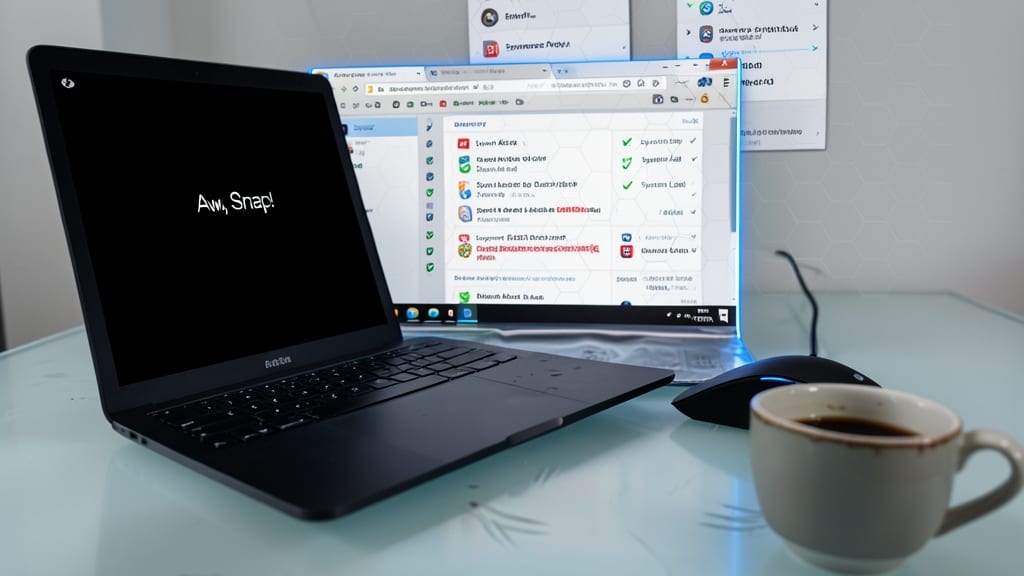
When Chrome crashes unexpectedly, the culprit is often a rogue extension lurking in the background. Unlike visible extensions, hidden or system-level extensions (like those tied to enterprise policies) frequently trigger crashes but go unnoticed during standard troubleshooting.
This guide teaches agents to disable extensions in batches—starting with user-installed ones—before moving to hidden extensions via Chrome’s flags (chrome://flags/#extensions). For stubborn crashes, use Incognito Mode to test without extensions, then systematically re-enable them to pinpoint the offender. Pro tip: Check for conflicting permissions in chrome://extensions that may force crashes.
Best for IT teams managing corporate Chrome deployments or remote workers dealing with extension-related instability. A battle-tested method to avoid the "Aw, Snap!" frustration. ⚡
Recovering Deleted Files from External Hard Drives
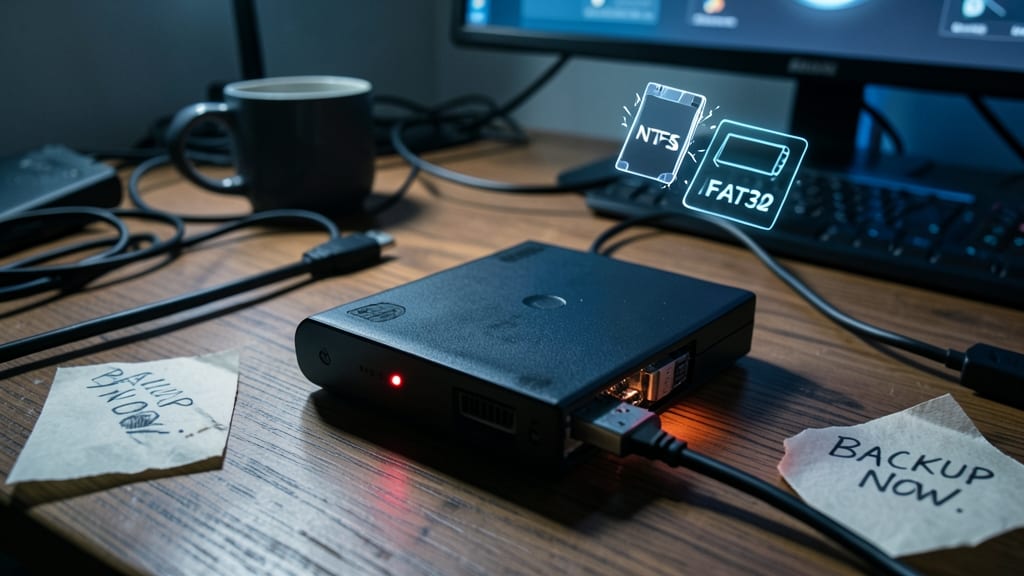
External hard drives are the unsung heroes of data storage—until they fail to deliver. Whether it’s accidental deletion or a sudden crash, losing files from these drives can feel like a tech nightmare. But with the right tools and precautions, recovery is often possible.
For NTFS and FAT32 drives, tools like Recuva (free) and Disk Drill (paid) scan for recoverable files with high success rates. Always write-block the drive first—using built-in tools like Windows’ Disk Management or third-party software—to prevent overwriting lost data. Manual methods, like checking the Recycle Bin or using Command Prompt (chkdsk and attrib), can also help in less severe cases.
This guide is perfect for IT support teams handling user panic calls or casual users who’ve hit the delete button too hard. Just remember: act fast, avoid saving new files to the drive, and you’ll maximize your chances of recovery. ⚡
VPN Connection Failures on Windows and Mac

When your VPN drops unexpectedly, it’s rarely the VPN itself—it’s often firewall rules, DNS misconfigurations, or network-level blocks lurking in the background. Unlike generic troubleshooting guides, this article cuts through the noise by showing you how to diagnose issues using built-in tools on both Windows and Mac.
Start by checking Windows Defender Firewall (or macOS’s built-in firewall) for VPN-related blocks—no third-party tools required. Then, verify DNS leaks by comparing your public IP with a service like DNSLeakTest.com directly from your browser. For deeper issues, use Windows’ Resource Monitor or macOS’ Network Utility to inspect active connections and identify port conflicts.
This guide is perfect for remote workers, IT admins, or anyone managing secure connections. Whether you’re troubleshooting a corporate VPN or a personal privacy tool, these steps will isolate the problem fast. 💻
Linux Terminal Command Recovery for Beginners

Forgot a command in Linux? Or worse—your terminal session just crashed without saving your work? This guide shows you how to recover lost commands using built-in tools like history and fc, plus how to reset broken permissions with chmod and sudo without reinstalling your OS.
Start by typing history to list recent commands, then use fc -e nano to edit and re-run a specific command. For permission issues, sudo chmod +x filename fixes executable rights, while sudo chown user:group file restores ownership. Even mixed OS users can leverage these zero-config fixes—no admin rights required in most cases.
Perfect for developers, sysadmins, or anyone juggling Windows/Linux dual-boot setups who need quick terminal fixes. No panic needed—your session can always be salvaged! ✨
Mobile Device Sync Issues with Outlook Calendar
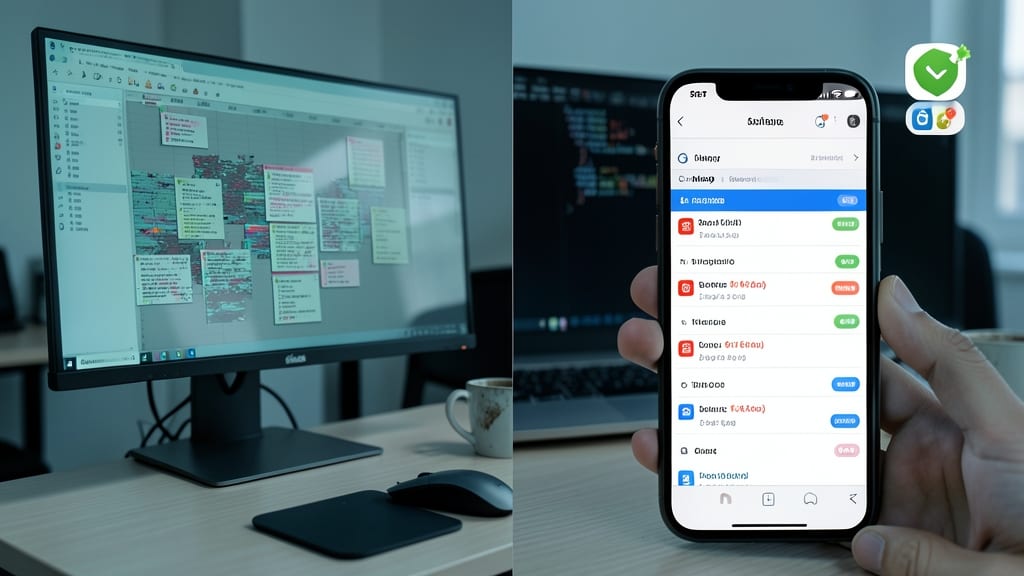
When your Outlook Calendar shows events that don’t match your phone—or worse, duplicates every meeting—it’s usually a sync storm caused by time zone quirks, corrupted local cache, or third-party calendar apps hijacking permissions. This guide cuts through the noise with platform-specific fixes that work for both iOS and Android without requiring a full account reset.
Start by forcing a clean sync reset in Outlook’s settings (Windows/macOS) or the Outlook mobile app (iOS/Android). For time zone conflicts, manually set your device’s timezone to match Outlook’s server settings—this stops events from shifting by hours. If that fails, clear the Outlook app cache (Settings > Apps > Outlook > Storage > Clear Cache) or disable third-party sync apps like Google Calendar or Fantastical, which often override Outlook’s sync priority.
Remote workers and hybrid teams will find this especially useful—no more missed meetings because your phone thinks 3 PM is actually 1 PM. The fixes here work even when IT can’t remote in. ✨