
PowerPoint
Want to make your PowerPoint presentations more dynamic and professional? These seven transition effects will elevate your slideshows, keeping your audience engaged while maintaining a polished look. Whether you're a student, business professional, or educator, mastering transitions can transform ordinary presentations into unforgettable experiences.
Fade Transition for Elegant Professionalism
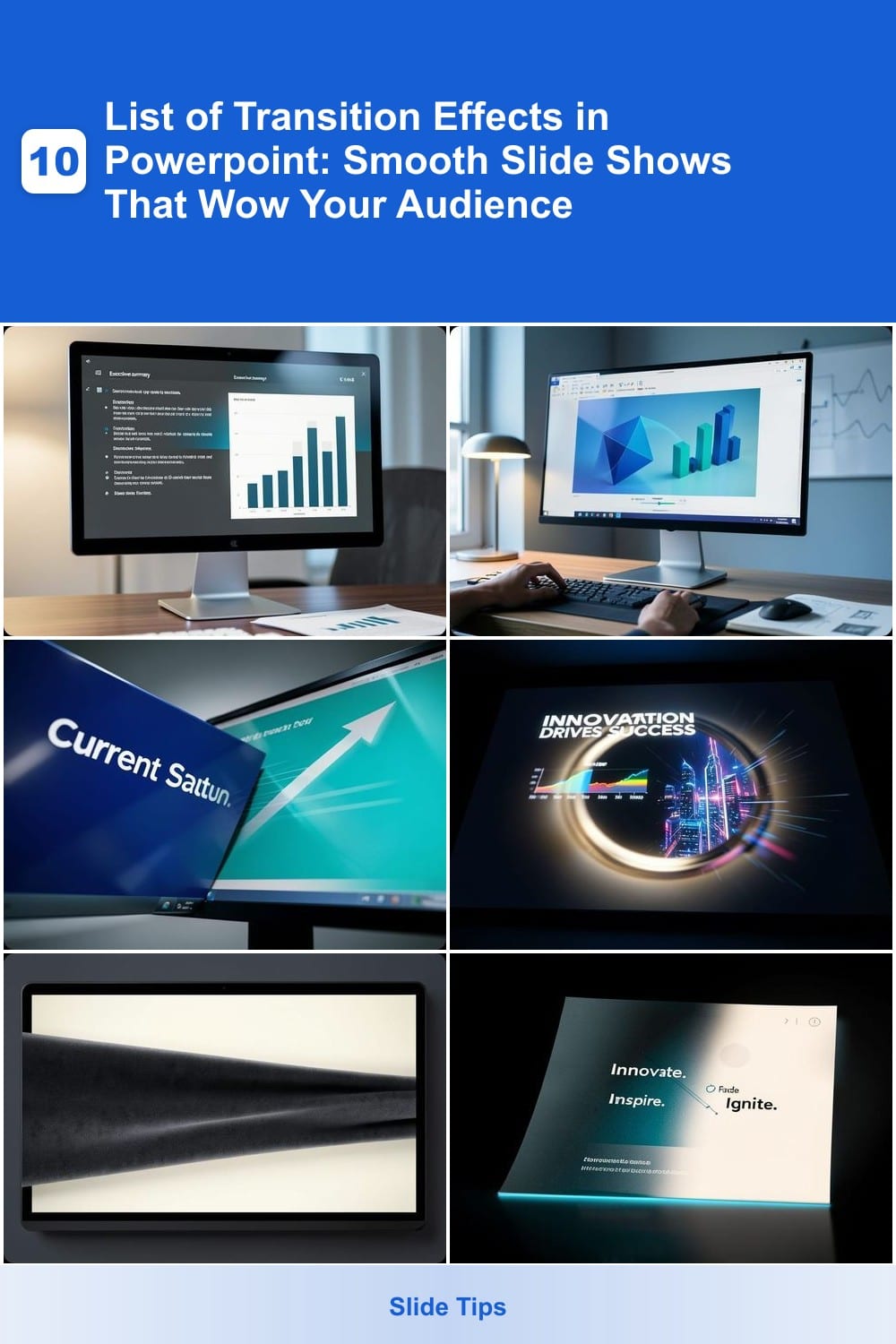
Struggling to keep your corporate presentations polished yet engaging? The fade transition in PowerPoint delivers a smooth, distraction-free shift between slides—perfect for data-heavy decks or executive summaries where clarity is key.
With zero motion blur and a subtle crossfade, this effect maintains professionalism while adding visual flow. Customize the duration (0.1s to 5s) and direction (fade in/out) to match your pacing. It’s also universally compatible across PowerPoint versions (2016–365), ensuring consistency whether you’re presenting in-person or remotely.
Ideal for board meetings, financial reports, or training modules, the fade transition keeps focus on your content—not flashy animations. 💻
Slide Morph for Creative Storytelling

Tired of static slides that make your audience zone out? Slide Morph transforms your presentation into a dynamic visual narrative by smoothly animating elements between slides—perfect for designers and marketers who want to tell stories with motion.
This PowerPoint 2016+ exclusive effect lets you morph shapes, text, and layouts seamlessly, creating before-and-after comparisons or evolving concepts without losing context. For example, turn a messy brainstorming board into a polished flowchart in seconds, or animate a product mockup into its final design. The customizable timing ensures your transitions feel intentional, not distracting.
Ideal for creative pitches, design reviews, or product launches, Slide Morph works best when paired with minimalist layouts to highlight the transition’s magic. Just avoid overusing it—save this tool for your most impactful slides. ✨
Push Transition for Dynamic Energy
Need to inject momentum into your presentation? The Push Transition creates a dynamic sense of urgency by making one slide appear to shove the next aside—like a sales pitch gaining traction or a training module building momentum. This isn’t just a transition; it’s a visual cue that your content is moving forward.
Available in PowerPoint 2016 and later, this effect lets you customize the direction (left, right, up, or down) and speed to match your presentation’s rhythm. Pair it with a 0.5-second duration for a snappy feel or extend it to 1.5 seconds for a more deliberate reveal. Pro tip: Use it sparingly—overuse can feel jarring, but a well-placed push on a call-to-action slide or key takeaway makes your message impossible to ignore.
Perfect for sales teams closing deals, trainers guiding learners through steps, or educators emphasizing progression in lessons. Just remember: less is more—this transition shines when used to highlight critical moments, not every slide. 💪
Zoom Transition for Highlighting Key Points

Need to make sure your audience notices the big moments in your presentation? The Zoom Transition delivers exactly that by dramatically zooming in on your next slide, creating instant focus. Unlike other transitions that blend or slide content, this one acts like a spotlight, ensuring critical slides—like conclusions or call-to-action sections—stand out effortlessly.
PowerPoint’s built-in Zoom Transition offers customizable speed and direction (horizontal, vertical, or diagonal), letting you control how aggressively the slide "pops" into view. Pair it with a bold font or high-contrast background for maximum impact—educators love it for highlighting key takeaways, while sales teams use it to emphasize closing arguments. Just avoid overusing it, or you’ll risk distracting instead of directing attention.
Perfect for trainers, professors, or anyone delivering high-stakes messages, this transition turns passive viewing into active engagement. Just don’t forget to preview it—some projectors handle zoom effects better than others! ✨
Wipe Transition for Clean Visual Breaks
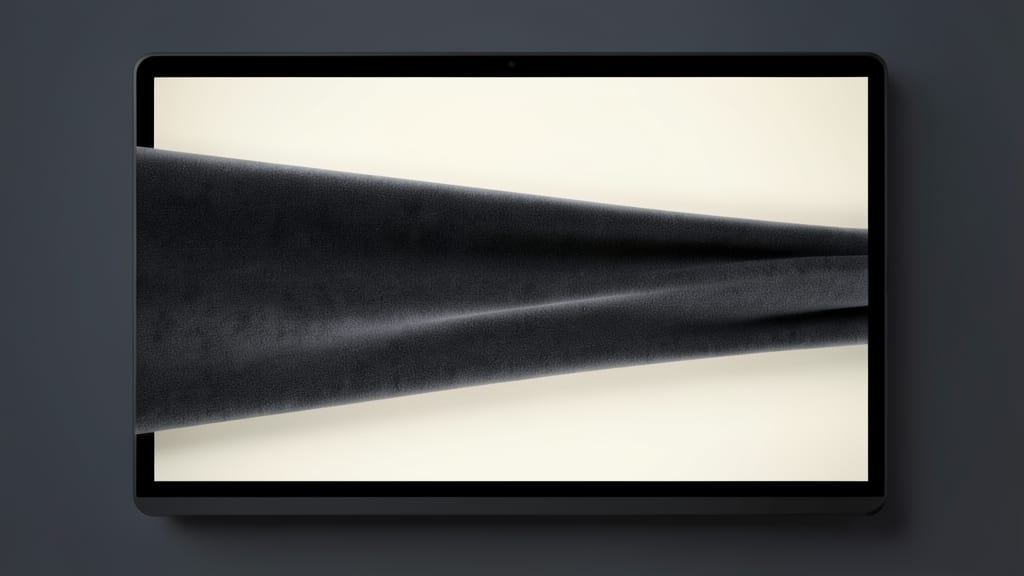
Need a way to visually signal a new topic without overwhelming your audience? The wipe transition delivers a crisp, curtain-like reveal that feels intentional yet unobtrusive—perfect for academic lectures or structured reports where clarity matters most.
This effect lets you choose between horizontal, vertical, or diagonal wipes, giving you control over the direction of the "curtain" sweep. Unlike flashy morphs or zooms, the wipe maintains focus on your content while subtly guiding viewers through your presentation's structure. PowerPoint's built-in duration controls let you adjust the speed to match your pacing, ensuring smooth transitions even when switching between complex slides.
Academics, trainers, and analysts will appreciate how this transition visually breaks up content-heavy sections without sacrificing professionalism. Use it to transition between chapters, case studies, or key takeaways—your audience will instantly recognize the shift without distraction. ✨
Fade Smear Transition for Modern Appeal
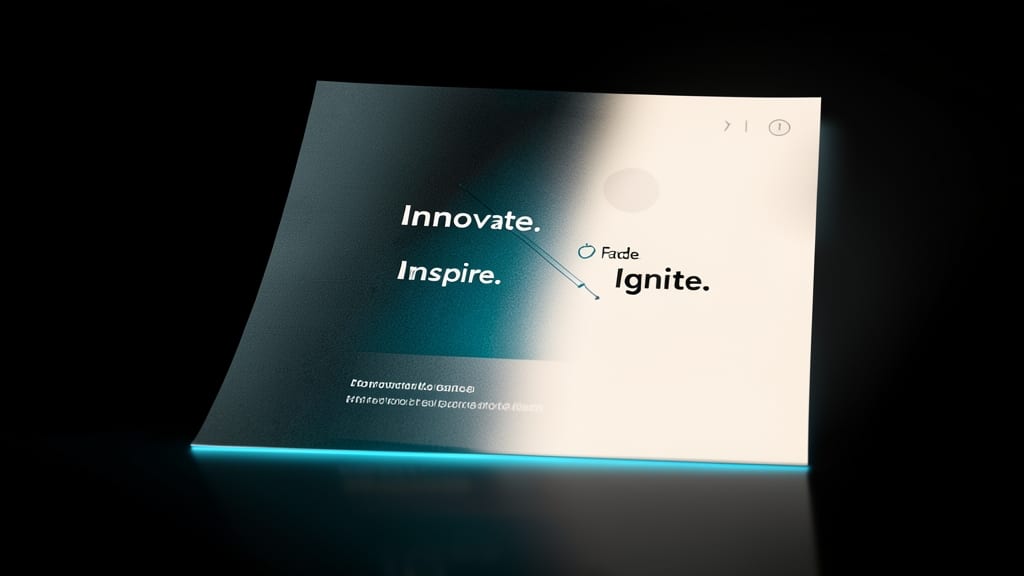
Tired of static transitions that feel outdated? The Fade Smear effect blends a smooth fade with a subtle motion blur, creating a sleek, cinematic look perfect for modern audiences. Unlike basic fades, this transition adds a dynamic edge without overwhelming your content—ideal for tech pitches or creative demos where visual flair matters.
To apply it, simply select Transitions in PowerPoint, choose Fade Smear, and tweak the duration (0.5s–2s) for the right pace. The directional blur (left/right/up/down) lets you align the effect with your slide’s design, while sound effects (if enabled) can add extra polish. Best of all, it’s built into PowerPoint 2016+, so no plugins are needed.
This is your go-to for tech startups, design agencies, or Gen Z-focused presentations—where a polished yet energetic vibe keeps viewers hooked. Try it on your next demo reel or product launch! ✨
Random Bars Transition for Memorable Impact
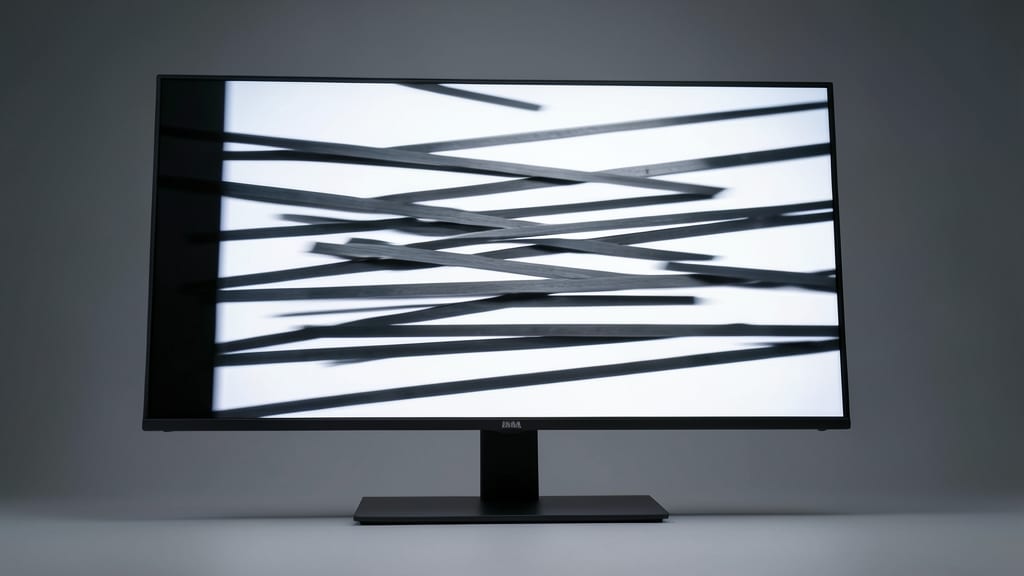
When you need to make a powerful entrance in your presentation, the Random Bars transition delivers exactly that—with a bold, cinematic reveal. Unlike smooth fades or clean wipes, this effect uses randomly spaced horizontal bars that sweep across the screen, creating a dramatic pause before the next slide appears.
Customize the bar color, thickness, and direction (left-to-right or top-to-bottom) to match your presentation’s theme. The 0.5–1.5-second timing range ensures you control the drama—perfect for highlighting product launches, keynote moments, or executive summaries where you want to command attention.
Ideal for high-stakes presentations like investor pitches or conference keynotes, use this sparingly to avoid overwhelming your audience. Pair it with a dark slide background for maximum contrast and impact. ✨