
Software
Microsoft Edge packs hidden features that can transform your browsing experience. These pro-level tips will boost speed, enhance security, and unlock productivity shortcuts most users never discover—ideal for power users and casual surfers alike.
Enable Vertical Tabs for Faster Multitasking
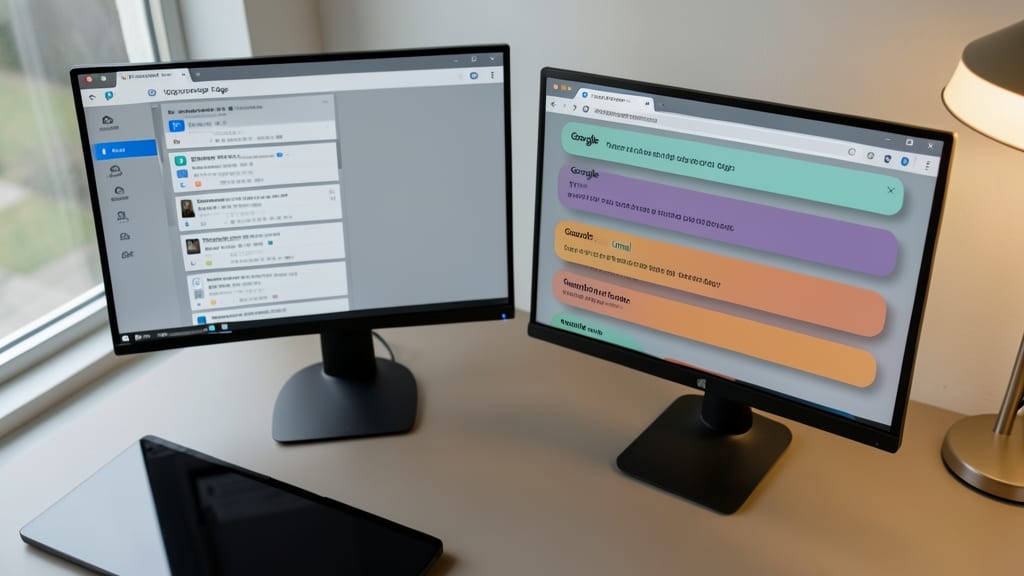
Tired of horizontal tab clutter stealing your screen real estate? Microsoft Edge’s vertical tabs transform multitasking by stacking open pages vertically—ideal for developers debugging across multiple files or researchers comparing data sources side by side.
Enable it in Edge Settings under Appearance > Tabs, then toggle Vertical tabs. This layout saves space while keeping all tabs visible, and the drag-and-drop reordering works seamlessly. For extra efficiency, pair it with Edge’s Collections to group related tabs into folders—no more tab overload. ⚡
Use Immersive Reader for Distraction-Free Focus
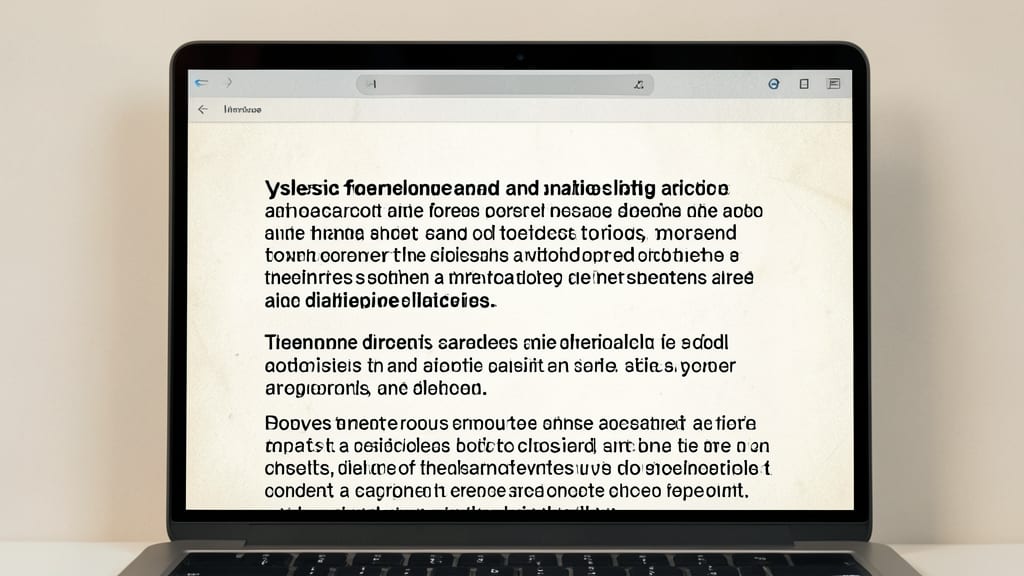
Drowning in ads, pop-ups, and clutter while reading long-form articles? Microsoft Edge’s Immersive Reader strips away distractions with a dyslexia-friendly, high-contrast interface designed for deep focus. It’s like having a digital library where only the text matters—no sidebars, no banners, just clean, legible content.
This built-in tool offers customizable fonts, line spacing, and color themes (including sepia for reduced eye strain) to match your needs. With a single click, you can toggle text-to-speech for hands-free reading or highlight key sentences with color-coded markers. It even syncs progress across devices if you’re signed into your Microsoft account.
Perfect for students cramming for exams, writers drafting long documents, or anyone tired of digital fatigue, Immersive Reader turns overwhelming articles into a serene, ad-free zone. Try it next time you’re buried in research—your focus (and eyes) will thank you. ✨
Customize Startup Pages with Collections
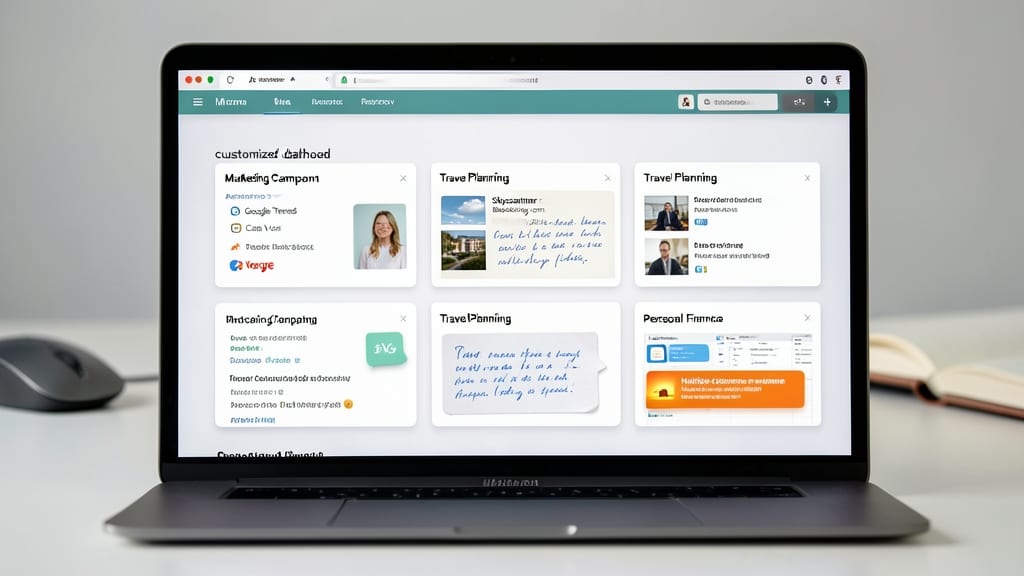
Tired of staring at a cluttered new tab page every time you open Edge? Collections lets you replace the default startup page with customized, project-specific dashboards—no bookmark folders required. This feature transforms your browser into a productivity hub by grouping related links, notes, and web content into visually organized collections.
To get started, create a new collection via the Collections panel (accessible from the hub or via Ctrl+Shift+M). Add links, highlights, and even saved articles with a single click—drag-and-drop organization makes it effortless. Sync across devices to ensure your project resources (like research papers, design references, or client portals) are always at your fingertips, ready to launch in seconds.
This is a game-changer for freelancers, researchers, and managers juggling multiple projects. Instead of digging through bookmarks, open Edge and dive straight into your curated workspace. ✨
Block Trackers with Privacy Dashboard
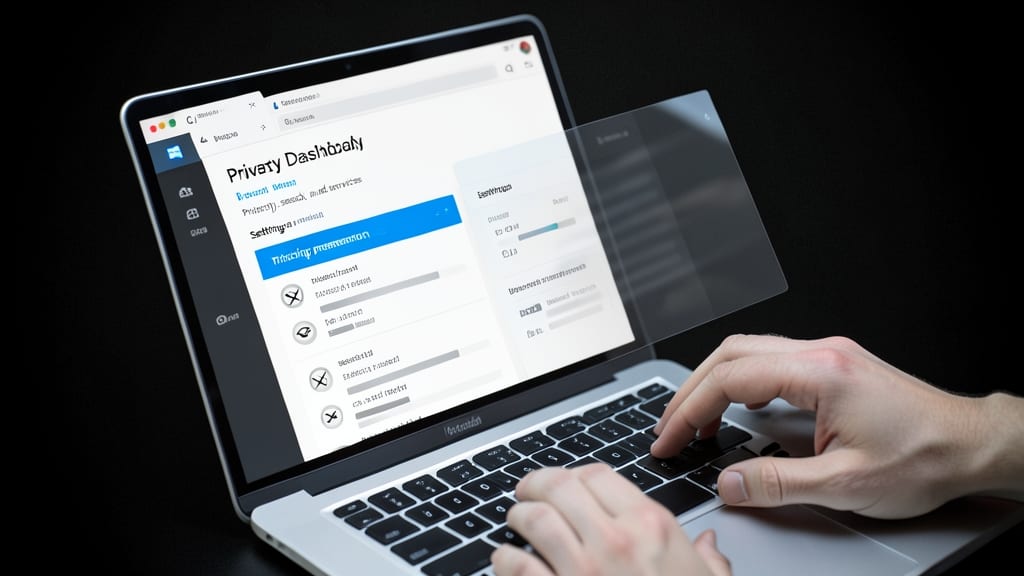
Tired of websites silently tracking your every move? Microsoft Edge’s Privacy Dashboard lets you scan for and block hidden trackers with just a few clicks—no extensions or third-party tools required.
Access it via Settings > Privacy, search, and services > Tracking prevention, where Edge automatically flags suspicious trackers across sites. You can toggle strict blocking for maximum privacy or fine-tune controls to balance security and performance. The dashboard even shows real-time data on how many trackers were blocked, giving you transparency without slowing down browsing.
This feature is a game-changer for anyone concerned about digital privacy—whether you’re logging in from public Wi-Fi or simply want to limit ad-driven tracking. Try it today and browse with confidence. ✨
Enable Hardware Acceleration for Smoother Performance
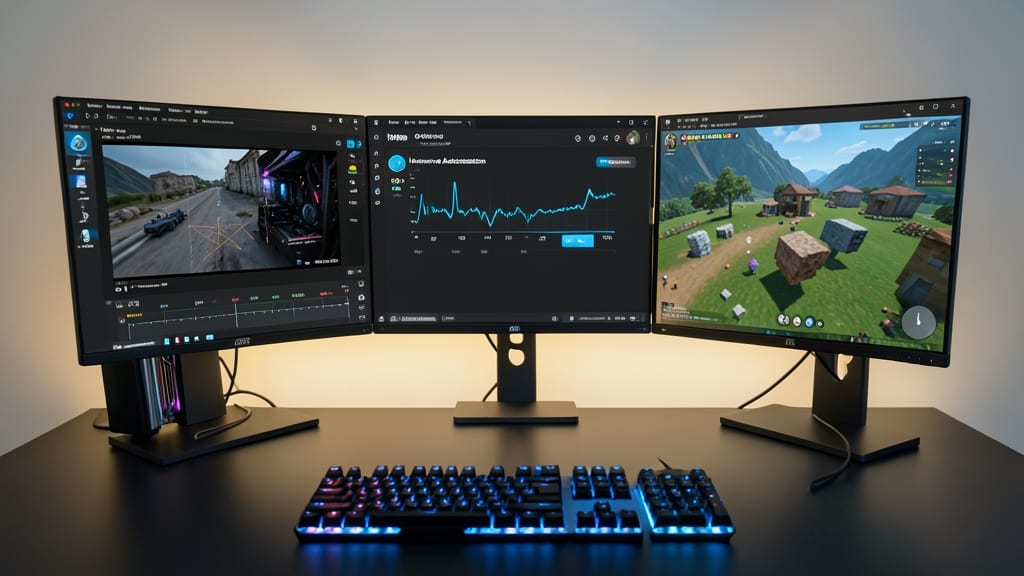
Stuttering videos or laggy web apps slowing you down? Hardware acceleration in Microsoft Edge offloads heavy tasks to your GPU, turning your browser into a performance powerhouse. This feature is especially game-changing for creatives editing media or gamers streaming directly from the browser.
Enabling it is simple: Navigate to Settings > System > Hardware Acceleration and toggle it on. Once active, you’ll notice smoother 4K video playback, faster rendering of complex web apps like Figma or Canva, and reduced CPU strain. Even older GPUs benefit from this, though high-end graphics cards like NVIDIA RTX or AMD Radeon series will see the biggest gains.
This tweak is a must for anyone running resource-heavy tasks in the browser—whether you're editing footage, playing cloud games, or working with data visualization tools. Your hardware’s full potential awaits! ⚡
Use Web Notes for Quick Research Capture
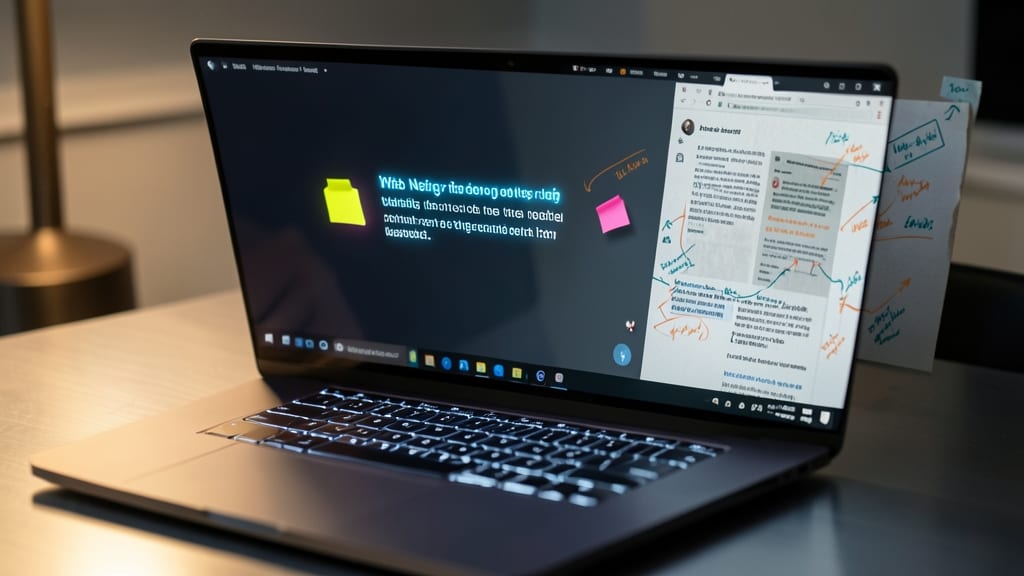
Tired of losing research or struggling to save key details from articles? Microsoft Edge’s Web Notes turns any webpage into a digital notebook with just a few clicks—no extra apps needed.
Highlight text, add sticky notes, or capture full-page screenshots with annotations, all synced to your Microsoft account for instant access. The one-click save feature lets you organize notes into folders, making it perfect for journalists, students, or anyone who needs to reference information later. Plus, the dark mode reduces eye strain during late-night research sessions.
This is the ultimate tool for quick research capture—whether you're drafting a report, studying for exams, or compiling sources. No more tab clutter or lost highlights! ✨
Sync Settings Across Devices with Microsoft Account
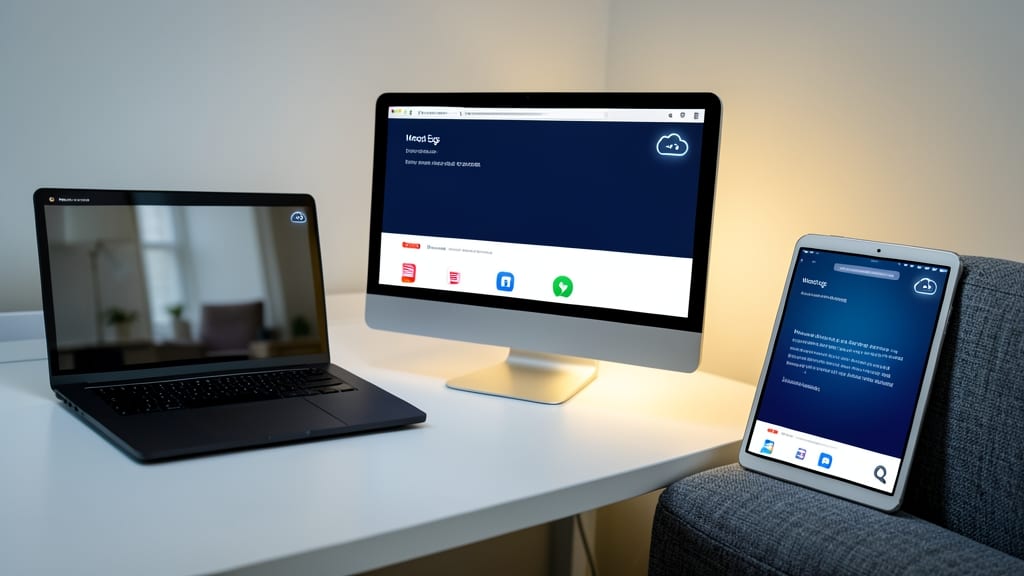
Tired of losing your favorite bookmarks or extensions every time you switch devices? Microsoft Edge’s Microsoft Account sync keeps your browsing ecosystem intact—whether you’re jumping from a work laptop to a home PC or tablet.
With just a few clicks, you can sync bookmarks, extensions, history, and even open tabs across all devices signed in with the same account. This means your Dark Reader settings and customized startup pages stay consistent, too. Plus, it works seamlessly with other Microsoft apps like Outlook and OneDrive for a unified digital workflow.
This is a game-changer for remote workers, freelancers, or anyone managing multiple devices. No more manual backups—your productivity tools follow you everywhere. ✨