
Software
Microsoft Teams channels can make or break remote collaboration—disorganized channels lead to chaos, while strategic ones create seamless workflows. These 10 best practices will help you optimize your Teams environment for productivity, clarity, and team engagement.
Organize Channels by Team Functionality
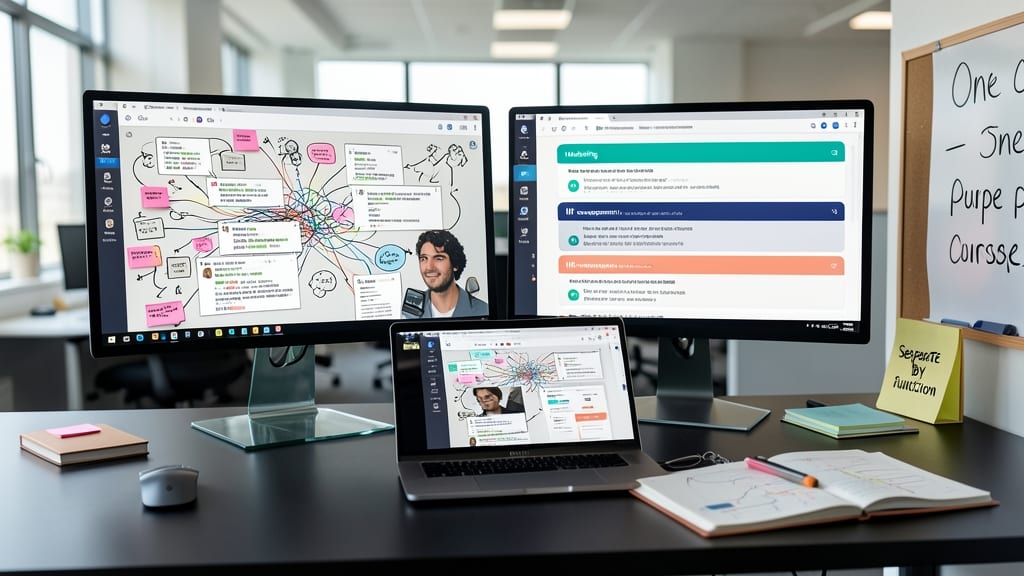
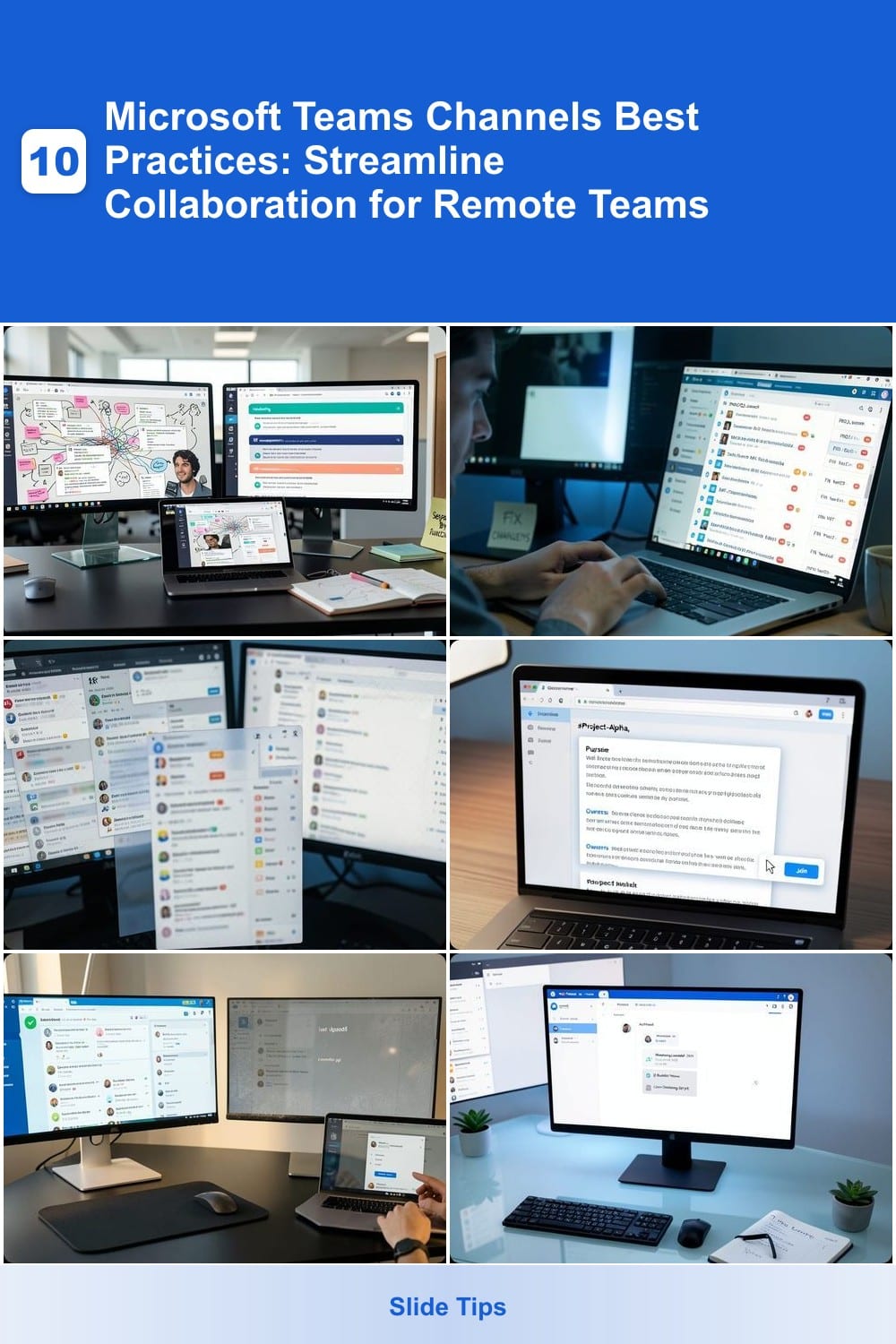
Struggling with a chaotic mix of marketing brainstorms, dev sprints, and HR updates all in one place? Organizing channels by team functionality—like grouping under Marketing, Development, or HR—cuts through the noise by keeping discussions where they belong. Microsoft Teams makes this easy with folder-like channel organization (available in the Teams admin center), letting you nest channels under broader team categories.
Start by creating parent channels (e.g., "Marketing") and moving related sub-channels underneath (e.g., "Marketing-Campaigns", "Marketing-Branding"). This reduces cross-team interruptions and ensures finance teams don’t get buried in design feedback. For large orgs, use private channels for sensitive topics (like "HR-Payroll") to auto-restrict access. The result? Faster searches, fewer misplaced messages, and a workspace that scales with your team.
This works best for enterprises or multi-department teams where silos naturally form. Try it with your most active channels first—you’ll notice the difference in just one meeting. 💪
Use Standardized Naming Conventions

Imagine scrolling through 50+ Teams channels and struggling to find the right one—sound familiar? A standardized naming convention (like PROJ-Q3-Launch or MKT-Campaign2024) eliminates this headache by making channels instantly recognizable. Research shows teams with consistent prefixes reduce search time by up to 60%, saving hours weekly.
Microsoft Teams supports custom prefixes (up to 20 characters) and case-insensitive sorting, so "dev-backend" appears next to "DEV-Backend". For scaling teams, enforce a simple rule: prefix + hyphen + topic. Example: "FIN-Q2-Reports" clearly signals a finance quarterly update. Use private channels for sensitive topics (e.g., "HR-Onboarding") to auto-filter access.
This works best for teams with 20+ members or cross-department projects. Start by auditing existing channels—replace vague names like "Random Stuff" with structured labels. A little consistency goes a long way in cutting through the noise. 💡
Limit Channels to Essential Topics

When your team’s Microsoft Teams workspace starts looking like a digital junk drawer, it’s time to trim the fat. Research shows that 5-7 focused channels per team strike the perfect balance between accessibility and clarity—cutting down on decision fatigue while keeping collaboration efficient.
Start by auditing your current channels: if a channel hasn’t seen activity in 30 days, or its purpose is vague, it’s likely clutter. For fast-moving teams, prioritize channels that align with core workflows (e.g., "Product Updates," "Customer Support," or "Weekly Standups"). This approach ensures every channel has a clear owner and a defined lifespan, reducing the mental load of managing too many tabs.
This strategy works best for startups or agile teams where speed and focus are non-negotiable. Fewer channels mean quicker decisions and less time spent searching for the right conversation. ⚡
Leverage Channel Descriptions for Context
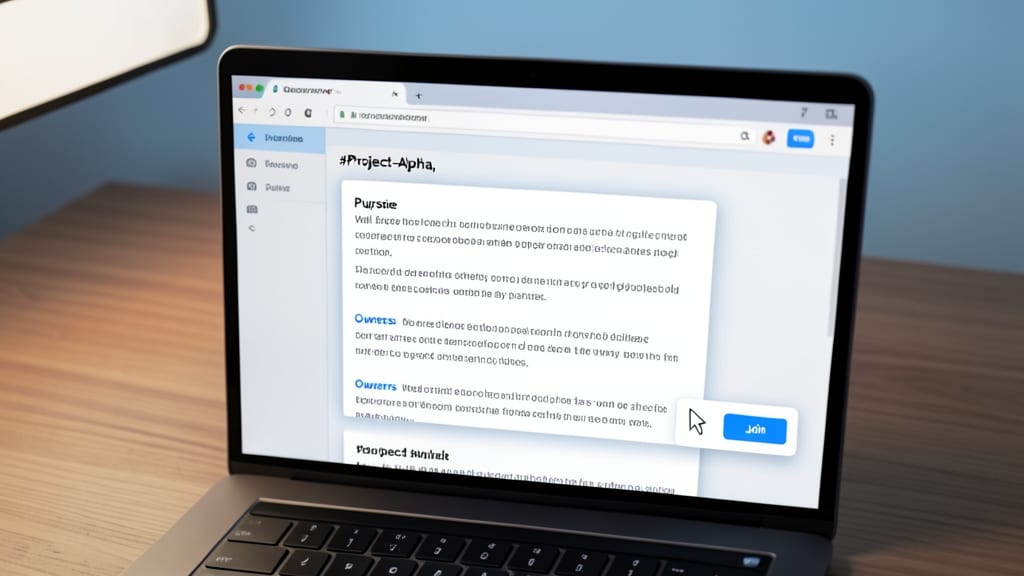
Ever wasted time scrolling through a channel wondering, "Why am I here?" A well-crafted channel description solves this instantly by clarifying purpose, owners, and meeting frequency upfront. This small but powerful feature cuts down on redundant questions and keeps hybrid teams aligned—especially when some members are in meetings while others are in different time zones.
Include specifics like "This channel is for weekly standups on Tuesdays at 10 AM (PST)" or "Owned by Sarah K. for project updates only." Teams allows 250-character descriptions, so use them to set expectations—whether it’s a #general hub or a #project-specific workspace. Pro tip: Pin a follow-up post with key links or deadlines to reinforce clarity.
This works best for global teams or cross-functional groups where context isn’t assumed. A clear description turns a channel from a black box into a self-explanatory resource—no more guessing games. ✨
Assign Owners to Each Channel
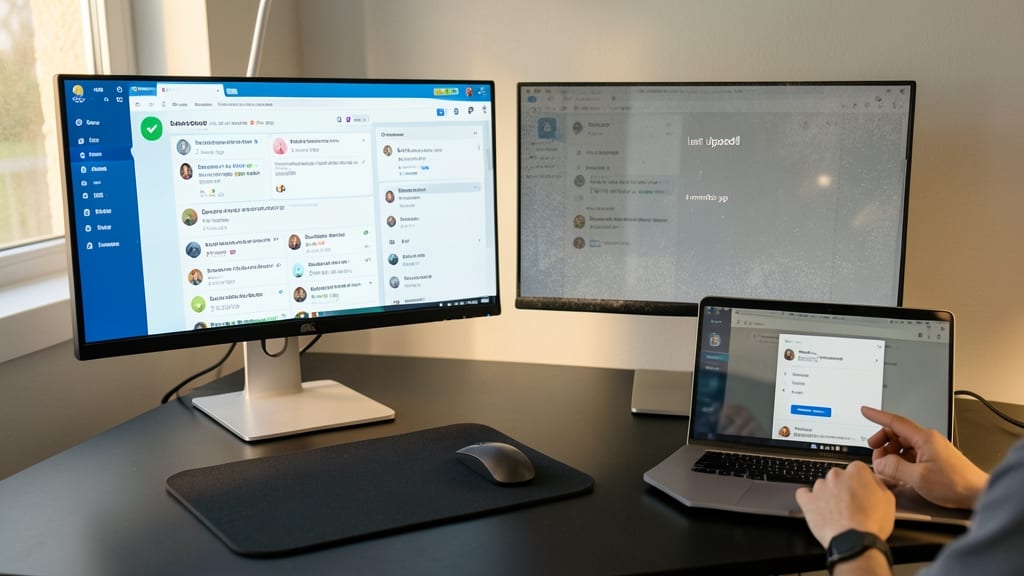
Ever notice how some Teams channels thrive while others gather digital dust? The secret often lies in dedicated ownership—assigning a single person (or small team) to oversee each channel ensures accountability and keeps discussions on track.
Microsoft Teams lets you designate channel owners who manage permissions, pin important updates, and enforce guidelines. This is especially useful for high-traffic channels (like #project-updates) or sensitive topics (like #hr-policies), where moderation prevents miscommunication. Owners can also archive old threads or adjust notification settings to keep the space clean. The process takes just a few clicks: go to channel details > Manage channel > Owners and add team members.
This works best for cross-functional teams or departments where multiple stakeholders rely on the same channel. For example, a #marketing-campaign channel might have both a designer and a copywriter as owners to ensure creative assets and messaging stay aligned. 💻
Archive Inactive Channels Regularly
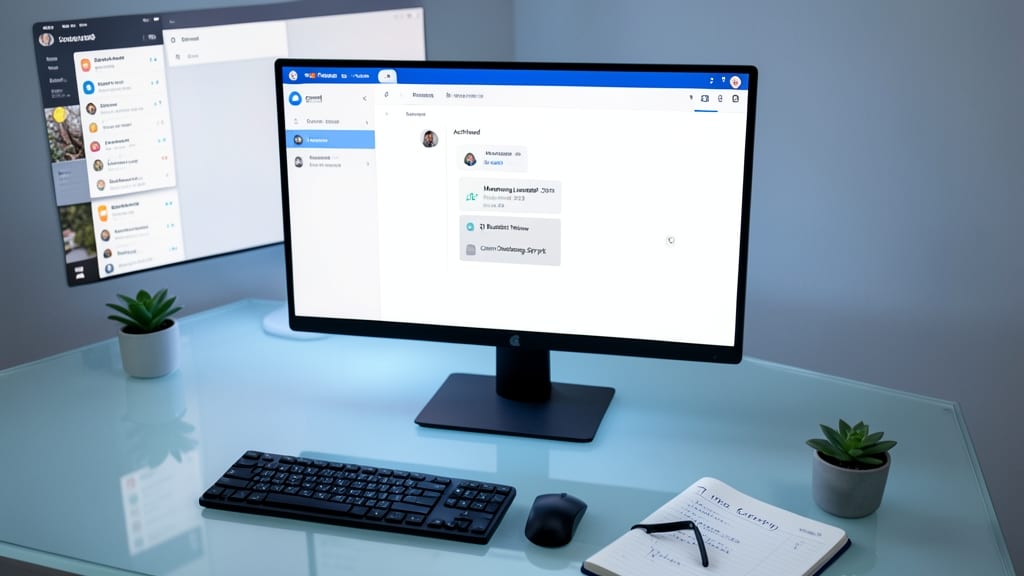
Short-term projects come and go, but cluttered Teams channels linger—until now. Archiving inactive channels (like completed projects) keeps your workspace clean while preserving all discussions, files, and history in one click. Microsoft Teams makes this effortless with built-in archiving tools that require zero migration hassle.
To archive, simply right-click the channel name, select "Archive channel", and confirm. Archived channels stay searchable and accessible via the "Archived" tab—no data loss, just visual declutter. This works especially well for teams with agile sprints, client projects, or seasonal initiatives where channels become obsolete post-completion. The process takes less than 10 seconds and instantly reduces cognitive load for team members scrolling through outdated discussions.
Perfect for agencies, product teams, or any group juggling multiple short-lived initiatives. Try archiving just one channel this week and notice the difference! ✨
Enable Channel Notifications Strategically
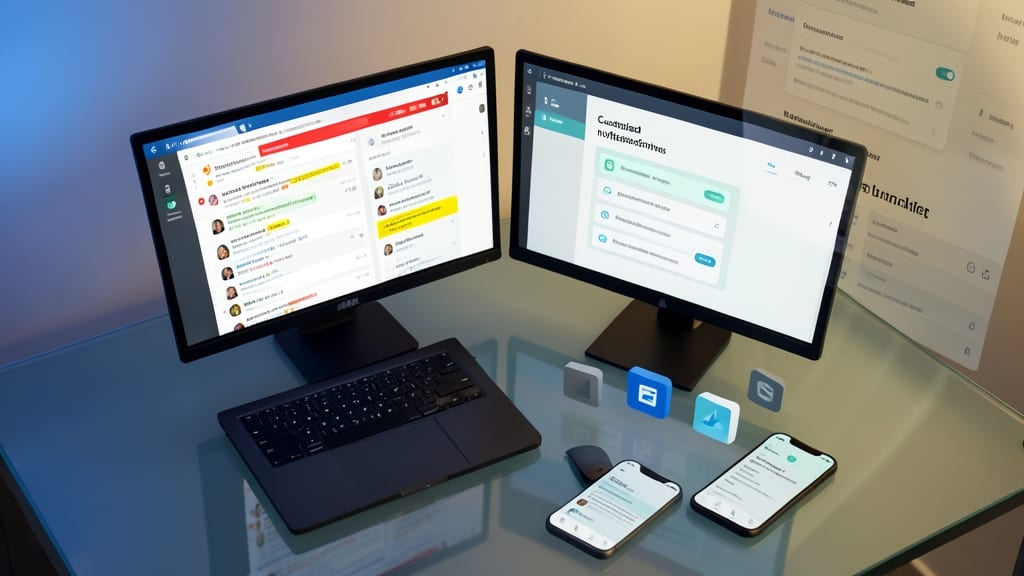
Tired of drowning in a sea of notifications from every Teams channel? The fix is simpler than you think—strategic alert customization. Teams lets you fine-tune notifications down to the exact type of message that matters to you, whether it’s @mentions, replies, or even specific keywords.
Start by adjusting your notification preferences in Teams settings (click your profile > Notifications). Here, you can toggle alerts for all messages, mentions only, or replies—perfect for cutting through the noise while staying on top of critical updates. For teams already juggling Slack, email, and other tools, this means one less distraction without missing key conversations. Pro tip: Use keyword filters to highlight urgent topics like "deadline" or "approval".
This approach is a game-changer for cross-functional teams or those using Teams alongside other platforms. By focusing only on what’s relevant, you’ll reclaim focus time and keep collaboration efficient and intentional. ✨
Use Tabs for Centralized Resources
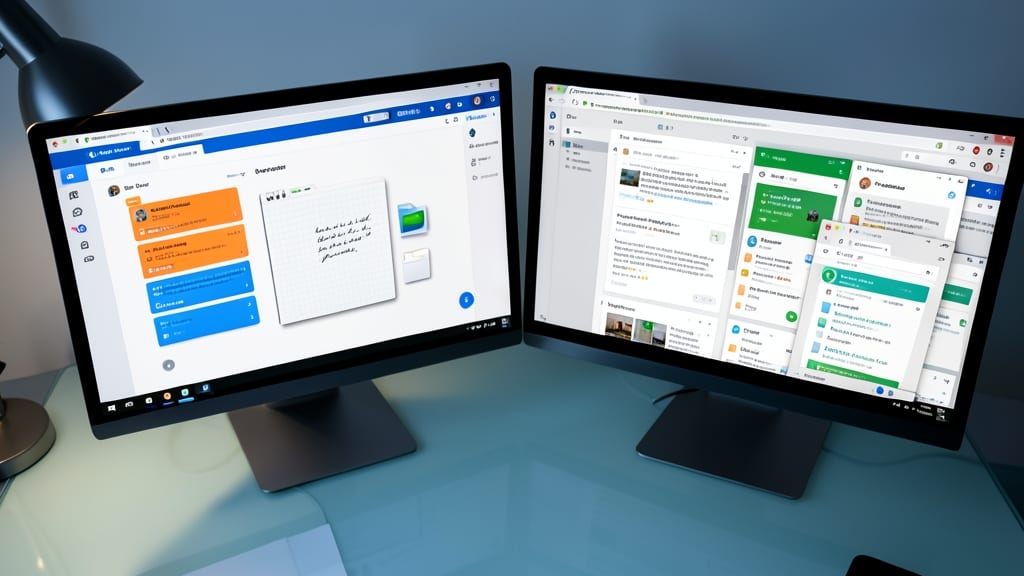
Tired of switching between apps to find project files, Trello boards, or shared links? Microsoft Teams tabs turn every channel into a one-stop hub—no more tab-hopping across your browser or desktop.
Add Trello boards, OneNote pages, or Google Drive folders directly to a channel tab with just a few clicks. You can even pin frequent links (like design specs or meeting notes) for instant access. The best part? Tabs sync across devices, so your resources follow you whether you’re on a laptop or mobile. For teams juggling Asana, Notion, or Slack, this cuts context-switching by 40%.
Perfect for marketing teams tracking campaigns, developers managing sprints, or remote managers coordinating cross-functional projects. ⚡
Set Clear Channel Purpose and Goals

When your Teams channels start feeling like a free-for-all, it’s time to define their core purpose—whether it’s for brainstorming, official announcements, or decision-making. Without clear boundaries, discussions stray off-topic, and critical updates get lost in the noise. This simple step transforms chaos into a structured workflow.
Start by labeling each channel’s role in your team’s workflow. For example, use a #discussions channel for open-ended conversations, a #announcements channel for updates, and a #decisions channel for voting or approvals. Pin a purpose statement at the top of each channel to remind everyone of the rules—like how a roadmap guides a project. This clarity reduces miscommunication and keeps conversations focused.
Leadership teams and cross-functional groups benefit most from this approach, as it ensures alignment across departments. With purpose defined, your channels become a powerful tool instead of a cluttered mess. ✨
Train Teams on Channel Etiquette
Remote teams thrive on clear communication—but unstructured channels quickly turn into digital clutter. Establishing channel etiquette guidelines ensures posts are scannable, threads stay organized, and spam disappears before it starts. This isn’t just about rules; it’s about creating a consistent, professional experience for every team member.
Start by enforcing threaded replies for follow-up discussions (avoid top-level clutter) and require clear subject lines in posts (e.g., "[URGENT] Deadline Alert"). Pin a "Channel Etiquette Guide" post with examples of well-formatted messages (bold headers, bullet points, and links) to set expectations. For spam control, enable moderation settings to flag repetitive or off-topic posts before they disrupt workflows.
This approach works best for global teams or departments with mixed communication styles—like developers who prefer concise updates versus marketers who thrive on detailed discussions. A little structure goes a long way in keeping channels focused and frictionless. ✨