
Tip & Trick
Remote work offers flexibility but exposes you to cyber threats like phishing, malware, and data leaks. These 10 security best practices—backed by IT experts—will help you create an impenetrable digital fortress at home or on the go.
Zero-Trust Network Access for Remote Devices
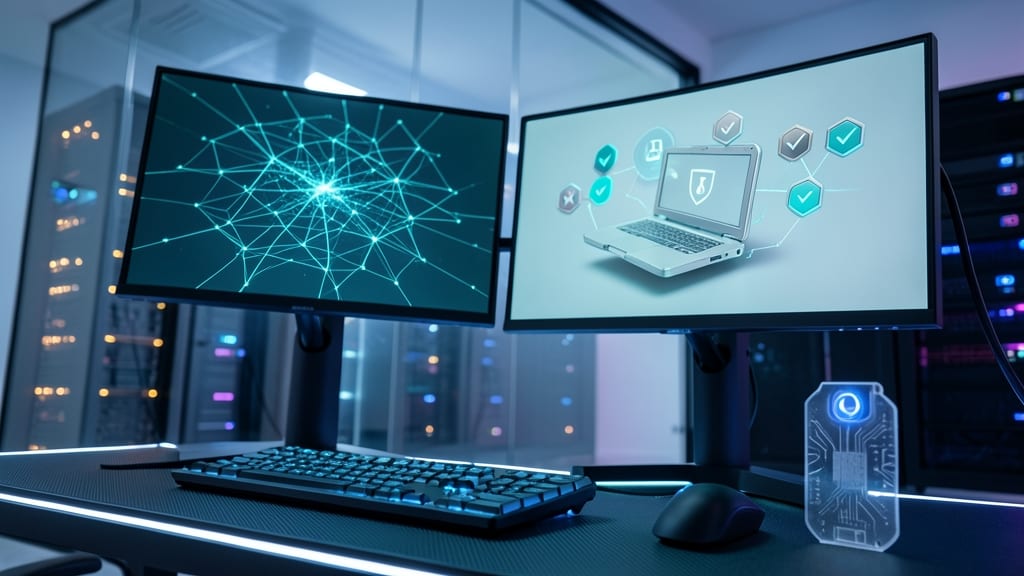
Tired of VPNs that only secure the tunnel—not the devices inside? Zero-trust network access flips the script by treating every connection as a potential threat, verifying both users and devices before granting access. Unlike traditional VPNs, which assume trust once connected, zero-trust models enforce continuous authentication, blocking lateral movement if a device is compromised.
Solutions like Zscaler Private Access or Cloudflare Access use identity-based policies to ensure only authorized, up-to-date devices connect to your network. They integrate with Microsoft Entra ID or Okta for seamless SSO while encrypting traffic end-to-end. Even if an attacker breaches one device, they can’t move laterally without re-authenticating—eliminating a major attack vector.
This approach is ideal for remote teams handling sensitive data, especially in finance, healthcare, or legal fields. 💻
Multi-Factor Authentication for All Accounts
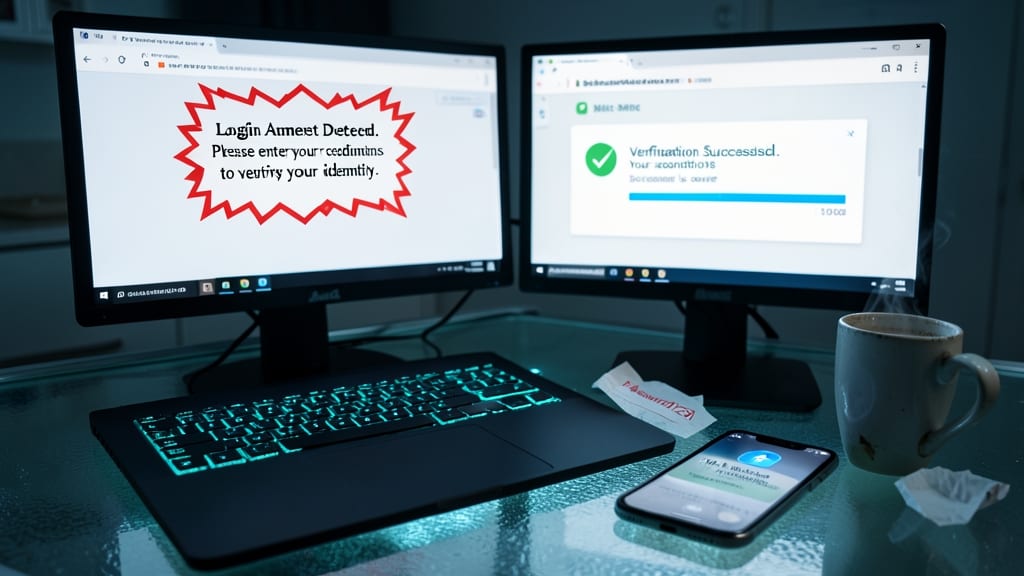
Credential stuffing attacks exploit weak passwords across personal and work accounts—making MFA your first line of defense. Unlike VPNs or network segmentation, MFA works at the account level, blocking attackers even if they steal your password through phishing or data breaches.
Start with SMS-based codes (easy to set up) or upgrade to authenticator apps (like Google Authenticator or Authy) for stronger security. Many platforms now support biometric logins (fingerprint or Face ID) or hardware keys (YubiKey) for frictionless but ultra-secure access. Even free services like Microsoft, Google, and Facebook support MFA—enable it everywhere.
Remote workers should prioritize MFA for email, banking, and cloud storage first, as these are prime targets. Personal accounts (like social media) are often overlooked but can serve as entry points for lateral attacks. ⚡
Hardware-Level Endpoint Encryption Solutions
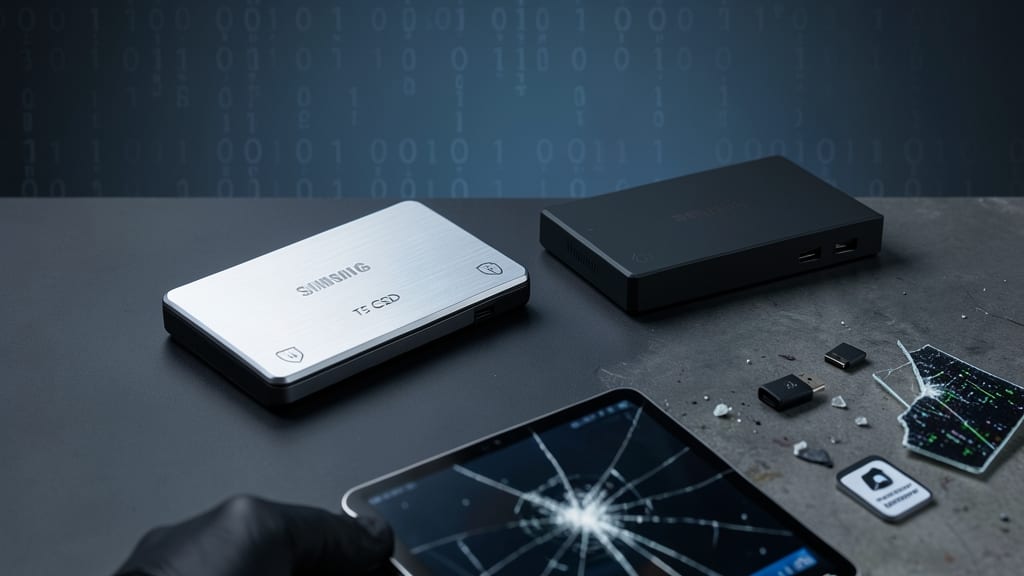
Forget relying on passwords alone—hardware-level encryption ensures your data stays locked down even if your laptop vanishes. Self-encrypting drives (SEDs) like those from Samsung T5 or Crucial MX500 automatically encrypt all stored data using AES-256, a military-grade standard that thwarts brute-force attacks.
On Windows, BitLocker (built into Pro/Enterprise editions) adds an extra layer by encrypting the entire drive, including the OS. For Linux users, LUKS provides open-source encryption with zero config complexity. These tools activate instantly—no manual setup required—so your files remain inaccessible without your passphrase or recovery key.
This is your last line of defense for travelers, contractors, or anyone handling sensitive data. Even if a device falls into the wrong hands, your files stay protected until the encryption is cracked—something even most hackers can’t do in a reasonable time. 💻
AI-Powered Phishing Detection Tools
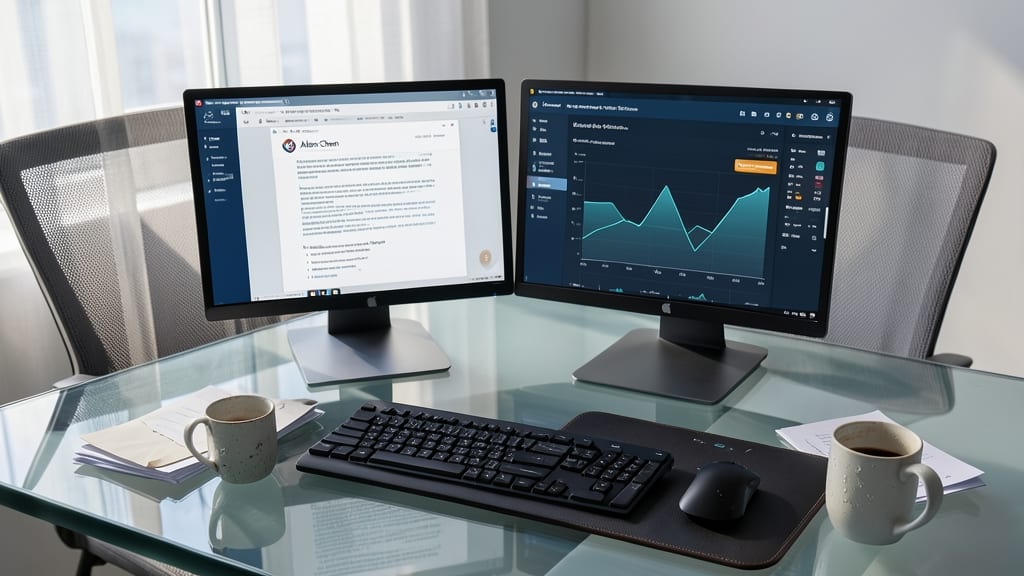
Phishing attacks are evolving—no longer just poorly spelled emails, but hyper-realistic impersonations that bypass traditional filters. Tools like Microsoft Defender for Office 365 and Google’s Advanced Protection now use AI to analyze email patterns, sender behavior, and even subtle language cues to flag threats before they reach your inbox.
These solutions go beyond keyword scanning by leveraging machine learning models trained on millions of phishing attempts. For example, Defender’s Safe Links scans URLs in real-time, while Google’s VirusTotal integration cross-references suspicious attachments against global threat databases. Both offer zero-configuration setups for most business email providers, making deployment effortless.
Ideal for remote teams handling sensitive data, these tools reduce human error—the #1 cause of breaches. Even non-technical users benefit from automated threat summaries. ✨
Secure Password Manager with Biometric Access
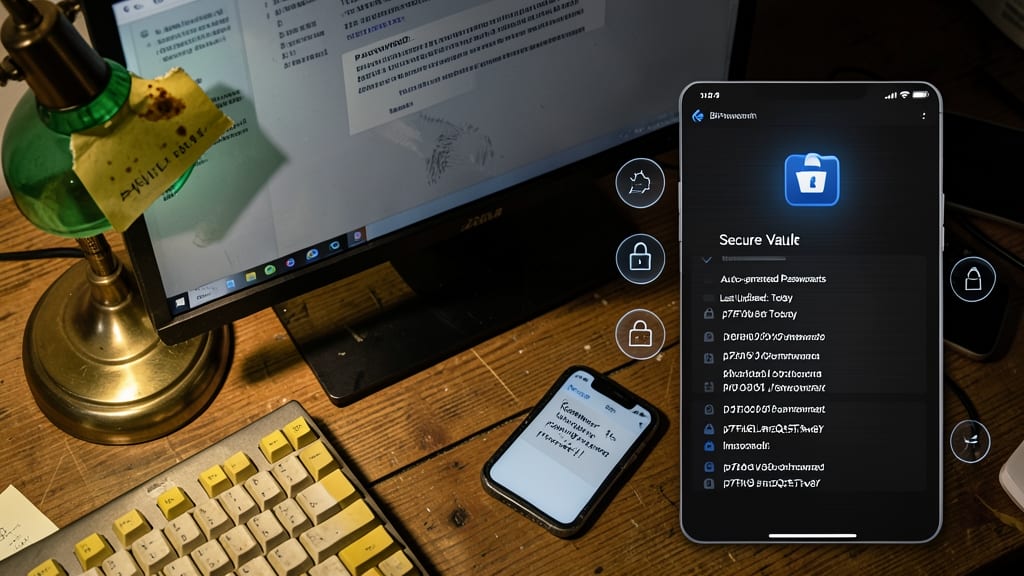
Tired of juggling passwords written on sticky notes or saved in plaintext files? A secure password manager like 1Password or Bitwarden eliminates the guesswork by generating, storing, and auto-filling credentials—all while syncing seamlessly across your devices. These tools encrypt your vault with AES-256, the same standard used by governments and banks, and offer biometric access (Face ID, Touch ID, or fingerprint) for effortless login.
With zero-configuration sharing, you can securely pass credentials to teammates without exposing them in emails or chats. Features like travel mode (hiding sensitive data when crossing borders) and breach alerts (notifying you if a password is compromised) add extra layers of protection. Both options support cross-platform syncing, so your passwords stay updated on Windows, macOS, iOS, and Android—no manual entries required.
Perfect for remote workers juggling multiple accounts, these managers save time while reducing risks like credential stuffing and phishing. Whether you're a freelancer or part of a distributed team, they’re the sticky-note killer you’ve been waiting for. ✨
Regular Patch Management for All Devices
Forget about manually hunting for updates—automated patch management is the silent guardian of your remote work setup. Attacks like WannaCry (2017) and Log4j (2021) exploited unpatched systems, proving how quickly outdated software becomes a liability. The fix? Let tools like Windows Update, macOS Software Update, or third-party solutions like Patch Manager Plus handle it for you.
Modern patch management goes beyond OS updates—it includes applications, firmware, and even browser extensions to eliminate weak points. Schedule updates during off-hours to avoid disruptions, and enable automatic restarts (where possible) to ensure critical fixes deploy without manual intervention. Most solutions also provide audit logs to track compliance, which is a lifesaver for IT admins or self-managed teams.
This is non-negotiable for anyone handling sensitive data, but even casual remote workers benefit from the peace of mind. Set it and forget it—your future self will thank you. ⚡
Isolated Browser for Sensitive Work
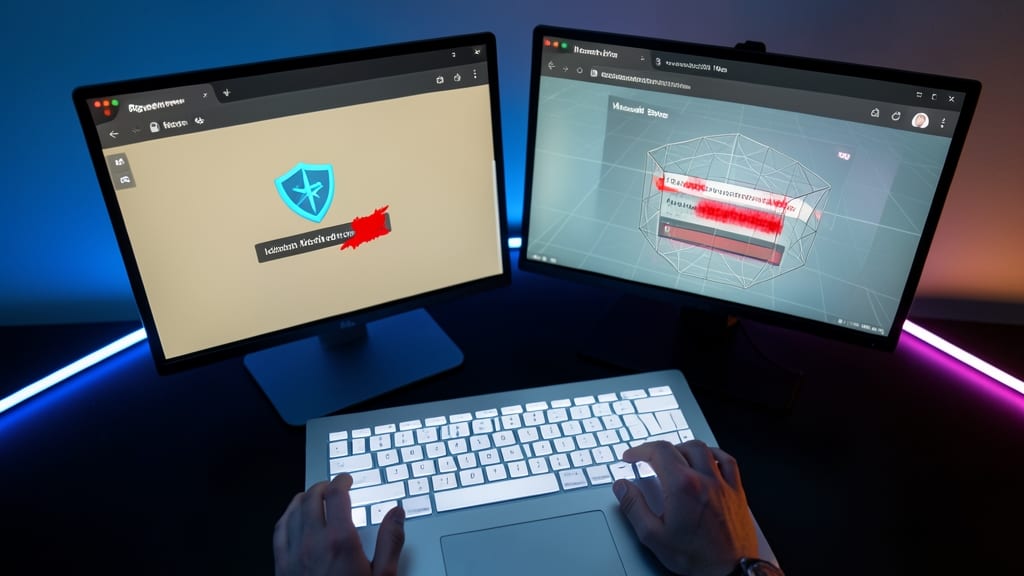
Ever clicked a suspicious link and immediately regretted it? Sandboxed browsers like Brave or Microsoft Edge in Isolation Mode act as a digital quarantine—trapping malware in a virtual cage so it can’t infect your entire system.
Brave’s built-in Tor integration and Shields block trackers and malicious scripts by default, while Edge’s Isolation Mode creates a separate memory space for risky sites. Both automatically reset after use, leaving no trace. For extra security, pair them with uBlock Origin to filter even more threats.
This is a must-have for finance professionals, journalists, or anyone handling sensitive data—especially when browsing untrusted sites. 💻
Network Segmentation for Home Offices
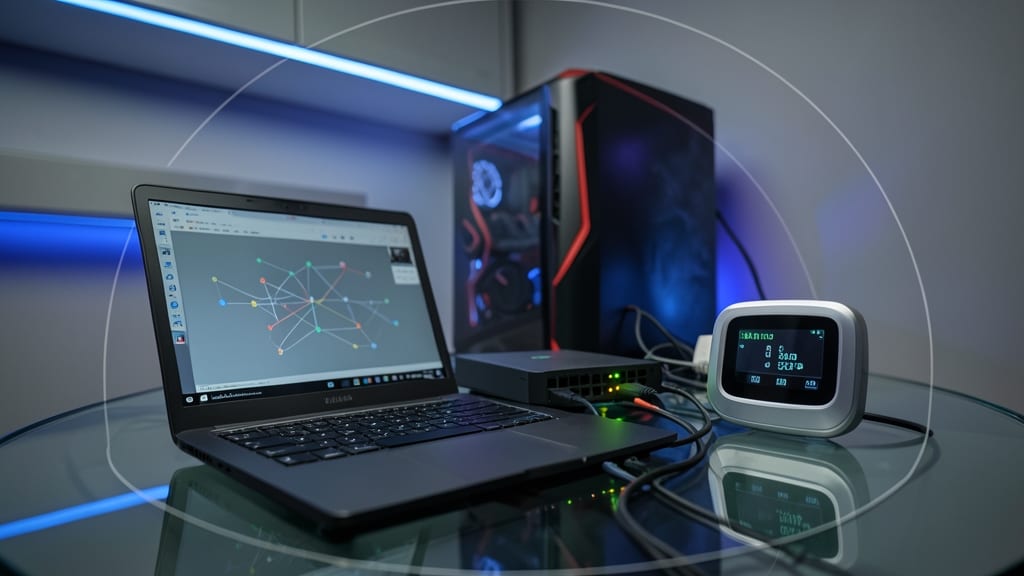
Your home network isn’t just a single playground—it’s a battleground where work laptops, smart thermostats, and gaming consoles all share the same bandwidth (and potential vulnerabilities). Network segmentation turns that chaos into layers of defense by isolating devices into separate zones, so a hacked smart speaker can’t hop onto your work files.
Tools like pfSense (a free, open-source firewall) let you create VLANs with minimal hassle, even if you’re not a networking pro. Assign your work laptop to one VLAN, IoT gadgets to another, and personal devices to a third—then set strict firewall rules between them. For simpler setups, routers like the Ubiquiti UniFi or ASUS RT-AX88U offer built-in VLAN support without needing extra hardware.
This is a game-changer for remote workers who share their home Wi-Fi with family or roommates. Freelancers, contractors, and hybrid employees will sleep easier knowing their sensitive work traffic can’t be snooped or hijacked by compromised devices on the same network. 💪
Behavioral Analytics for Anomaly Detection

Ever wondered how hackers get caught before they steal your data? Behavioral analytics tools like Darktrace and CrowdStrike work behind the scenes, learning your normal digital habits—like login times or file access patterns—to flag suspicious activity instantly.
These AI-driven systems don’t just rely on signatures (like traditional antivirus). Instead, they detect anomalies—such as a late-night login from a new location or an employee suddenly accessing files they never touch. Darktrace’s Antigena can even auto-contain threats, while CrowdStrike’s Falcon platform integrates with your existing security stack for seamless monitoring.
Perfect for businesses or remote workers handling sensitive data, these tools act as a silent guardian—catching breaches in minutes that would take days to uncover manually. 💡
Secure Remote Desktop Protocols
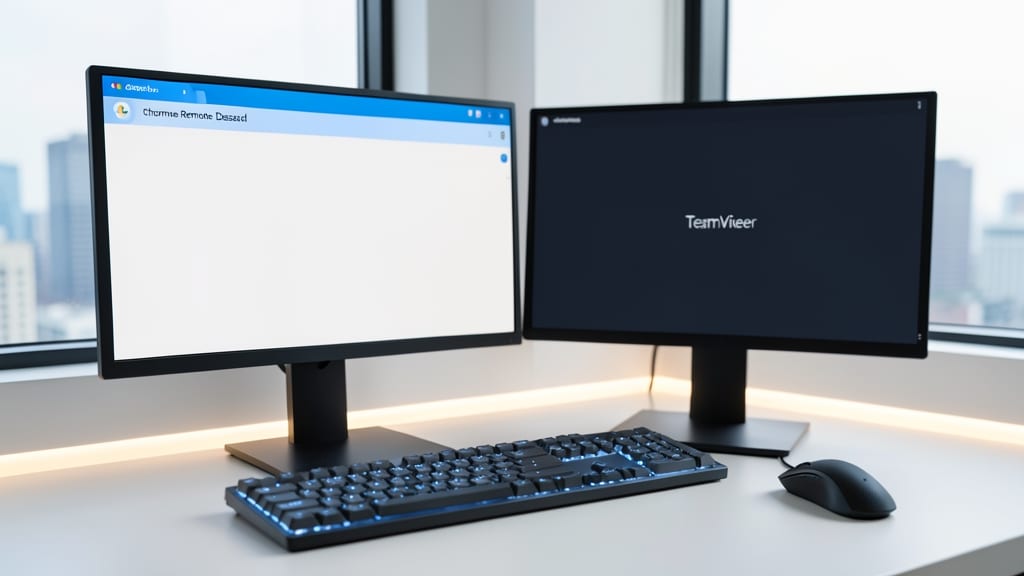
Tired of RDP’s outdated security model? Modern alternatives like Chrome Remote Desktop and TeamViewer offer end-to-end encryption and granular access controls—without the legacy vulnerabilities of traditional remote desktop protocols.
Chrome Remote Desktop uses Google’s secure infrastructure and requires no software installation, while TeamViewer’s 256-bit AES encryption ensures even IT admins can remotely support devices with military-grade security. Both support session recording and revocation, letting you monitor and terminate access instantly if needed.
Ideal for IT support teams, freelancers sharing screens with clients, or anyone tired of RDP’s port 3389 risks, these tools blend ease of use with enterprise-level security. 💻