
Coding
Mastering Excel's text functions can transform messy data into clean, actionable insights. These 10 powerful functions—complete with practical examples—will help you streamline data cleanup, extract key information, and automate repetitive tasks in seconds.
Concatenate Function for Combining Text Values
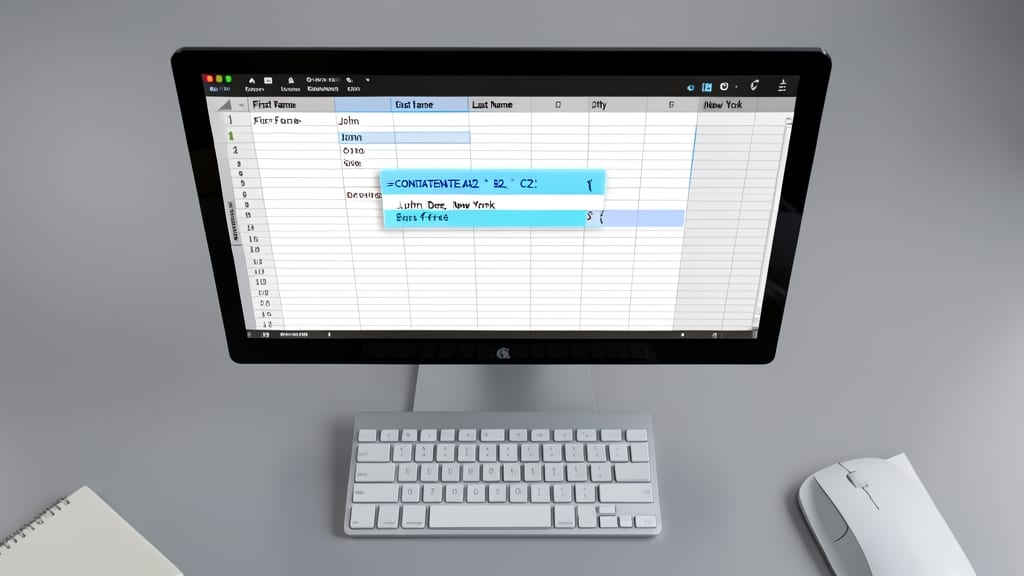
Tired of manually typing full names or addresses from split data? The CONCATENATE function merges text from multiple cells into one—no copy-pasting required. Whether you're combining first and last names, city and state fields, or custom labels, this function saves time and reduces errors in spreadsheets of any size.
Simply type =CONCATENATE(cell1, cell2, cell3) to join values, with optional spaces or separators added between entries. For example, =CONCATENATE(A2, " ", B2) merges first names (A2) and last names (B2) with a space. In Excel 2019 and later, the newer TEXTJOIN function offers even more flexibility, handling delimiters and ignoring empty cells automatically.
Small business owners, HR teams, and data analysts will find this function indispensable for cleaning up datasets. Try it today to turn fragmented data into polished, professional outputs with just a few clicks! ✨
Text Function for Converting Numbers to Text

Struggling with numeric values that need to appear as text—like serial numbers or IDs—in your reports? The TEXT function in Excel bridges that gap by converting numbers into formatted text strings, ensuring compatibility in text-heavy workflows.
With TEXT(value, format_text), you can transform numbers into dates (e.g., 43831 → "12/31/2022"), currency, percentages, or custom formats like "ID-00123". This is especially useful for text-based reports where numeric values must be treated as labels, avoiding errors in sorting or filtering. The function also supports conditional formatting and dynamic updates.
Accountants, inventory managers, or anyone working with ID fields or codes will find this function indispensable for maintaining clean, consistent data. ⚡
Left, Right, and Mid Functions for Extracting Substrings

Need to pull just the first three letters from a product code or the last four digits from a serial number? The LEFT, RIGHT, and MID functions let you extract substrings with surgical precision—no manual copying or tedious editing required.
Use LEFT(A1,3) to grab the first three characters from cell A1 (like "ABC" from "ABC123"), RIGHT(A1,4) to isolate the last four (like "1234" from "FILE1234"), or MID(A1,5,3) to target a middle segment (like "123" from "XYZ123ABC"). These functions handle dynamic data perfectly, so they update automatically when your source text changes.
Perfect for data analysts parsing IDs, developers cleaning API responses, or anyone working with structured text fields. ⚡
Trim Function for Removing Extra Spaces

Tired of spending hours manually cleaning up messy data with extra spaces? The TRIM function is your secret weapon for instantly tidying up text in Excel.
With just one formula—=TRIM(text)—you can remove all leading, trailing, and extra spaces between words in a cell. This is especially useful when dealing with imported data or user-entered information that often contains irregular spacing. For example, converting "Hello World" into "Hello World" in seconds.
Perfect for data analysts, accountants, or anyone working with large datasets, TRIM ensures your reports look polished and professional without manual effort. ⚡
Substitute Function for Replacing Text Patterns

Tired of manually correcting typos or standardizing abbreviations across hundreds of rows? The SUBSTITUTE function in Excel automates these tedious tasks with a single formula. Whether you're fixing inconsistent date formats, replacing placeholder symbols, or converting legacy acronyms, this function handles it all—saving you hours of manual edits.
With syntax like =SUBSTITUTE(text, oldtext, newtext, [instance_num]), you can replace every occurrence of a word (e.g., "USA" → "United States") or limit replacements to specific instances (e.g., only the first typo in a cell). It even works with symbols, like swapping "&" for "and" in imported datasets. For large datasets, this function is a game-changer, ensuring uniformity without manual overrides.
Perfect for data analysts, marketers, or anyone managing spreadsheets with inconsistent formatting. Give it a try—your future self will thank you for the cleaner data! ✨
Find and Search Functions for Locating Text

Need to locate a specific word or character within a cell without manually scanning? Excel’s FIND and SEARCH functions let you pinpoint exact positions—critical for dynamic data extraction or debugging. Unlike static formulas, these functions adapt to changing text, making them ideal for error-checking or conditional logic.
The FIND function returns the starting position of a substring (case-sensitive), while SEARCH ignores case differences. For example, =FIND("Excel","Learn Excel Today") returns 6, revealing where "Excel" begins. Combine with IFERROR to handle missing matches gracefully, or nest within LEN to extract substrings dynamically.
Perfect for developers testing APIs, analysts validating data integrity, or anyone automating text-based workflows. ⚡
Upper, Lower, and Proper Functions for Text Case Formatting

Tired of inconsistent text cases ruining your reports or database queries? The UPPER, LOWER, and PROPER functions in Excel are your secret weapons for enforcing uniformity. Whether you're dealing with customer names, product codes, or financial records, these functions ensure every entry matches your preferred case—no more manual fixes or sorting headaches.
Use UPPER() to convert all text to uppercase (e.g., "john doe" → "JOHN DOE"), LOWER() for lowercase (e.g., "JOHN DOE" → "john doe"), or PROPER() to capitalize the first letter of each word (e.g., "john doe" → "John Doe"). They’re perfect for standardizing data before exporting or running filters, and they work seamlessly with other functions like CONCATENATE or TRIM for polished results.
Accountants standardizing ledgers, marketers cleaning up email lists, or developers prepping API data—these functions save time and prevent errors in every workflow. ✨
Len Function for Counting Characters in Cells

Need to ensure your data meets strict character limits—like passwords, usernames, or compliance fields? The LEN function instantly counts characters in any cell, making it the go-to tool for validating data length requirements without manual counting.
Simply type =LEN(A1) to count characters in cell A1, including spaces. Use it to enforce rules like "Passwords must be 8+ characters" or "Product codes must be exactly 12 digits"—critical for automated quality checks and error prevention. Combine it with IF statements to flag invalid entries automatically.
Perfect for data analysts, compliance officers, or anyone managing structured datasets where precision matters. ⚡
Replace Function for Advanced Text Substitution

Tired of manually replacing text in every cell or chaining multiple SUBSTITUTE functions? The REPLACE function in Excel lets you swap out specific text segments with precision—plus, it handles wildcards for advanced pattern matching.
Unlike SUBSTITUTE, which replaces exact matches, REPLACE lets you specify the exact starting position and number of characters to replace. For example, =REPLACE(A1, 3, 2, "New") changes "Hello" to "HNewlo" by targeting positions 3-4. Add wildcards like * to catch partial matches, making it perfect for bulk data cleanup or reformatting legacy datasets.
Data analysts and small business owners will love this for standardizing formats—like converting old product codes or cleaning up messy imported data—without writing VBA scripts. ⚡
Char Function for Inserting Special Characters

Tired of manually copying and pasting symbols or non-printable characters into your Excel reports? The CHAR function lets you generate any ASCII character—from tabs to bullet points—using just its code number, saving you time and eliminating formatting headaches.
With CHAR(number), you can insert invisible separators (like ASCII 9 for tabs or ASCII 13 for line breaks), special symbols (e.g., CHAR(169) for ©), or even custom delimiters in automated reports. For example, =CHAR(10) inserts a line break, while =CHAR(160) adds a non-breaking space—perfect for aligning data dynamically.
Data analysts and report generators will love this for batch formatting, while developers can use it to build dynamic templates without hardcoding symbols. ⚡