
Tip & Trick
Microsoft Word is a powerhouse for productivity, but most users only scratch the surface. These 10 hidden tips and tricks will transform how you work, saving time and eliminating frustration with everyday tasks.
Quick Parts Gallery for Repeated Text
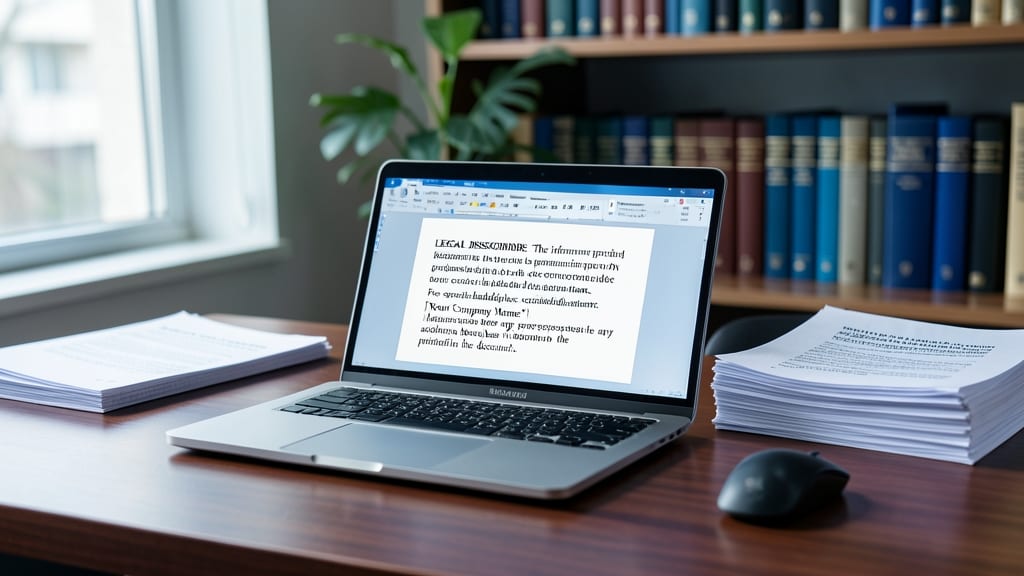
Tired of typing the same legal disclaimers, email signatures, or project templates over and over? Microsoft Word’s Quick Parts Gallery lets you store and reuse text snippets with a single click—no copy-pasting required. This hidden gem is a lifesaver for professionals who deal with repetitive content, like lawyers drafting contracts or marketers sending consistent client emails.
To get started, type your boilerplate text, highlight it, then click Insert > Quick Parts > Save Selection to Quick Parts Gallery. Name it (e.g., “Client Signature” or “NDA Clause”) and assign a shortcut key for instant access. The next time you need it, just press Alt + F3 and select your saved snippet. You can even organize them into folders for large projects, keeping your workflow clean and efficient.
Perfect for legal teams, customer support reps, or anyone drowning in repetitive text. Spend less time typing and more time focusing on what matters. ⚡
Track Changes with Comments and Highlights
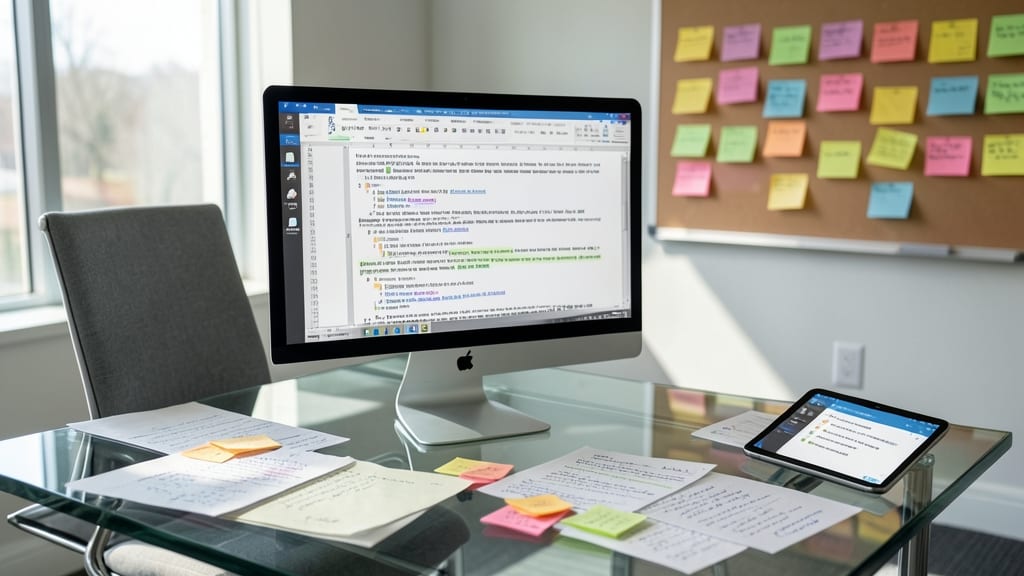
Struggling to keep track of edits in team projects or legal reviews? Word’s Track Changes feature—paired with inline comments and color-coded highlights—turns chaotic revisions into a structured workflow. You can mark edits in real-time while adding contextual feedback directly in the document, all visible in a single view.
Enable it via Review > Track Changes, then use New Comment to leave notes tied to specific text. Highlight sections in yellow, green, or blue to flag priorities without losing the original content. The final version accepts or rejects changes in bulk, and comments sync automatically when shared via OneDrive or SharePoint.
This is a game-changer for legal teams, academic researchers, or anyone collaborating on high-stakes documents. No more email chains or lost edits—just a clean, version-controlled workflow. 💡
Keyboard Shortcuts for Navigation
Tired of scrolling through endless pages in Word? Ctrl+Alt+Page Up/Down lets you instantly jump between sections—no more hunting for headers or footers. This trick is especially useful for long documents like theses, manuals, or novels, where navigation can feel like a treasure hunt.
Pair it with Ctrl+F for instant line searches or Alt+Ctrl+Page Up/Down to move between bookmarks. These shortcuts cut navigation time by 70%, letting you focus on content instead of scrolling. The best part? They work across Windows, Mac, and even Word Online—no setup required.
Perfect for writers, researchers, or anyone drowning in multi-page documents. Try them today and reclaim your time! ⚡
Convert Text to Tables Automatically
Staring at a wall of comma-separated data or tabbed lists? Word’s Text to Table feature instantly transforms messy data into clean, formatted tables—no manual copying or pasting required.
Simply highlight your raw data, navigate to Insert > Table > Convert Text to Table, and choose your delimiter (comma, tab, or even semicolon). Word auto-detects columns, handles irregular spacing, and even lets you adjust borders, shading, and alignment in one click. Perfect for turning CSV exports, inventory lists, or survey responses into professional tables without spreadsheet software.
Accountants, project managers, and data analysts will love this time-saver—especially when formatting reports or preparing data for presentations. ⚡
Use Styles for Consistent Formatting
Tired of manually formatting every heading or subtitle in long documents? Word’s Styles feature lets you apply consistent formatting with a single click—no more hunting for fonts or margins.
Use Heading 1, Heading 2, or Normal styles to instantly generate a table of contents (just click References > Table of Contents). Need uniformity? Apply styles to paragraphs, lists, or captions—Word auto-updates formatting across your entire document. Perfect for resumes, reports, or books where every detail matters.
This trick saves hours for writers, editors, and professionals who juggle multi-page projects. Give it a try—your future self will thank you. ✨
Insert Screenshots Directly from Screen
Need to document an error message or walk someone through a software setup? Word’s built-in Snipping Tool integration lets you capture and insert screenshots in seconds—no third-party tools required.
Simply navigate to Insert > Screenshot, then select the window or screen area you want. The screenshot appears instantly in your document, ready for cropping, resizing, or annotation. This feature works seamlessly with Windows Snipping Tool and even supports scrolling screenshots for long web pages or error logs.
Tech writers, support agents, and developers will love this time-saver—especially when creating tutorials or troubleshooting guides. ⚡
Enable Read Mode for Distraction-Free Writing
Struggling to focus while writing in Word? Read Mode transforms your document into a clutter-free, full-screen view—no toolbars, no distractions, just your content. This hidden feature is perfect for writers, students, or anyone drafting lengthy documents without interruptions.
To enable it, simply click the View tab, then select Read Mode. The interface instantly simplifies to a clean, dark-themed or white-space layout, with adjustable font sizes and line spacing. You can even add annotations or highlight text directly in this mode—ideal for reviewing drafts or taking notes.
This trick is a game-changer for novels, research papers, or even emails where focus matters most. Try it today and write without the noise! ✨
Merge Multiple PDFs into One Document
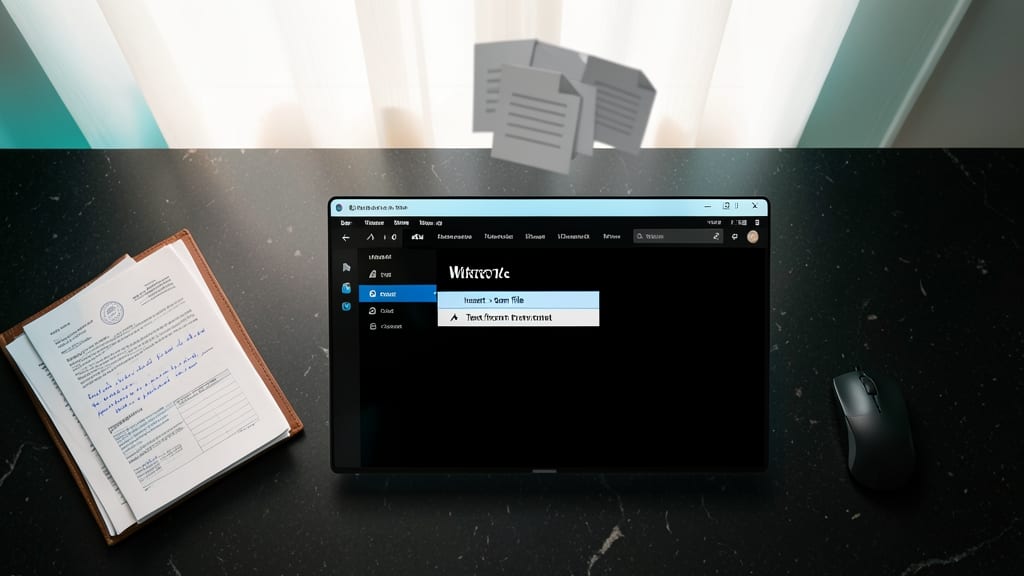
Tired of juggling multiple PDFs for contracts, research, or forms? Word’s PDF merge-and-convert feature turns scattered files into a single, editable document in minutes—no third-party tools required.
Here’s how: Go to Insert > Object > Text from File, select your PDFs, and Word converts them into editable text. For multi-page PDFs, use Insert > Object > PDF to embed them as objects, then copy-paste content into your document. The best part? You can now edit, annotate, or reformat the merged content—ideal for legal teams, students, or anyone organizing digital paperwork.
Perfect for professionals who need to consolidate invoices, research papers, or application forms without losing formatting. ⚡
Use the Navigation Pane for Large Documents
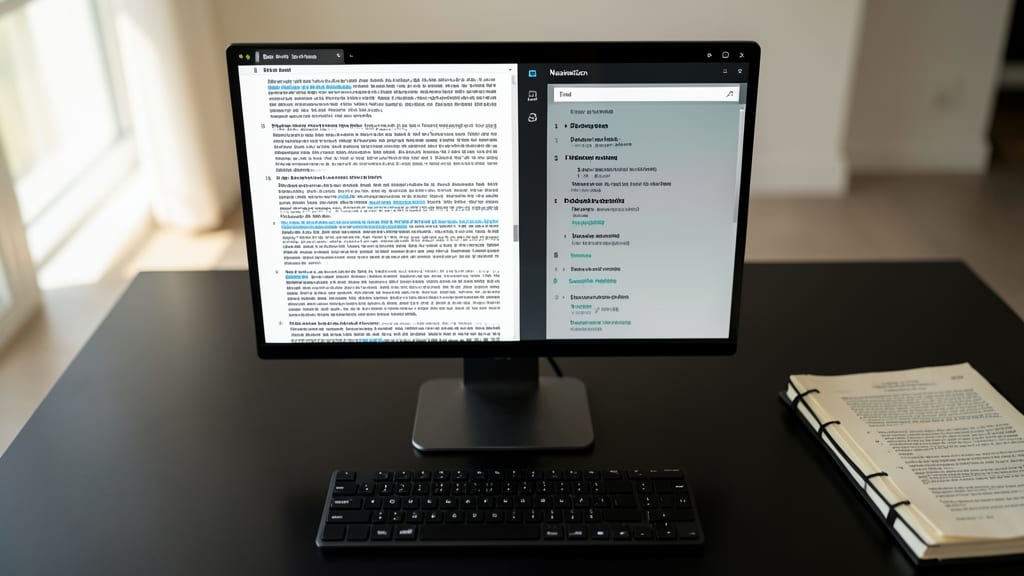
Drowning in a 150-page legal brief or struggling to find that one critical section in a 500-page dissertation? The Navigation Pane in Microsoft Word is your secret weapon—turning chaotic document hunting into a structured, one-click experience. This hidden gem appears when you press Ctrl+F (or click the magnifying glass icon) and displays a live outline of your document’s headings, pages, and even comments—all searchable and collapsible.
With the Navigation Pane, you can instantly jump to page 47, expand a Heading 2 section to review subtopics, or filter by comments to spot pending revisions. It works seamlessly with styles (like Heading 1/2/3) to auto-generate an outline, and even lets you search for text across the entire document—no more endless scrolling. The best part? It syncs with Word Online, so you’re not limited to desktop use.
This trick is a game-changer for legal professionals, academics, and technical writers who juggle dense documents daily. Spend less time searching and more time writing—your future self will thank you. ⚡
Customize the Quick Access Toolbar
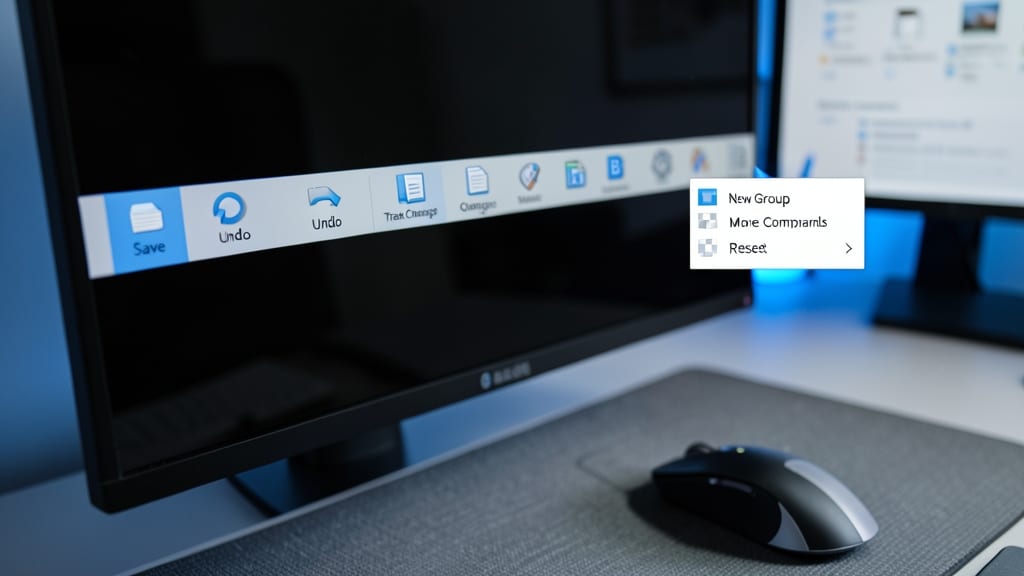
Frustrated by digging through menus to access your most-used commands in Word? The Quick Access Toolbar lets you pin Save, Undo, Track Changes, or even macros to the top of your screen in seconds—no more hunting through ribbons.
Right-click the toolbar to customize it: add buttons for quick formatting, comments, or even your favorite keyboard shortcuts. It syncs across devices (Windows, Mac, and Word Online), so your setup travels with you. Pro tip: drag commands directly from the ribbon to add them instantly.
Perfect for legal editors, academic writers, or anyone drowning in repetitive tasks. Spend less time navigating and more time writing! ⚡