
Software
Microsoft is rolling out a major update to Microsoft Teams by adding a dedicated Reminders feature directly to the menu bar. This change simplifies task management and boosts productivity—here’s how to set it up and use it effectively.
Accessing the New Reminders Feature in Teams
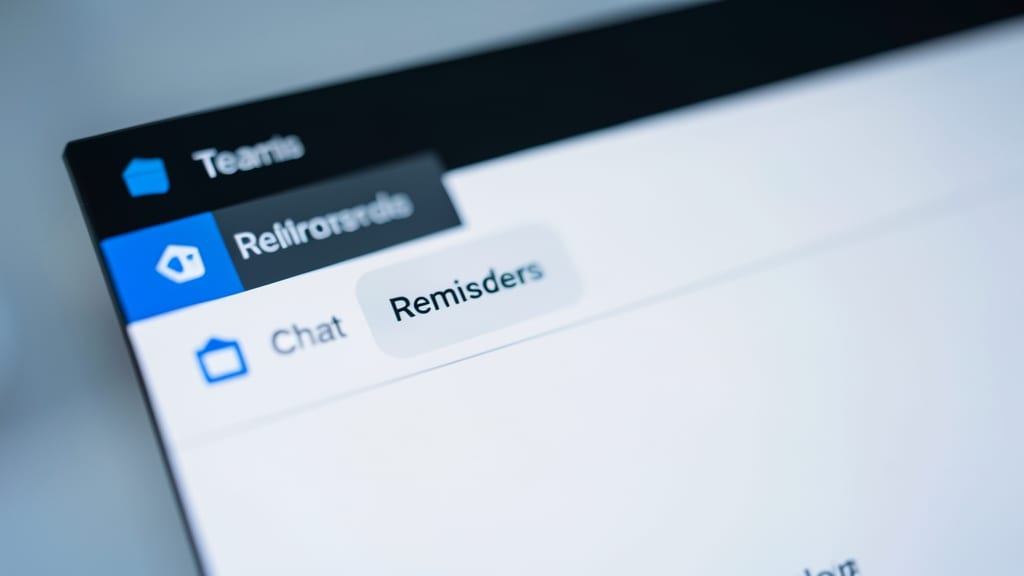
Staring at your Teams menu and wondering where the new Reminders feature disappeared to? Microsoft’s latest update moved it to a more intuitive location—but only if you know where to look. The Reminders icon now lives in the left-hand menu bar, nestled between Chat and Calendar, making it easier to access than ever before.
To find it, simply click the three horizontal lines (☰) in the top-left corner to expand the menu. Scroll down until you spot the bell-shaped Reminders icon (or look for the label "Reminders"). First-time users might miss it because it’s hidden under the "More" (⋯) dropdown—click that if you don’t see it immediately. Once opened, you’ll land in a clean, To-Do-style interface where you can create, organize, and manage reminders without leaving Teams.
This hidden-gem feature is perfect for new Teams users or anyone who’s been using the app for years but never noticed the update. No more hunting through settings—just a simple click to keep your tasks front and center. ✨
Creating Personal Reminders for Daily Tasks
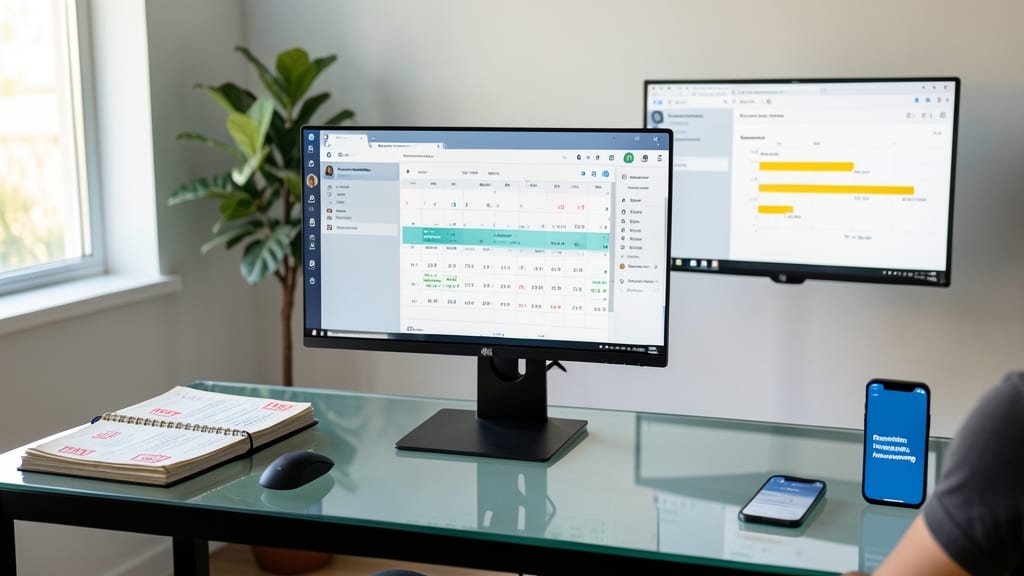
Freelancers and remote workers juggling client deadlines, invoices, and personal errands finally have a single hub for all their reminders—right inside Teams. The new personal reminders feature lets you tie tasks directly to your Microsoft 365 calendar, ensuring nothing falls through the cracks between work and life.
Start by clicking the Reminders icon in the menu bar, then select "Add a reminder." Name your task (e.g., "Submit Q3 report to Client X"), set a due date and time, and choose between email, chat, or desktop alerts. The real game-changer? You can now link reminders to calendar events, so deadlines auto-populate from your Outlook or Teams calendar—no manual entry needed. For recurring tasks (like "Pay rent on the 1st"), enable the repeat option with customizable frequency.
This is your all-in-one task manager for anyone balancing freelance gigs, remote work, and personal goals—no app-hopping required. 💻
Setting Team-Wide Meeting Reminders
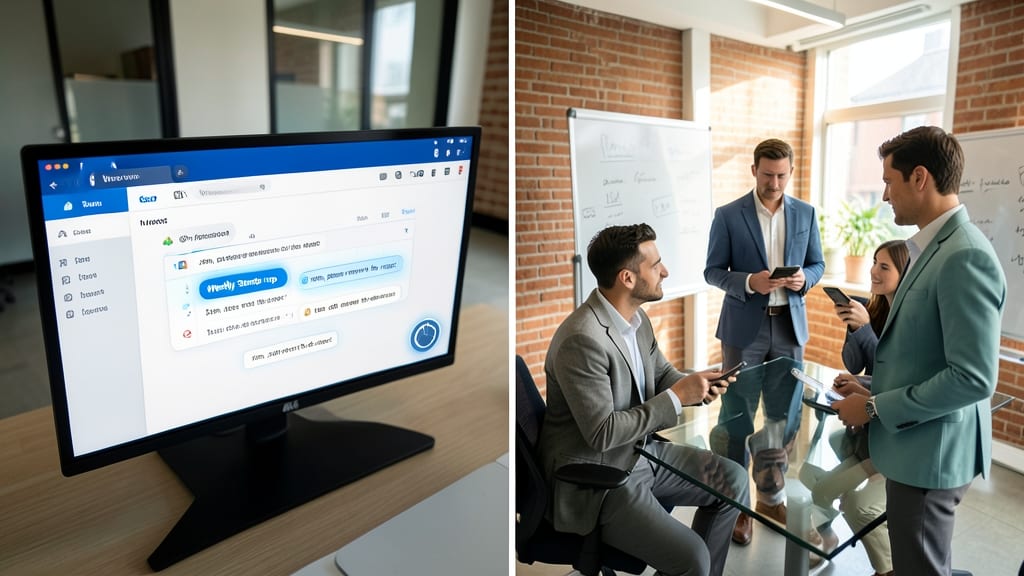
Keeping your team aligned on recurring meetings can feel like herding cats—but Teams Reminders now makes it effortless for leads to schedule team-wide check-ins with built-in calendar sync and @mentions.
Start by creating a recurring reminder (e.g., "Weekly Standup") tied to your team’s shared calendar. Use @mentions to notify participants directly in Teams, and attach meeting agendas or docs for context. The auto-sync with Outlook ensures no one misses deadlines, while customizable alerts (email, chat, or desktop) adapt to your team’s workflow.
Ideal for project managers, scrum masters, or any team lead juggling sprints, this feature turns Teams into your collaborative command center. ✨
Linking Reminders to Microsoft To-Do
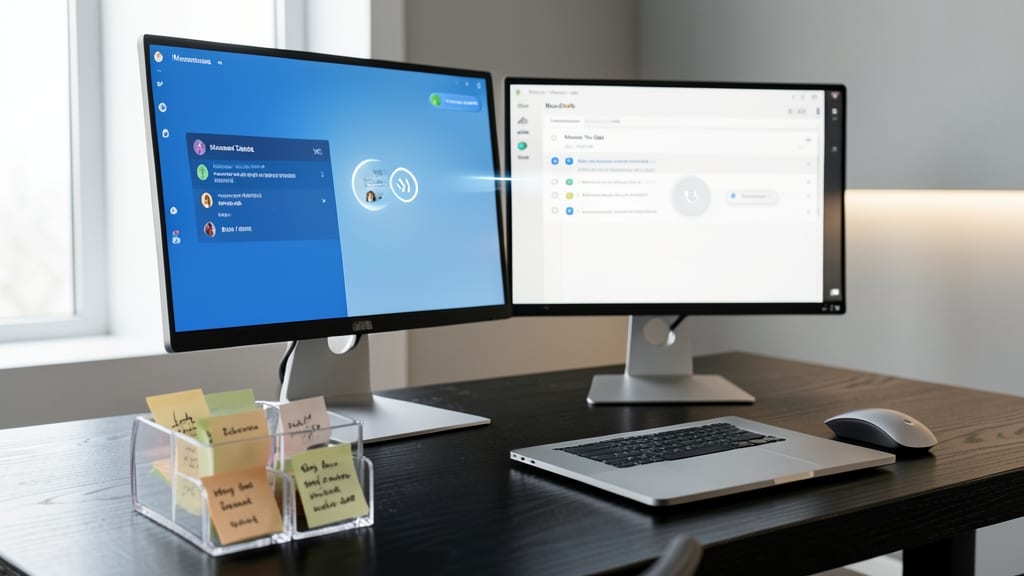
Already juggling tasks across Microsoft To-Do and Teams? The new Reminders integration bridges the gap, letting you sync tasks between both platforms with a single click. This seamless connection ensures your personal and professional tasks stay in one place, eliminating the need to switch apps constantly.
To link your reminders, open the Teams Reminders menu, select a task, and choose "Sync to Microsoft To-Do." The feature supports two-way syncing, so edits in either app automatically update the other. You can also set priority labels and due dates directly in Teams, which reflect in To-Do for consistent organization.
Ideal for Office 365 users who rely on both apps, this integration turns Teams into your unified task hub—no extra setup required. 💡
Customizing Reminder Notifications
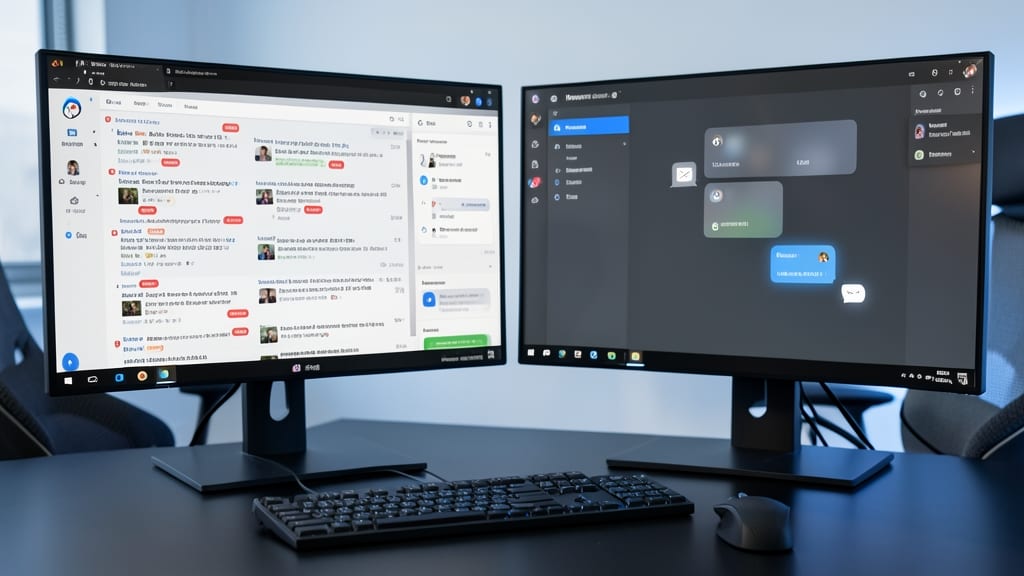
Tired of your inbox flooding with reminders or your Teams chat buzzing nonstop? The new Teams Reminders feature lets you fine-tune notifications to match your workflow—no more alert overload.
You can now choose between email alerts, desktop pop-ups, or Teams chat notifications, and even adjust the frequency (e.g., daily summaries instead of hourly pings). For critical tasks, enable recurring alerts while silencing less urgent ones. The settings sync across devices, so your preferences stay consistent whether you're on desktop or mobile.
Perfect for busy professionals juggling meetings and deadlines, this customization keeps you productive without the chaos. ⚡
Using Reminders for Project Deadlines
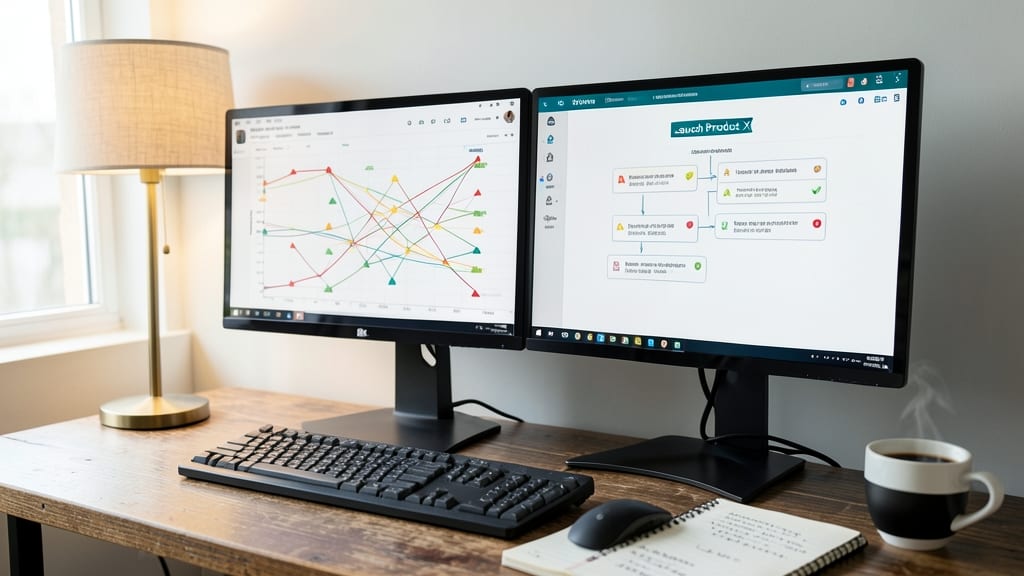
Overwhelmed by sprawling project timelines? The new Teams Reminders feature lets you break complex projects into nested subtasks—each with its own deadline and priority—without switching tools.
Start by creating a parent reminder for the full project (e.g., "Launch Product X"), then add subtasks like "Design UI mockups" or "Test API endpoints." Set due dates for each, and use priority labels (high/medium/low) to flag critical milestones. The visual hierarchy in Teams keeps dependencies clear, while recurring alerts ensure no subtask slips through the cracks.
Perfect for project managers and developers juggling sprints or releases—this turns Teams into a lightweight project management hub without the complexity of full PM tools. ✨
Troubleshooting Common Reminders Issues
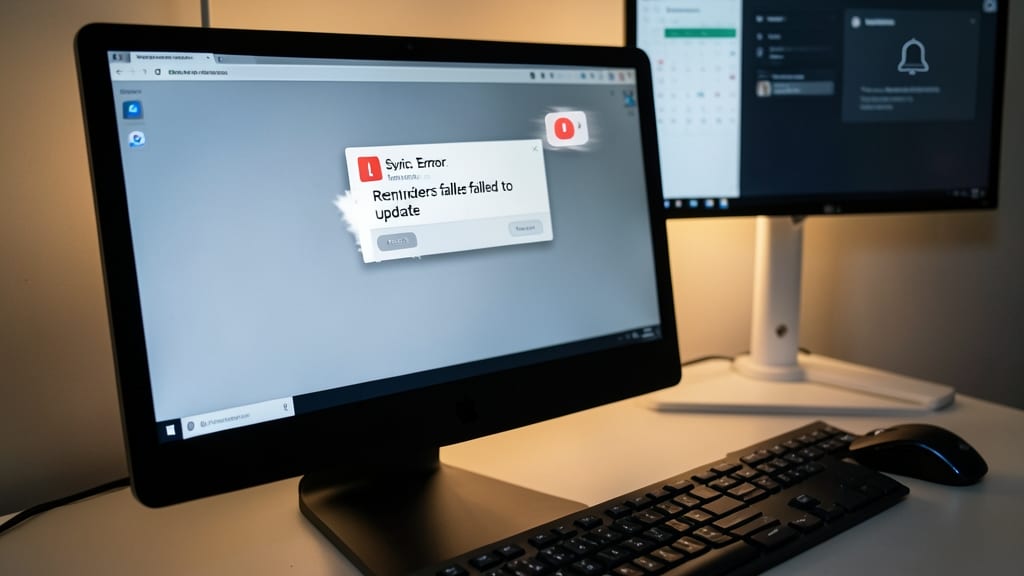
Even the most reliable tools hit snags—like sync errors, vanishing reminders, or notifications that refuse to appear. When Teams Reminders glitches, these quick fixes restore functionality without needing IT support.
Start by clearing cache in Teams (File > Options > Clear Cache) to resolve sync issues. For missing reminders, check your notification settings (Settings > Notifications) and ensure "Teams Reminders" is enabled for your preferred delivery (desktop, email, or mobile). If reminders still disappear, verify your account permissions—some organizational policies restrict access.
Busy professionals and admins will appreciate these zero-config fixes that get reminders back on track in minutes. ⚡