
Tip & Trick
Microsoft OneNote 2013 remains a powerhouse for digital note-taking, but many users miss its most powerful features. These seven hidden tips and tricks will transform how you organize, search, and collaborate—unlocking productivity you didn’t know was possible.
Quick Capture with OneNote Clipper Browser Extension
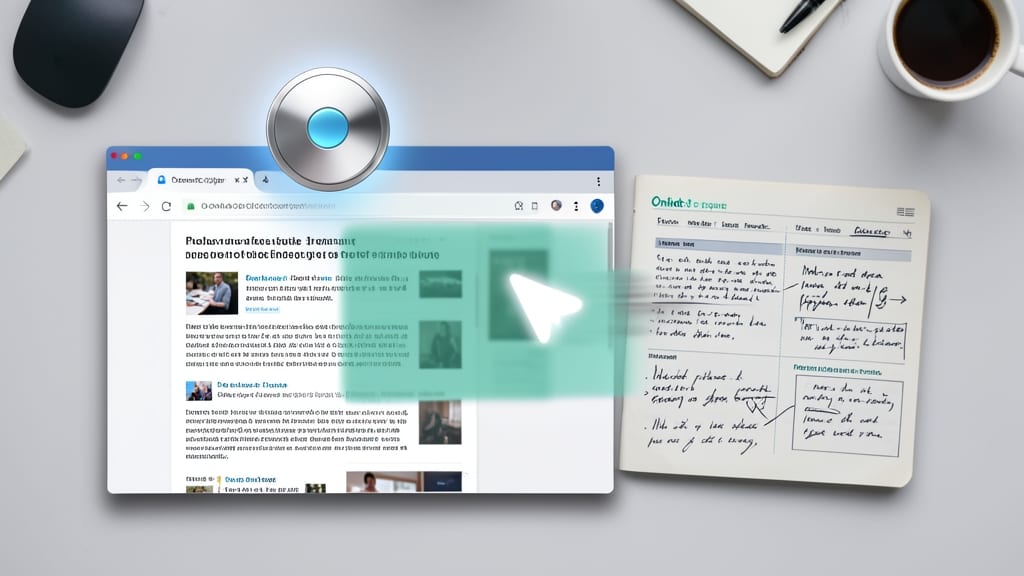
Tired of losing valuable research or inspiration because you couldn’t save it fast enough? The OneNote Clipper browser extension turns your browser into a direct pipeline to your digital notebook, letting you capture entire web pages, articles, or images with a single click—no copying, no pasting, just instant organization.
Install the extension in Chrome, Edge, or Firefox, then use the toolbar button to save full articles, screenshots, or even specific sections of a page directly into your OneNote sections or pages. It preserves formatting, images, and links, so your saved content looks exactly as it did online. The extension even lets you tag content during capture, ensuring it lands in the right notebook or section without extra steps.
This is a lifesaver for academic researchers, content curators, or busy professionals who need to archive web findings without breaking their workflow. No more tab overload or lost bookmarks—just seamless, one-click capture. ⚡
Handwriting to Text Conversion for Searchable Notes
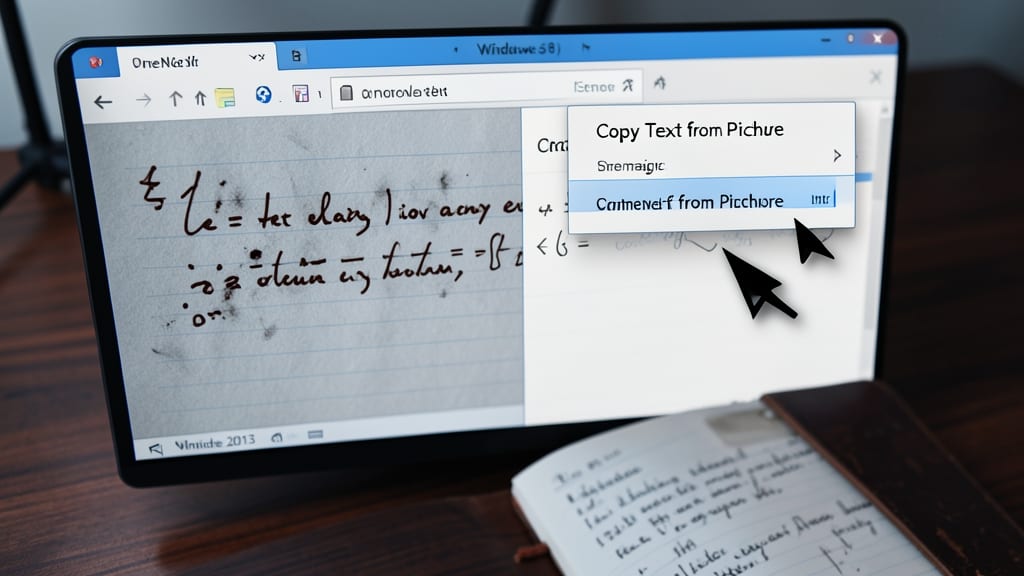
Struggling to digitize handwritten notes without losing the original context? OneNote 2013’s built-in OCR (Optical Character Recognition) bridges the gap between ink and editable text—no extra apps required. Simply right-click any handwritten content, select "Copy Text from Picture", and paste it into Word, email, or even another OneNote page. The magic happens instantly, converting messy scribbles into clean, searchable text.
This feature even handles math equations and tables, making it ideal for engineers or students who sketch diagrams. For messy notes, OneNote’s auto-correction cleans up typos while preserving your original handwriting. The best part? You can search within handwritten notes just like typed text—no more flipping through pages to find that one critical idea.
Perfect for students reviewing lecture notes, meeting attendees capturing action items, or field researchers documenting observations. Say goodbye to transcription headaches and hello to seamless digital workflows. ✨
Tagging System for Categorizing Information Efficiently

Drowning in a sea of digital notes? OneNote 2013’s color-coded tagging system turns chaos into clarity with just a few clicks. Unlike rigid folders, tags let you visually categorize notes by priority (red for urgent, yellow for follow-up), project phases, or even mood—all while keeping everything searchable.
Create custom tags like "@Meeting," "💡Idea," or "📦Action" and apply them instantly to any note. The system syncs across devices, so your tags stay consistent whether you’re on your Windows PC or tablet. Pro tip: Use shortcut keys (Ctrl+Shift+T) to tag faster than typing—perfect for note-takers who value speed and visual cues.
This feature shines for project managers juggling deadlines, students organizing research, or creatives tracking inspiration. Say goodbye to lost notes and hello to a system that works your way. ✨
Audio and Video Recording Directly in Notes
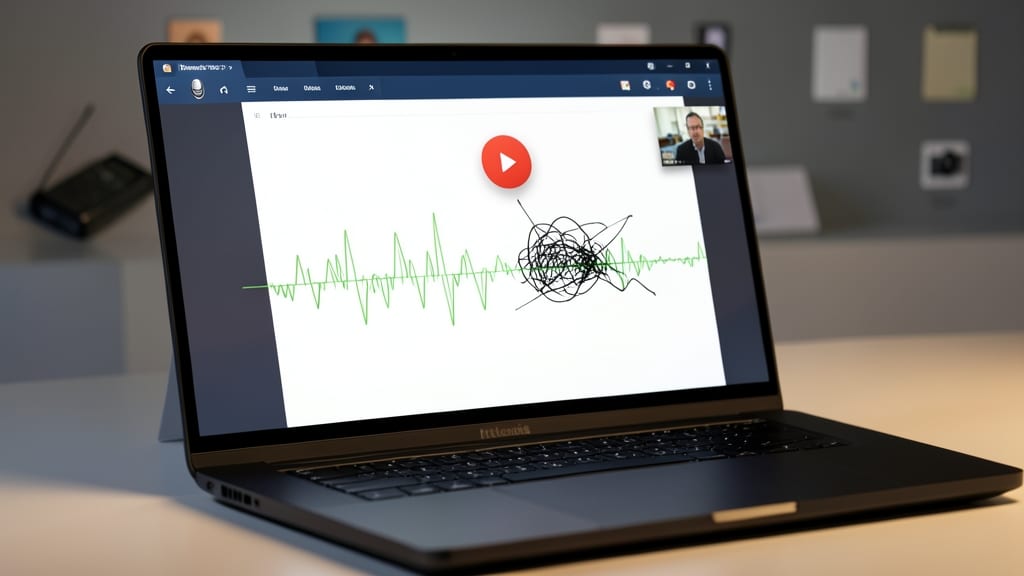
Forget juggling multiple apps—OneNote 2013 lets you record audio and video directly within your notes, creating a seamless workflow for interviews, lectures, or brainstorming sessions. This built-in feature eliminates the need for separate recording software, keeping everything organized in one place.
Simply click the record button in OneNote to capture voice memos or screen recordings, which appear as embedded media files alongside your typed or handwritten notes. The recordings sync automatically with your notebook, making it easy to revisit and annotate later. With support for MP3 audio and WMV video formats, you get professional-quality capture without extra setup.
This is a game-changer for educators, researchers, or anyone who prefers verbal notes over typing. No more switching apps—just record, review, and organize everything in one fluid workspace. ✨
Section Groups for Advanced Organization

When your OneNote notebook grows to hundreds of pages, the default sidebar can feel like a digital junk drawer. Section Groups solve this by nesting related sections into collapsible containers—think of them as digital file folders that hide clutter with a single click.
To create one, right-click any section in the navigation pane, select Add Section Group, then drag sections inside. The group collapses into a single line, revealing only its name and a tiny arrow—perfect for hiding drafts, archived projects, or personal notes. You can even nest groups within groups for deep organizational hierarchies (e.g., "Work" → "Q3 Project" → "Research").
This feature is a lifesaver for freelancers juggling multiple clients, researchers tracking long-term studies, or anyone who wants to keep their workspace tidy without losing access to buried notes. ⚡
Math Equation Solver for Quick Calculations
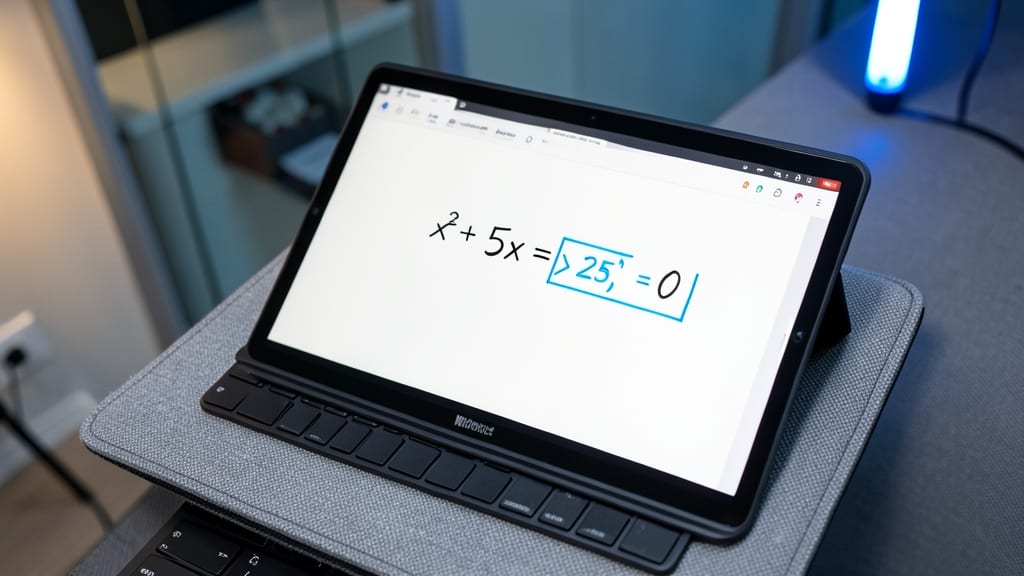
Forget switching apps mid-calculation—OneNote 2013’s built-in equation solver turns your notebook into a pocket-sized math lab. Just write or type an equation (like x² + 5x = 0), and OneNote instantly displays the solution—no calculator app required.
The feature supports basic algebra, calculus, and even matrix operations, with results appearing in a clean, formatted box. It’s especially useful for students solving homework problems or engineers verifying quick calculations—all while keeping your work contained in one seamless workflow.
Ideal for anyone who juggles notes and numbers, this trick saves time and keeps your focus where it belongs: on the problem, not the tool. ✨
Offline Access and Auto-Sync Settings
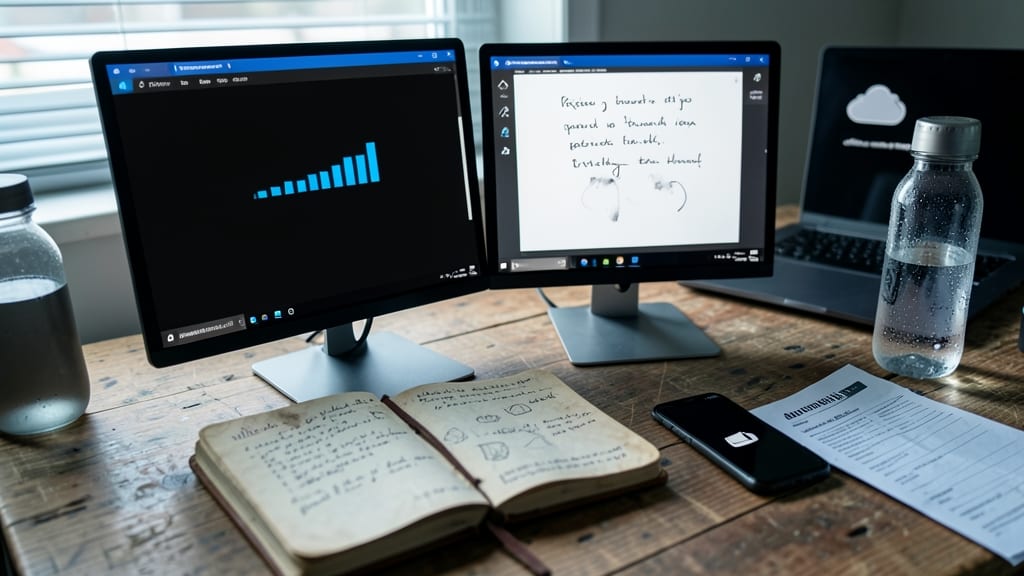
Ever found yourself stuck in a meeting with spotty Wi-Fi or jotting down critical notes while hiking without cell service? OneNote 2013’s offline mode is your secret weapon—it lets you access and edit notes seamlessly, even when the internet drops. Simply enable it in the File menu under Account, and your notebook becomes a fully functional digital notebook, ready for action.
Once you’re back online, OneNote’s auto-sync feature kicks in automatically, merging your offline changes with cloud updates without lifting a finger. This two-way sync works for text, images, and even handwritten notes, ensuring nothing gets lost. The best part? You can set a sync schedule to avoid interruptions during critical tasks, like presentations or fieldwork.
This feature is a game-changer for field researchers, remote workers, or anyone who relies on OneNote in unpredictable environments. No more worrying about connectivity—just focus on capturing what matters. ⚡