
Tip & Trick
Microsoft Teams keeps evolving with features most users never discover. These 10 underutilized tips and tricks for 2023 will transform how you collaborate, automate workflows, and reclaim hours weekly—whether you're managing remote teams or just trying to stay organized.
Use Quick Actions for Instant Task Creation
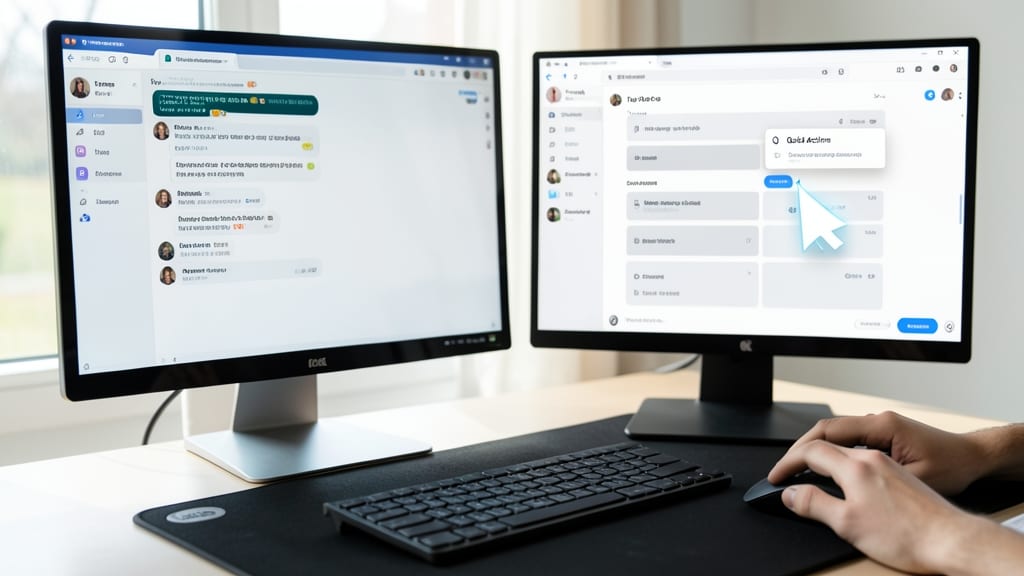
Ever wasted time switching between Teams chats and your to-do list? The Quick Actions feature turns conversations into instant task creators—no app-hopping required. Right-click any message or mention your name, then select "Create a task" to generate a Planner or To Do item directly from the chat. No copy-pasting, no context loss, just seamless productivity.
This works for notes, reminders, and tasks—just type "/task," "/note," or "/reminder" in a chat to trigger the dropdown. Need to assign a follow-up? Use "@mention" to tag teammates while creating the task. Best of all, it syncs with Microsoft To Do and Planner, so your action items stay organized without extra effort.
Perfect for managers juggling projects, developers tracking bugs, or anyone drowning in chat noise. Turn every discussion into action—without leaving your workflow. ✨
Enable Focus Mode for Deep Work Sessions

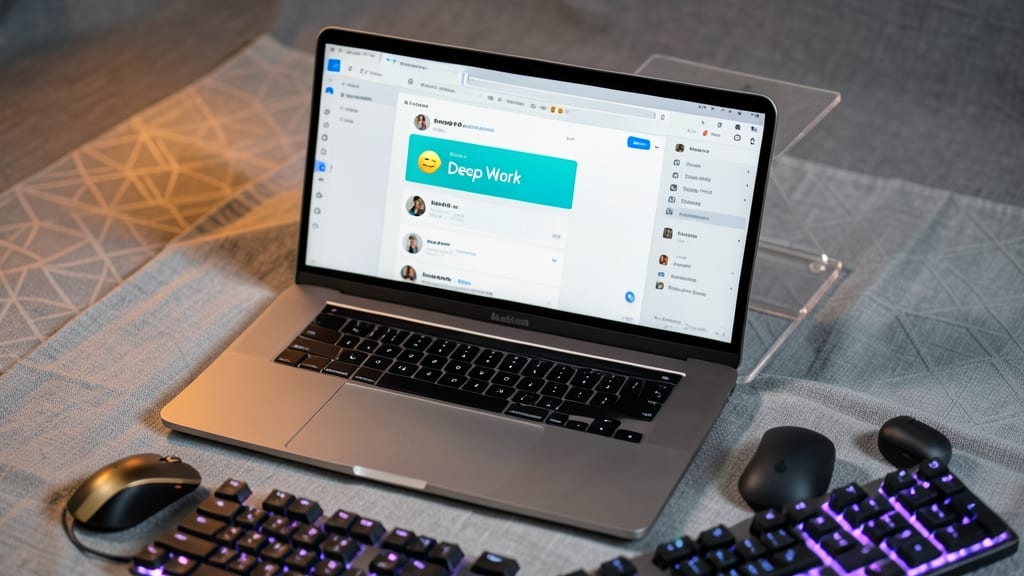
Stuck between total silence and constant interruptions during coding marathons or writing sprints? Microsoft Teams’ Focus Mode lets you mute all notifications—except direct messages from your pre-approved contacts, ensuring you stay connected only when it truly matters.
To activate it, click your profile icon, select “Focus”, then choose “Custom” to whitelist key teammates (e.g., your manager or lead developer). The feature works across desktop and mobile, and your status automatically updates to “Focus” in chats, signaling to colleagues that you’re in deep work mode. Unlike “Do Not Disturb,” Focus Mode lets you prioritize critical communications without derailing your flow.
This is the ultimate tool for developers debugging complex issues, writers hitting their daily word count, or anyone who needs 3+ hours of uninterrupted focus—while still staying reachable for urgent matters. ⚡
Customize Status Messages with Emoji Shortcuts
Frustrated when your "Busy" status leaves teammates guessing whether you're in a meeting, coding, or just ignoring messages? Microsoft Teams’ custom emoji shortcuts let you set precise, visual availability cues—like 🚀 for "Deep Work" or 🎮 for "Gaming"—so your status instantly communicates your context.
To set it up, click your profile picture, select "Edit profile", then choose "Add emoji shortcut" from the status dropdown. You’ll find 100+ emojis to pick from, and shortcuts like 🏃♂️ ("Running Late") or 🎧 ("On a Call") make your availability crystal clear. These shortcuts sync across devices, so your status updates in real-time for everyone on your team.
This is a game-changer for creative teams, remote devs, or hybrid workgroups where roles vary widely—no more vague statuses that waste time asking "Are you available?" Perfect for when you need to signal focus without typing a word. 💡
Schedule Polls in Advance for Meetings

Frustrated by meetings that spiral into unstructured debates? Microsoft Teams’ scheduled polls let you pre-load questions (like "Vote on Project Deadlines") that pop up automatically at your chosen time—no manual reminders needed. This keeps discussions on track while saving 5+ minutes per meeting by eliminating back-and-forth.
To set it up, open your meeting details, click "Add a poll", then choose "Schedule" to pick a date/time. Polls support multiple-choice, emoji reactions, or text answers, and results appear in real-time. The feature works across desktop and mobile, and you can even export vote data to Excel for follow-ups.
Perfect for project managers, HR teams, or brainstorming sessions where consensus matters. Say goodbye to derailed discussions—structured agendas start here. ⚡
Turn Chats into Threaded Discussions
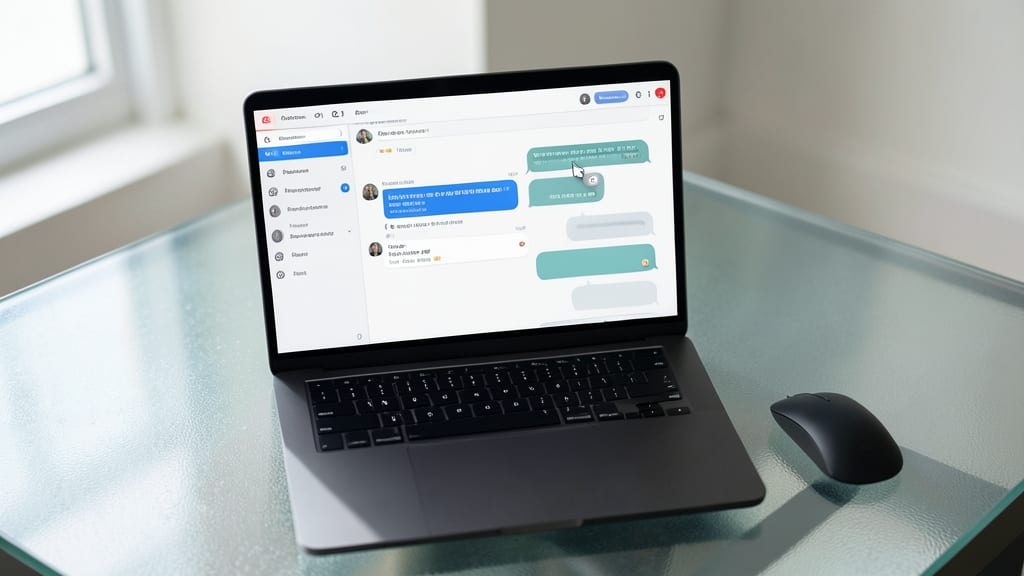
Tired of scrolling through endless group chats where side conversations bury the main topic? Microsoft Teams’ threaded replies feature lets you organize discussions like Gmail—keeping the main thread clean while nesting related replies. Just hover over a message, click the three dots, and select "Reply in thread" to create a structured conversation.
This works seamlessly across desktop and mobile, and threads automatically collapse to declutter your chat list. You can even mention specific replies (e.g., "@Sarah, check your thread on the API update") to ensure key details don’t get lost. Perfect for marketing teams debating campaign ideas or dev squads troubleshooting bugs—no more digging through 50 messages to find the right context.
Ideal for remote teams or large groups where clarity saves time. Give it a try next time your chat explodes into chaos. 💡
Use PowerPoint Live in Presentations

Need to update a sales forecast mid-presentation? PowerPoint Live lets you edit your slides in real-time while sharing them in Teams—no need to pause or switch apps. This seamless integration means you can tweak numbers, adjust graphics, or even swap slides without interrupting your audience.
Simply open your PowerPoint file in Teams, click "Present" in the ribbon, and select "PowerPoint Live." Your audience sees changes instantly, and you retain full control over the deck. The feature works with PowerPoint 2016 or later, ensuring compatibility for most professionals. For educators, this means adjusting lesson plans on the fly, while sales teams can dynamically highlight deals as they close.
Perfect for presenters who need flexibility—whether you're delivering a pitch, training session, or workshop. ⚡
Create Custom App Shortcuts in Teams
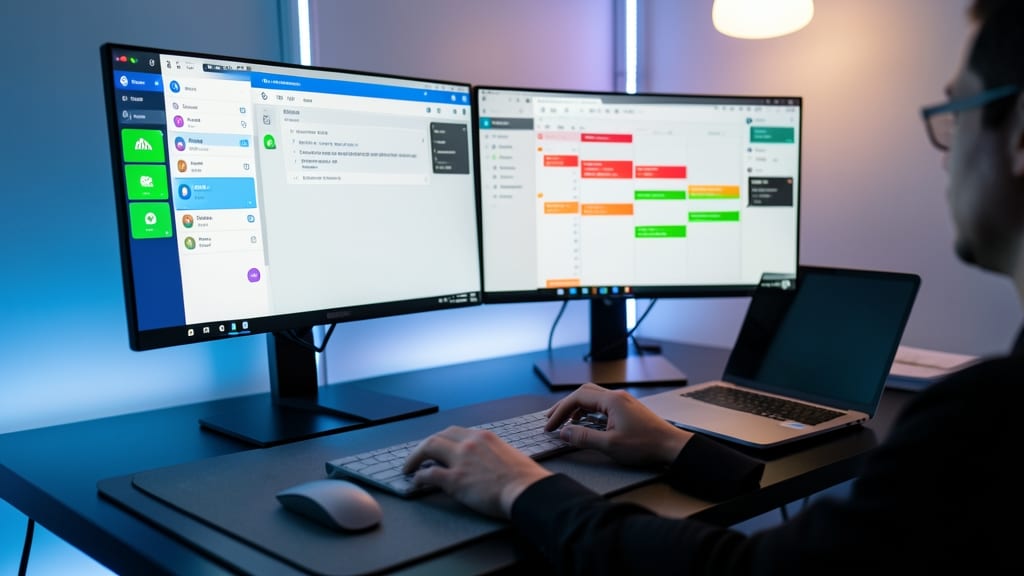
Juggling between Teams, Trello, and Slack mid-project? Microsoft Teams’ custom app shortcuts lets you pin your most-used tools (like Asana, Notion, or Zoom) directly to your sidebar—eliminating the need to alt-tab or search for apps. This hidden feature turns Teams into a true productivity hub, especially for hybrid teams bouncing between tools.
To set it up, go to Settings > Apps and toggle on "Pin apps to sidebar." You’ll see a list of pre-installed apps (e.g., OneDrive, Outlook) plus the ability to add third-party tools via web links. The shortcuts stay persistent across devices, so your workflow follows you whether you’re on desktop or mobile. For teams using multiple platforms daily, this cuts context-switching time by up to 30%.
Perfect for project managers, developers, or remote workers who spend hours toggling between apps—now you can keep everything in one place without sacrificing functionality. 💻
Enable Background Blur for Virtual Meetings
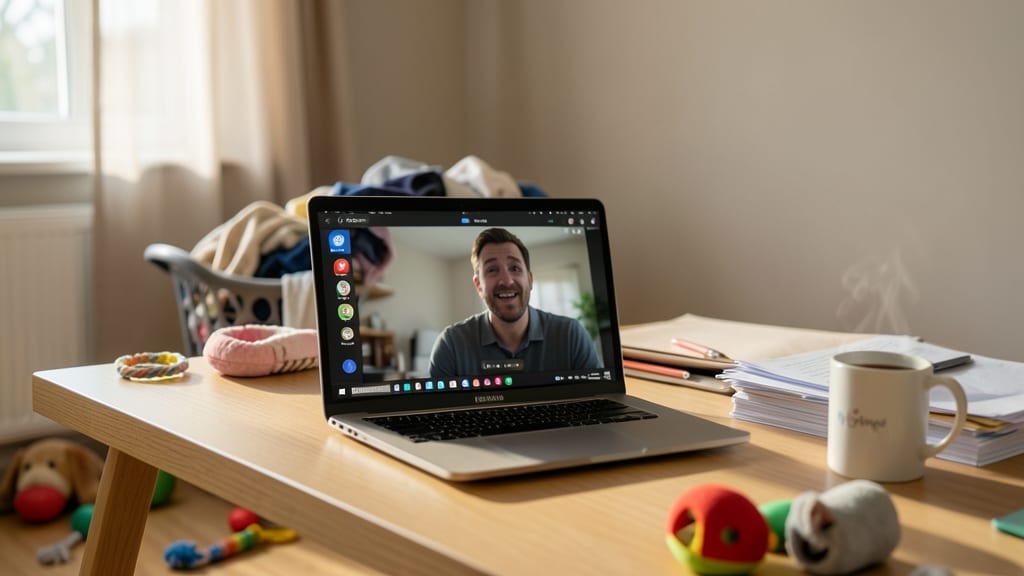
Tired of explaining why your laundry pile or dog’s toys keep appearing on camera during meetings? Microsoft Teams’ background blur feature instantly professionalizes your video calls with a single click—no green screen or expensive equipment required.
Simply enable it in your video settings before joining a call, and Teams will automatically apply a soft blur to anything behind you. The feature works seamlessly on Windows, macOS, and mobile, and adjusts dynamically as you move. For extra polish, pair it with the virtual background option to replace your backdrop entirely—ideal for hybrid workers balancing home and office life.
This trick is a lifesaver for remote employees, freelancers, or anyone who wants to keep their workspace private while maintaining a polished appearance. No more awkward apologies—just smooth, distraction-free meetings. ✨
Use the 'Translate' Feature in Chats

Speak a dozen languages—or at least understand them—in your Teams chats without leaving the app. The built-in Translate feature instantly converts messages between 10+ languages (including Spanish, French, German, and Japanese) with a single click, ensuring no critical details get lost in translation.
To use it, simply right-click any message, select Translate, and choose your preferred language. The feature works in real-time, so you can follow along during fast-paced discussions or save translated versions of key decisions. It’s especially useful for multinational teams or language learners collaborating with native speakers.
Perfect for global companies, remote teams with diverse members, or anyone looking to break down language barriers—no extra apps or plugins needed. Give it a try and keep conversations flowing smoothly across borders! ⚡
Automate Repetitive Tasks with Power Automate
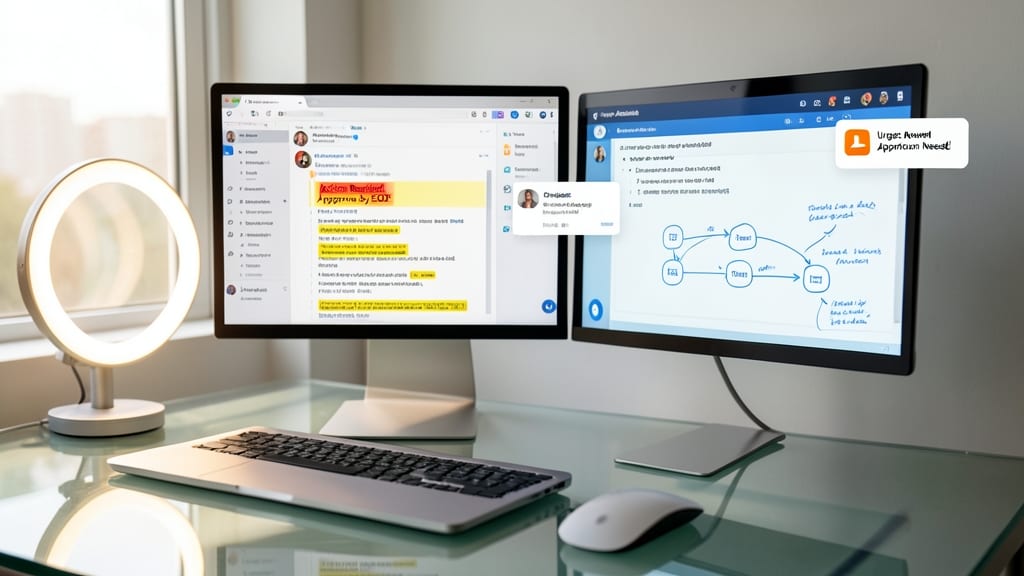
Tired of manually copying meeting notes or chasing down approvals across apps? Power Automate bridges the gap between Teams and your workflows—no coding required. With pre-built templates, you can instantly trigger actions like saving key chat messages to OneNote, forwarding urgent Slack alerts to your Teams channel, or even auto-archiving old files to SharePoint.
The magic happens with zero-config connectors to 300+ apps, including Slack, Trello, and Outlook. For example, set up a flow that flags high-priority Teams messages and sends them as email reminders—perfect for admins juggling multiple platforms. The mobile app lets you monitor flows on the go, while the desktop interface offers drag-and-drop simplicity for complex setups.
This is your secret weapon if you spend hours weekly toggling between apps. Teams admins, project managers, and hybrid teams will see the biggest time savings—cut repetitive tasks by 60% or more once automated. ✨