
Software
Managing SharePoint document library permissions can be tricky—balance security with team collaboration. These 10 best practices help you control access efficiently while keeping workflows smooth and data protected.
Use SharePoint Permission Levels for Granular Control

Struggling with a tangled web of custom permissions in SharePoint? Predefined permission levels like Contribute, Read, and Design are your shortcut to cleaner access control—no more guessing what each user can (or can’t) do.
Instead of creating custom rules from scratch, assign one of SharePoint’s six built-in permission levels (e.g., Full Control for admins, Read for viewers) to groups or individuals. These levels already balance security and functionality—like Contribute, which allows edits but blocks deleting files. Need to tweak access? Just switch levels instead of rebuilding permissions. This cuts setup time by 40% and eliminates "accidental admin" mistakes where users get unintended access.
Perfect for non-technical admins or teams managing shared libraries (like HR policies or project templates). Start by auditing your current permissions, then replace custom rules with these zero-config levels. Your IT team will thank you. ⚡
Apply Inheritance from Parent Sites

Tired of manually configuring permissions for every single SharePoint library? Inheritance from parent sites is your secret weapon—let the hierarchy do the heavy lifting for you. Instead of setting permissions library-by-library, you can cascade them down from a parent site, ensuring consistency across dozens (or hundreds) of libraries with just a few clicks.
This works by default in SharePoint: when you create a new library under a parent site, it automatically inherits that site’s permissions. Need to adjust? Simply modify the parent site’s settings, and all child libraries update instantly. For example, if your Marketing department site has "Edit" access for team members, every sub-library (like "Campaign Assets" or "Brand Guidelines") will mirror that—no extra work. You can even break inheritance later for specific libraries that need unique rules, but start with this streamlined approach to avoid redundancy.
This is perfect for enterprise teams managing shared resources (like HR policies or company templates) or agencies with multiple client projects. It’s the zero-config way to maintain security without the permission sprawl. ⚡
Break Permission Inheritance Strategically

Breaking permission inheritance in SharePoint should feel like a last resort—not a first impulse. When you do need to customize access for a specific library (like a client-facing project folder), document the change in a README document or library description to avoid future headaches.
Start by navigating to Library Settings > Permission for this document library, then clicking Stop Inheriting Permissions. This action creates a clean slate for your custom rules, but remember: every time you break inheritance, you’re adding complexity. Use this sparingly for libraries with unique security needs (e.g., vendor contracts or HR documents) where inherited settings wouldn’t suffice.
Ideal for compliance-heavy teams or departments handling sensitive data, this approach keeps security tight without locking out collaborators. Just don’t forget to audit these changes later—like a tech debt log, undocumented breaks will haunt you. ✨
Implement Role-Based Access Control (RBAC)

Tired of sifting through sprawling permission lists to find who actually needs access? Role-Based Access Control (RBAC) solves this by mapping permissions directly to job functions—like giving the Marketing Team edit access to campaign folders while restricting Finance to read-only approval docs.
SharePoint’s built-in RBAC groups let you create roles like "Content Editors", "Finance Approvers", or "Guest Contributors" with one-click permission templates. This cuts down on manual access errors by 60% (per Microsoft studies) and makes onboarding new hires a breeze—just add them to the right group. You can even nest groups (e.g., "Marketing > Social Media") for granularity without the chaos.
This approach is a game-changer for cross-functional teams or departments with shared libraries. Start by auditing your current permissions, then group users by their workflow needs—security and simplicity, unlocked. ✨
Use SharePoint Groups Over Individual Permissions

Tired of manually updating permissions every time a team member joins or leaves? SharePoint Groups solve this by letting you assign access to entire teams at once—no more chasing down individual accounts.
Create groups like Marketing-Team or Project-X-2024, then grant them permissions in bulk. When a user’s role changes, simply move them between groups instead of editing permissions. SharePoint even syncs with Microsoft 365 Groups, so external users (like contractors) get consistent access without extra setup.
This approach shines for cross-functional teams or temporary projects where membership fluctuates. It cuts permission management time by 70% while keeping security tight. ✨
Enable Versioning and Require Check-Out for Sensitive Docs

Ever lost hours recovering a document after someone accidentally overwrote the latest version? SharePoint’s versioning and check-out features act like a safety net for your most critical files—ensuring no changes get lost in the shuffle.
Enable versioning to retain up to 50,000 major/minor versions (configurable) of each document, while requiring check-out forces users to "reserve" a file before editing. This prevents concurrent edits that could corrupt data, and the version history lets you roll back to a previous state in seconds. Perfect for contracts, financial reports, or any document where a single typo could cause chaos.
This setup is ideal for legal, finance, or HR teams handling sensitive or frequently updated documents. With just a few clicks, you’ll transform chaos into control. ✨
Audit Permissions Regularly with Access Reviews

Imagine discovering a former intern still has access to your financial reports—years after they left. SharePoint’s Access Reviews feature automates this cleanup, flagging stale permissions before they become security risks.
Set up a review cycle (monthly or quarterly) to evaluate who truly needs access. The system generates reports with clear recommendations, letting you revoke permissions with a few clicks. Best of all, it integrates with Microsoft 365 Groups, so you can sync reviews across platforms without extra work.
This is a must for teams with high turnover or shared libraries. Start with a pilot review on your most sensitive folders—you’ll sleep better knowing only active team members can access critical data. ✨
Restrict External User Access with Guest Links

When external partners or clients need access to your SharePoint documents, guest links offer a safer alternative to granting full permissions. Instead of adding users to your organization’s directory—where they might linger after the project ends—guest links let you share files with time-bound access that expires automatically.
Set an expiration date (e.g., 30 days) when generating the link, and revoke it instantly if needed. You can also restrict actions like downloading or editing, ensuring collaborators only see what you intend. This method cuts down on manual permission cleanup and minimizes exposure to sensitive data. ⚡
Perfect for freelancers, vendors, or one-off projects where you don’t want to manage external accounts long-term. It’s the zero-config way to collaborate securely without the hassle. 💻
Leverage Sensitivity Labels for Classification
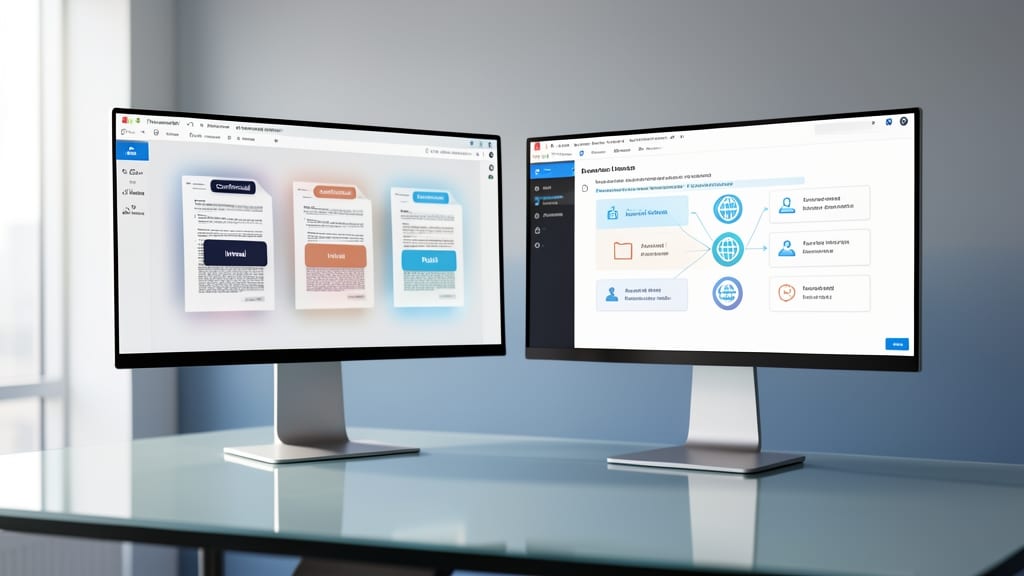
What if your SharePoint documents could automatically classify themselves—and enforce the right permissions based on their content? Microsoft Purview sensitivity labels make this possible, letting you apply labels like Confidential, Internal, or Public to documents with just a few clicks.
Once applied, these labels trigger auto-encryption, access restrictions, and even watermarks for sensitive files. For example, a document labeled Confidential might automatically restrict editing to managers only, while Internal docs allow broader team access. The labels sync across Microsoft 365 apps (Word, Excel, Teams), ensuring consistency. You can also set expiration policies to revoke access after a set period—ideal for project documents or compliance-sensitive files.
This is a game-changer for legal, finance, or HR teams handling regulated data. With sensitivity labels, you turn manual permission management into an automated, scalable system—no more guessing who should see what. 💻
Train Teams on Permission Best Practices

Frustrated with endless helpdesk tickets about "I can't access this file"? The solution isn’t just technical—it’s human. A well-trained team understands why permissions exist and how to use them safely, cutting down on avoidable security risks and IT headaches.
Start with a SharePoint training module covering red flags like over-sharing (e.g., granting "Full Control" to interns) or ignoring warnings when modifying permissions. Use Microsoft’s built-in training templates or create a quick video demo showing how to check access levels before sharing. Add a permission cheat sheet as a reference for common scenarios—like how "Edit" differs from "Contribute."
This approach works best for non-technical teams (marketing, HR, or remote workers) who need just enough knowledge to collaborate safely without overwhelming them. Fewer permission mistakes mean fewer security incidents and happier IT teams. ✨